
Getting an LLM to return structured JSON output reliably usually requires extra work: writing a system prompt that demands JSON, handling cases where the model doesn't comply, parsing the response, and validating the schema. If you're doing this in Python, it's manageable. If you're repeating it across multiple pipelines, it becomes repetitive boilerplate.
AI-Flow has a dedicated node for this: GPT Structured Output. You define a JSON Schema, connect your data, and the model always returns a valid object matching that schema. No parsing code. No validation loop. This article walks through a practical pipeline built with it.
How structured JSON output works in AI-Flow
The GPT Structured Output node uses OpenAI's native structured output mode. You pass it three things:
- Context — the data you want the model to process (a document, a customer message, a product description, anything text-based)
- Prompt — the task instruction (e.g., "Extract the job title, company, and required skills from this posting")
- JSON Schema — the exact structure you expect back
The node enforces strict mode automatically, so the model is constrained to always return a valid object. You get a native JSON output — not a string that contains JSON — which means downstream nodes can work with it directly.
If you prefer Gemini models, there's also a Gemini Structured Output node with the same interface, supporting Gemini 2.5 Flash, 2.5 Pro, and newer Gemini 3 models.
Your API keys (OpenAI or Google) are stored in AI-Flow's secure key store, accessible from the settings tab — you configure them once and all nodes can use them.
Workflow example: extracting structured data from job postings
The scenario: you have raw job posting text and want to extract a clean, consistent object with the title, company, location, salary range, and a list of required skills — for every posting, in the same format.
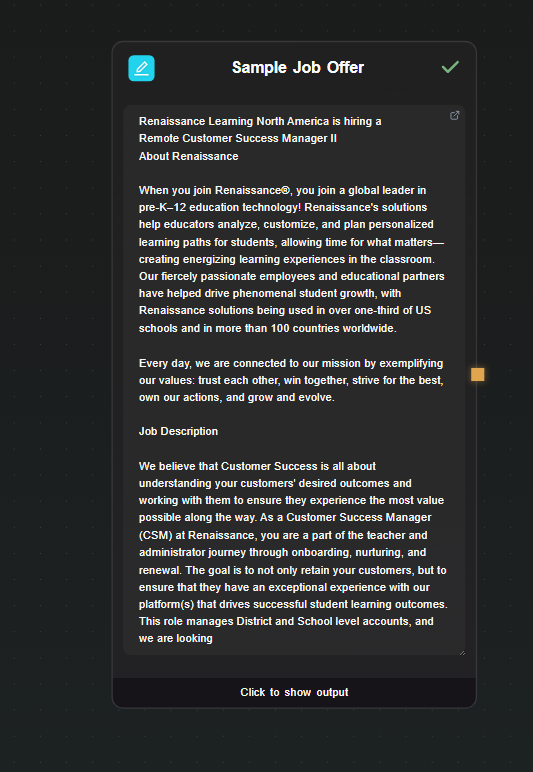
Step 1 — Add a Text Input node
Drop a Text Input node on the canvas. Paste a raw job posting into it. This is your data source; in a real pipeline you'd connect this to an API input or a scraping node, but for testing a direct input works fine.
Step 2 — Add the GPT Structured Output node
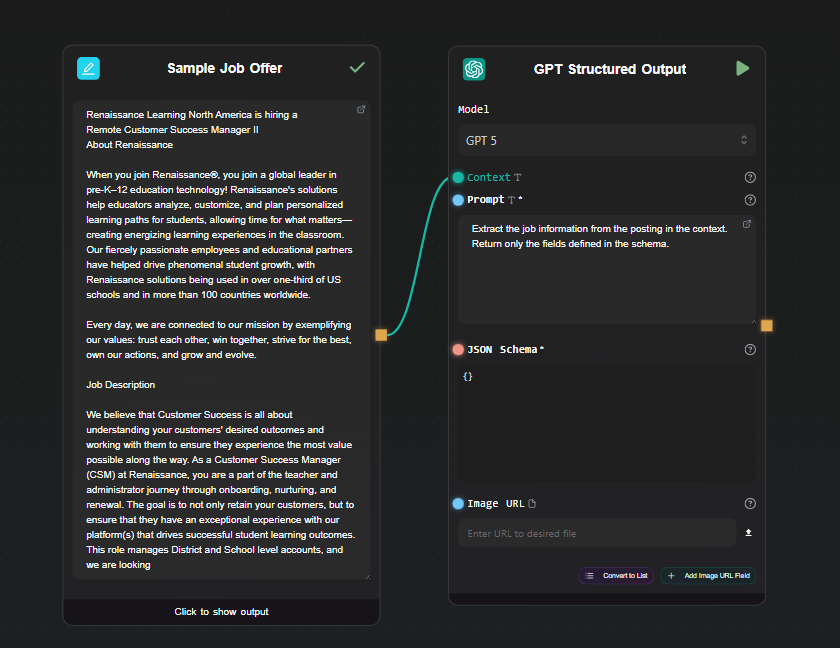
Drop a GPT Structured Output node on the canvas. Connect the output of the Text Input node to its Context field.
In the Prompt field, write the extraction instruction:
Extract the job information from the posting in the context.
Return only the fields defined in the schema.
Select your model — GPT-4o-mini is sufficient for extraction tasks and is cheap to run.
Step 3 — Define the JSON Schema
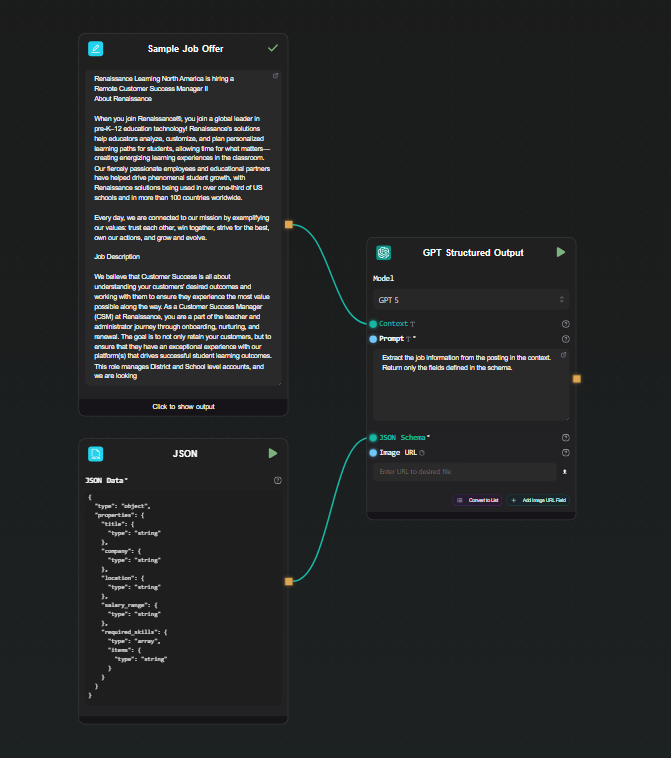
In the json_schema field, enter the structure you want back:
{
  "type": "object",
  "properties": {
    "title": { "type": "string" },
    "company": { "type": "string" },
    "location": { "type": "string" },
    "salary_range": { "type": "string" },
    "required_skills": {
      "type": "array",
      "items": { "type": "string" }
    }
  }
}
That's the full configuration. AI-Flow handles the strict mode enforcement internally — you don't need to add required arrays or additionalProperties: false yourself, the node does it before sending the request to the API.
Step 4 — Run and inspect the output
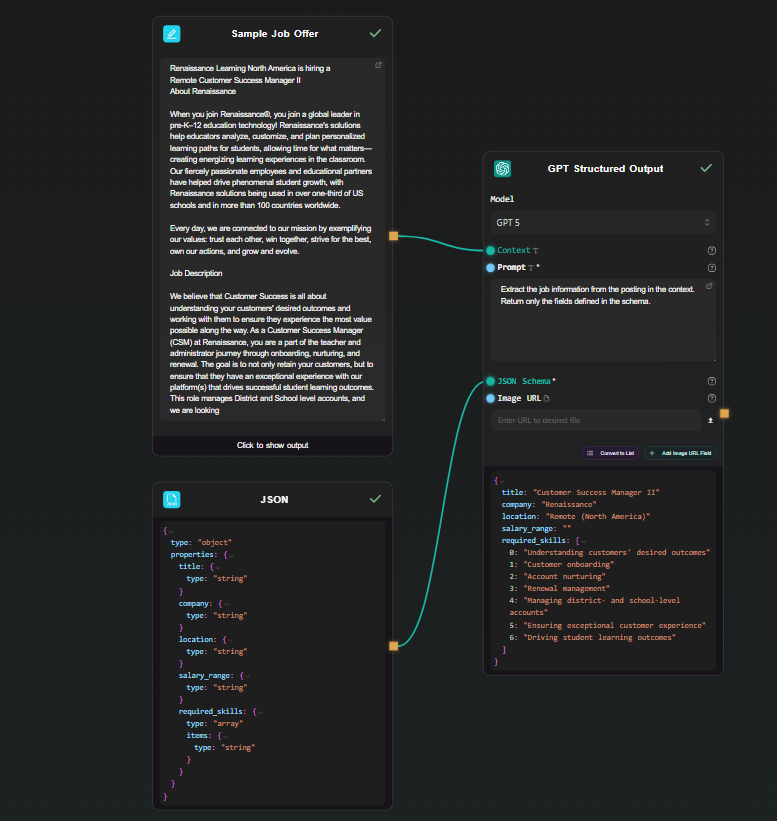
Hit Run. The result appears beneath the node as a JSON object:
{
  "title": "Senior Backend Engineer",
  "company": "Acme Corp",
  "location": "Remote",
  "salary_range": "$130,000 – $160,000",
  "required_skills": ["Go", "PostgreSQL", "Kubernetes", "gRPC"]
}
Every run returns the same structure. Change the input text and run again — the schema stays consistent across all inputs.
Step 5 — Use the output downstream
Because the node outputs native JSON, you can connect it to other nodes without any conversion step.
Extract a single field: Connect the GPT Structured Output node to an Extract JSON node. Set the mode to Extract Key and enter required_skills. The output is just the skills array — useful if you want to pass it to another prompt or format it separately.
Format the result as text: Connect to a JSON Template node. Write a template like:
**${json.title}** at ${json.company}
Location: ${json.location}
Salary: ${json.salary_range:Not specified}
Skills: {% for skill in json.required_skills %}${skill}, {% endfor %}
The JSON Template node supports path access, loops, conditionals, and fallback values — it turns the structured object into whatever text format you need downstream.
When to use Gemini Structured Output instead
The Gemini Structured Output node works identically from a workflow perspective — same fields, same JSON schema interface, same native JSON output. Use it when:
- You already have a Gemini API key and want to keep costs on one provider
- You need to process files alongside text (the Gemini node accepts file URLs, including PDFs and images)
- You want to compare output quality between GPT and Gemini on your specific extraction task — both nodes can sit on the same canvas for easy side-by-side testing
Exposing the pipeline as an API
Once the extraction workflow is working, you can expose it as a REST endpoint using AI-Flow's API Builder. Add an API Input node in place of the Text Input node and an API Output node at the end. AI-Flow generates an endpoint and a key — you POST the raw text, get back the structured JSON. No server to maintain, no framework to configure.
This is useful for integrating the extraction pipeline into a larger application without copying the LLM logic into your codebase.
Starting from a template
If you'd rather start from an existing pipeline than build from scratch, the AI-Flow templates library has data extraction and processing workflows you can adapt. Load one, swap the schema and prompt for your use case, and run.
Try it
The GPT Structured Output node is available on the AI-Flow free tier. You need an OpenAI API key — add it once in the key store under settings, and it's available to all nodes in all your workflows.