
Most platforms that let you use Claude either charge a markup on top of Anthropic's pricing or lock you into their managed model access. AI-Flow takes the opposite approach: you bring your own Anthropic API key, it gets stored in an encrypted key store, and every Claude node in every workflow draws from it automatically. You pay Anthropic directly at their standard rates — nothing extra on the model cost side.
This article covers how to set it up, what the Claude node actually does, and a practical workflow to run once everything is connected.
Why BYOK matters for Claude
When you use Claude through a third-party platform without BYOK, you're often paying a percentage on top of Anthropic's input/output token rates. For light use, this is barely noticeable. For any workflow that runs frequently — summarization pipelines, classification at scale, document processing — the markup compounds quickly.
With a BYOK setup in AI-Flow, the cost for a Claude call is exactly what Anthropic charges for that model and token count. The platform fee covers AI-Flow itself, not a percentage of your model usage.
There's also a control argument: your key, your usage data. The call goes from AI-Flow's backend directly to the Anthropic API using your key, under your account.
Step 1 — Get your Anthropic API key
If you don't have one yet, create an account at console.anthropic.com, navigate to API Keys, and create a new key. Copy it — you'll paste it into AI-Flow in the next step.
Make sure your Anthropic account has credits or a billing method set up. The key won't work for API calls without it, regardless of how it's configured in AI-Flow.
Step 2 — Add the key to AI-Flow's key store
Open AI-Flow and click the settings icon (top right of the interface) to open the configuration panel. You'll see a Keys tab with input fields for each supported provider.
Paste your Anthropic API key into the Anthropic field and click Validate.
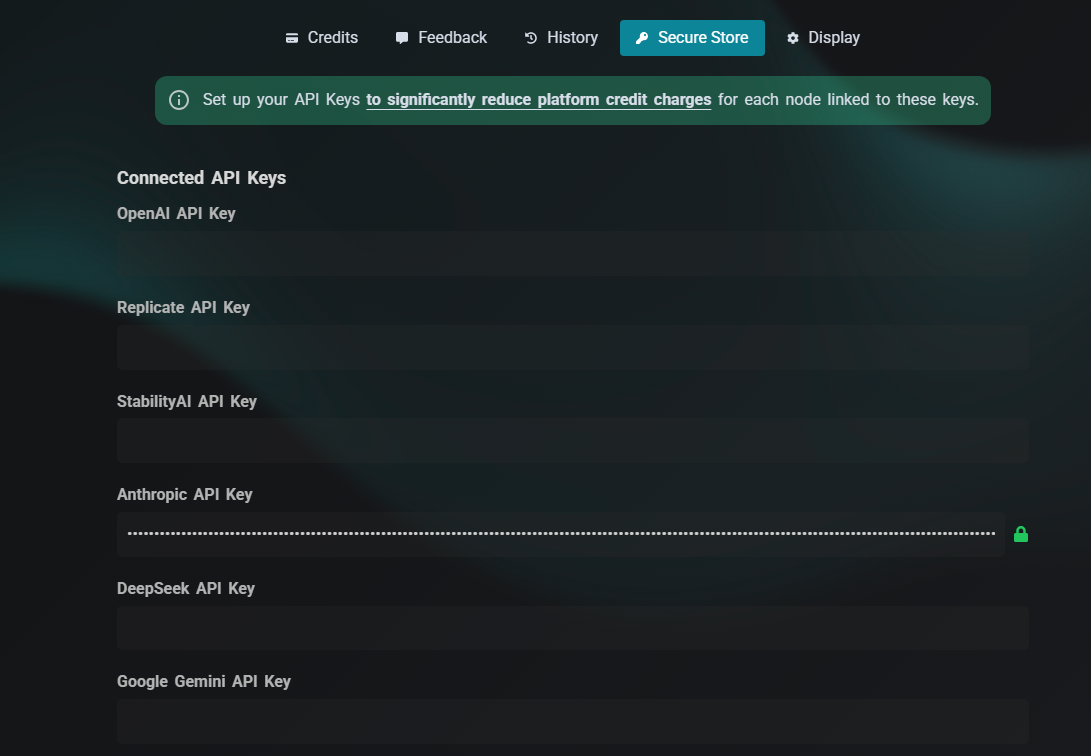
If you're logged into an AI-Flow account, the key is encrypted before being stored — it persists across browsers and sessions. If you're using AI-Flow without an account, the key is stored locally in your browser.
That's the entire setup. You don't configure the key per-node or per-workflow. Every Claude node in every canvas you create will automatically use it.
What the Claude node can do
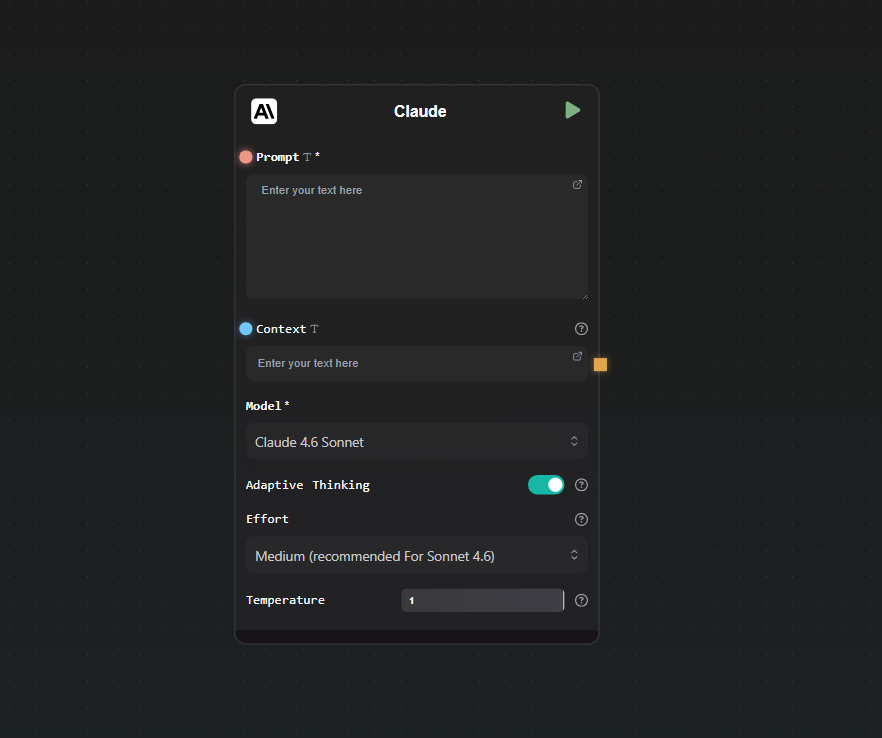
Drop a Claude node on the canvas and open its settings. Here's what you can configure:
Model selection — Available models as of writing:
- Claude 4.5 Haiku — fastest, lowest cost, good for classification and short tasks
- Claude 4.5 Sonnet — balanced capability and speed
- Claude 4.5 Opus — highest capability in the 4.5 line
- Claude 4.6 Sonnet (default) — current recommended choice for most tasks
- Claude 4.6 Opus — highest capability overall
Inputs:
- Prompt — the main instruction or question. Has a connection handle so you can wire output from other nodes into it.
- Context — optional additional data for Claude to reference (a document, scraped text, another model's output). Also has a handle.
Adaptive thinking — Enabled by default on Claude 4.6 models. It allows the model to think through complex problems before responding. You control the depth with an effort setting: low, medium (default for Sonnet 4.6), high, or max (for the hardest Opus 4.6 tasks).
Temperature — slider from 0 to 1. Lower values produce more deterministic output; higher values increase variation. Default is 1.
Output is streamed as it generates — you see the response building in real time beneath the node, rather than waiting for the full response.
A practical workflow: summarize and classify in one pass
Here's a simple pipeline that uses Claude to do two things at once — summarize a document and assign it a category — saving a round trip compared to running two separate prompts.
Step 1 — Text Input
Drop a Text Input node and paste in the document you want to process (an article, a support ticket, a report — whatever your use case requires).
Step 2 — Claude node
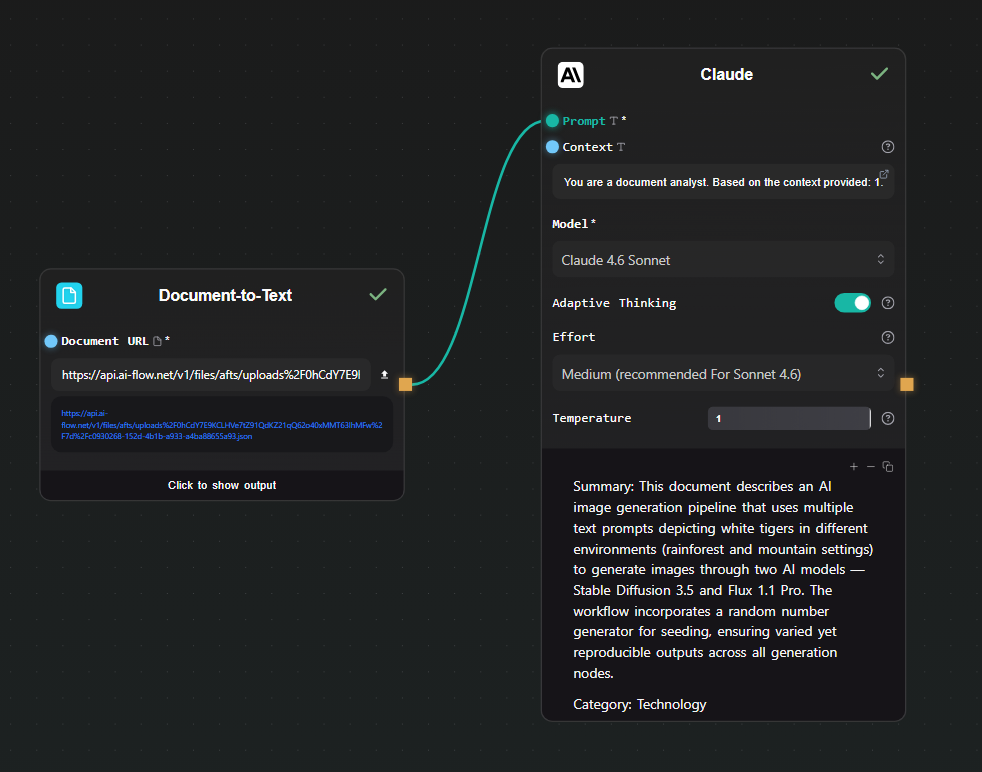
Connect the Text Input to the Context field of a Claude node. In the Prompt field, write:
You are a document analyst. Based on the context provided:
1. Write a 2-sentence summary.
2. Assign a single category from this list: Technology, Finance, Health, Legal, Other.

Format your response as:
Summary: <your summary>
Category: <category>
Set the model to Claude 4.6 Sonnet. Leave adaptive thinking on — it helps with instruction-following tasks like this.
Step 3 — Run
Hit Run. Claude reads the document from the context field, applies the prompt, and streams back a structured response. Results appear beneath the node as they stream in.
Step 4 — Extract the fields (optional)
If you want to use the summary or category in a downstream node, add an Extract Regex node or connect the output to a prompt in another node. For fully structured extraction, switch to the GPT Structured Output node instead — it enforces a JSON schema so the output is always machine-readable.
Using Claude across multiple workflows
Once the key is in the store, you can use Claude in any number of workflows without any additional setup. Build a summarization pipeline today, a classification workflow tomorrow, an image-description workflow using the context field to pass image URLs — the key is always available.
The same applies to your other provider keys (OpenAI, Replicate, Google). Each is stored once and shared across all nodes and all canvases. If you rotate your Anthropic key, update it in the key store once and all your workflows pick up the new key automatically.
Starting from a template
Rather than building from scratch, the AI-Flow templates library has pre-built Claude workflows covering summarization, content generation, and multi-step reasoning pipelines. Load one, add your key if you haven't already, and run it.
Try it
Add your Anthropic API key to the AI-Flow key store, drop a Claude node on the canvas, and run your first prompt. The free tier is available without a subscription — you only pay for what you send to the Anthropic API.