AI-Flow
Kling V2.6 Motion Control
Turn a single reference image into a lifelike video by transferring motion, actions, and expressions from a reference video. Choose orientation, keep original audio, and switch between standard or pro quality for precise, controllable results.
Inputs
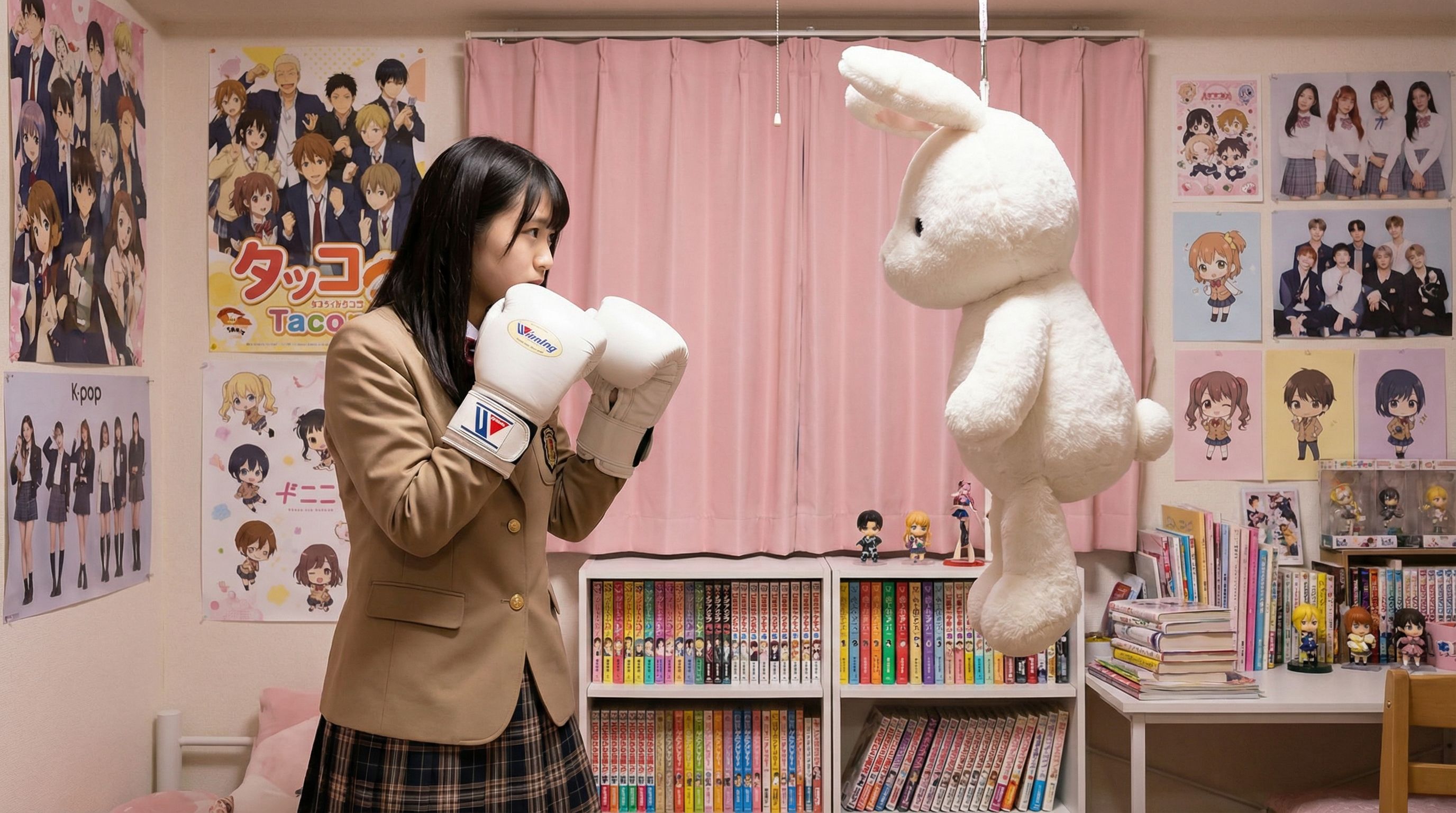
Output
About This Template
Kling V2.6 Motion Control lets you animate characters from a still image by transferring motion and facial expressions from a reference video. The model preserves the look and layout of your image while mapping the pose changes, gestures, and timing from the video, producing a natural, coherent animation. How it works - Provide a high-quality reference image (the subject, background, and style you want in the final video). - Provide a reference video (the motion you want to transfer: walk cycles, gestures, dance, sports moves, etc.). - Optionally add a text prompt to refine the scene or lightly guide appearance and effects. - Choose character_orientation to match the subject’s facing either to the image (max 10s) or to the video (max 30s). - Keep the original audio from the reference video when desired. Inputs - image (required): .jpg/.jpeg/.png, up to 10MB; dimensions 340–3850px; aspect ratio 1:2.5 to 2.5:1. - video (required): .mp4/.mov, up to 100MB; 3–30s depending on character_orientation. - prompt (optional): Natural-language guidance to add or adjust elements and motion cues. - character_orientation (optional): "image" (same facing as the subject in the picture, max 10s) or "video" (match the video’s facing, max 30s). - mode (optional): "std" for cost-effective output or "pro" for higher fidelity. - keep_original_sound (optional): Preserve the input video’s audio track. Output - A downloadable video file (URI) with your animated result. Use cases - Animate portraits, product hero shots, and character art with realistic motion. - Social media clips and shorts that bring still images to life. - Marketing and advertising where motion is applied to existing brand assets. - Previz and concept development for film, games, and motion graphics. Best practices - Use a clear, well-lit image with a distinct primary subject. - Pick a reference video that closely matches desired pacing, framing, and body orientation. - For faces, choose videos with consistent lighting and minimal occlusion. - Start with simpler gestures before attempting complex movements. Limitations - Fine-grained hand/finger detail and extremely fast motion can be less precise. - Results depend on image clarity, subject isolation, and how closely the video motion matches the subject’s pose and framing.
How to Use This Template
Step 1: Upload your file
In the 'Image' node, upload the file you want to process.
Step 2: Upload your file
In the 'Motion Video' node, upload the file you want to process.
Step 3: Enter your text in 'Prompt' Node
Fill the 'Prompt' node with the required text.
No example available.
Step 4: Run the Flow
Click the 'Run' button to execute the flow and get the final output.
Who is this for?
Perfect for professionals and creators looking to streamline their workflow
Content creators and social media managers
Quickly turn still images into scroll-stopping motion clips for Reels, Shorts, and stories.
Marketers and brand teams
Animate existing campaign assets and mascots without new shoots to create fresh variations fast.
Designers and illustrators
Bring character art and key visuals to life using motion captured from short reference videos.
Video editors and motion graphics artists
Generate fast previz or stylized motion from still frames to accelerate ideation.
Game and XR prototypers
Test character motion concepts by transferring reference performances onto static renders.
E-commerce and product teams
Add subtle motion to product shots to increase engagement without reshoots.
You Might Also Like
Explore other powerful templates to enhance your AI workflow
Kling V2.6
Kling V2.6 is a pro-grade AI video generator that turns text or a single image into cinematic 1080p clips with fluid motion and native, synchronized audio (dialogue, ambience, and effects).
UGC Ad Creation Workflow – From Script to Video
End-to-end UGC ad builder that turns a subject photo, a product photo, and an optional script into a ready-to-run first-frame image and an 8s vertical video with voice and natural handheld motion.
Generate realistic lipsync animations from audio
Generate realistic lip‑sync animations from any audio track. PixVerse Lipsync aligns mouth movements to the speech with natural timing and expressions.
Kling V2.5 Turbo Pro
Kling 2.5 Turbo Pro: Unlock pro-level text-to-video and image-to-video creation with smooth motion, cinematic depth, and remarkable prompt adherence.
Sora 2
Latest version of Sora, with higher-fidelity video, context-aware audio, reference image support
Veo 3.1
New and improved version of Veo 3, with higher-fidelity video, context-aware audio, reference image and last frame support
Frequently Asked Questions
What does Kling V2.6 Motion Control do?
It animates a still image by transferring actions, expressions, and timing from a reference video, producing a coherent video that preserves the image’s style and layout.
Do I need both an image and a video?
Yes. The image defines the subject and look of the final output, while the video provides the motion that will be transferred.
Which file formats and limits are supported?
Image: .jpg/.jpeg/.png up to 10MB, 340–3850px, aspect ratio 1:2.5 to 2.5:1. Video: .mp4/.mov up to 100MB, 3–30 seconds depending on character_orientation.
How does character_orientation affect results and duration?
image: Keeps the subject’s orientation from the photo (max 10s). video: Matches the orientation in the reference video (max 30s). Choose the one that best aligns with your desired facing and length.
When should I use std vs pro mode?
Use std for quicker, cost-effective drafts and pro when you need higher fidelity, better detail retention, and more polished results.
Can I keep the original audio from the reference video?
Yes. Set keep_original_sound to true to preserve the audio track from your input video.
What does the prompt field control?
The prompt is optional. It can nudge style and let you add or adjust elements, but the core motion comes from the reference video.
What type of videos work best as motion references?
Clips with a clear subject, consistent framing and lighting, and moderate movement (3–30s). Avoid heavy occlusions, extreme camera shake, or very fast actions for best fidelity.
Can it handle multiple people?
It works best with a clear primary subject. Multi-person scenes may reduce motion consistency and produce mixed results.
What are common causes of poor results?
Low-resolution or noisy images, mismatched subject pose vs. video motion, heavy occlusions, and extremely rapid movements can reduce accuracy and stability.
What does the output look like?
The model returns a URI to the generated video file you can download and share.
Do I need rights to the input assets?
Yes. Make sure you have permission to use and transform both the reference image and the reference video.
What is AI-FLOW and how can it help me?
AI-FLOW is an all-in-one AI platform that allows you to build, integrate, and automate AI-powered workflows using an intuitive drag-and-drop interface. Whether you're a beginner or an expert, you can leverage multiple AI models to create innovative solutions without any coding required.
Is there a free trial available?
Yes, AI-FLOW offers a free trial to get you started. After that, you can purchase credits as needed—no subscription or long-term commitment required.
Can I integrate my API keys from providers like OpenAI and Replicate with AI-FLOW Cloud Version ?
Yes, you can easily integrate your existing API keys with AI-FLOW. If specified, nodes related to the API Key provided will use your API key, significantly reducing your platform credit usage.