
Chaining Claude and Replicate models together normally means writing API clients for two different services, handling rate limits, serializing outputs from one into inputs for the next, and gluing it all together with Python or Node.js. It works, but it's tedious — and every time you want to tweak the pipeline, you're back in the code.
AI-Flow is a visual workflow builder built specifically for this kind of multi-model pipeline. You connect your own API keys, drop nodes onto a canvas, wire them together, and run. No boilerplate, no deployment headache. This article walks through a practical example: using Claude to write a prompt, then feeding that prompt into a Replicate image model.
Why combine Claude and Replicate?
Claude is a strong reasoning model — good at interpreting vague instructions, structuring text, and generating detailed, specific prompts. Replicate hosts hundreds of open-source image, video, and audio models that respond well to precise, descriptive inputs.
The combination is practical: Claude takes your rough idea and turns it into an optimized prompt; a Replicate model like FLUX or Stable Diffusion turns that prompt into an image. The quality difference between a vague prompt and a Claude-crafted one is significant, especially for generative image models.
The problem is that wiring this up with raw API calls is repetitive and fragile. AI-Flow removes that friction.
What you need
- An AI-Flow account (free tier works)
- An Anthropic API key (for Claude)
- A Replicate API key (for image models)
- Add them in AI-Flow Secure Store
You pay Anthropic and Replicate directly at their standard rates.
Building the workflow: step by step
Step 1 — Add a Text Input node
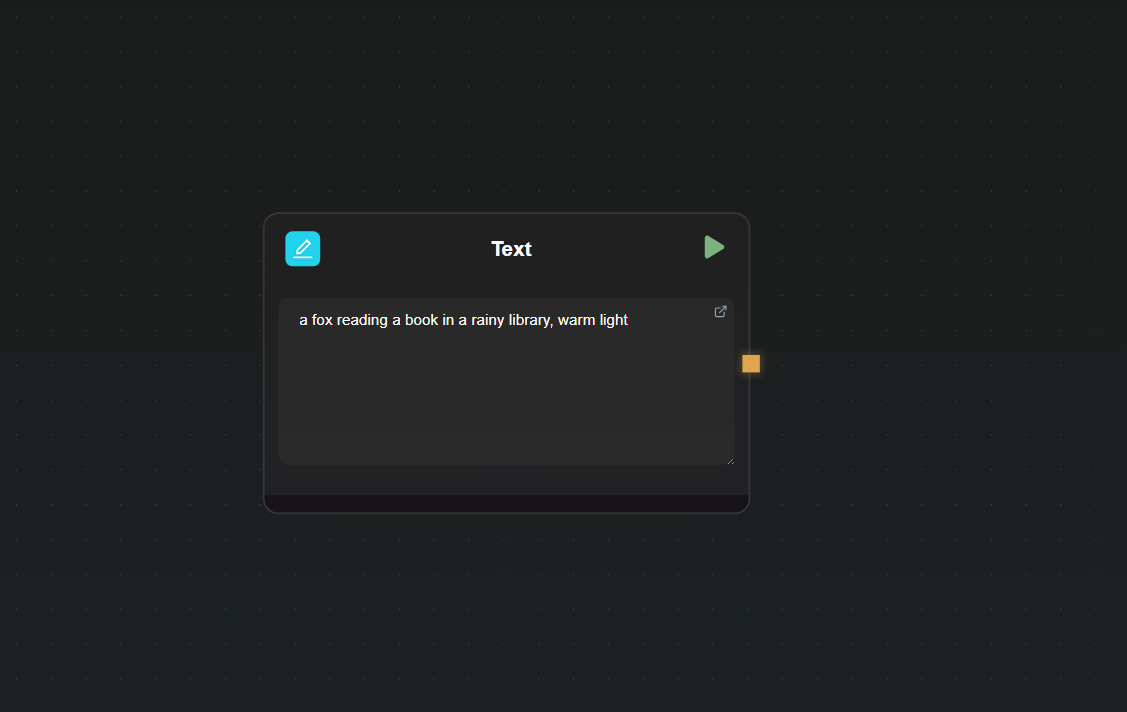
Open a new canvas and drag in a Text Input node. This is where you'll type your raw concept — something like "a fox reading a book in a rainy library, warm light". Keeping this as a separate node means you can re-run with different prompts without touching the rest of the workflow.
Step 2 — Add a Claude node and configure it
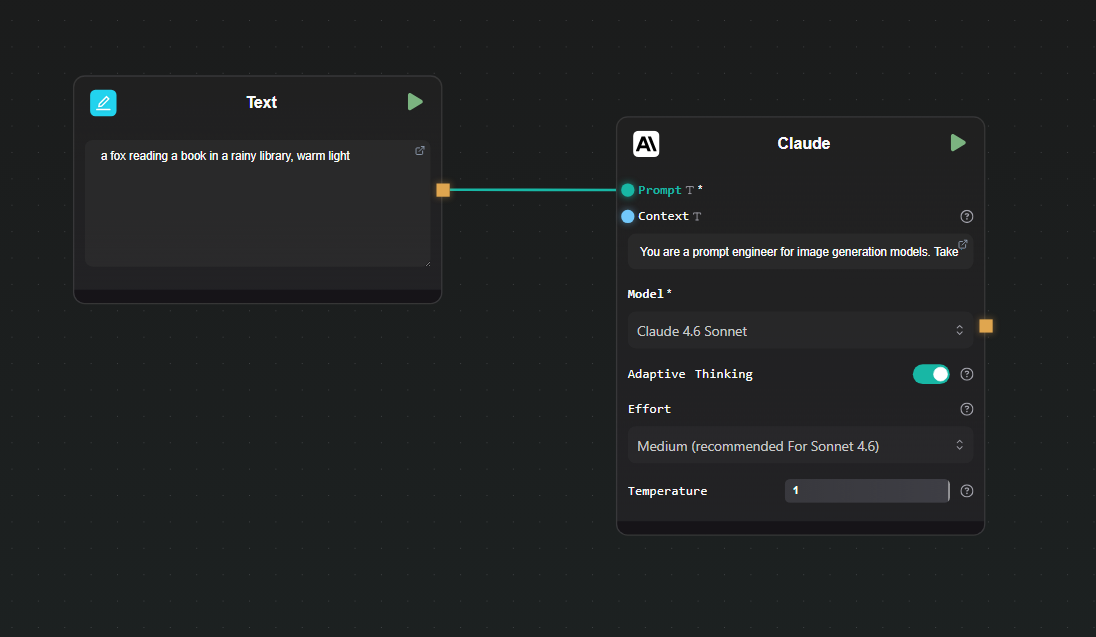
Drag in a Claude node. In the node settings:
- Select your model (Claude 4.6 Sonnet is a good default for this task)
- Set the system prompt to something like: "You are a prompt engineer for image generation models. Take the user's concept and rewrite it as a detailed, vivid image generation prompt. Output only the prompt, nothing else."
Connect the output of the Text Input node to the user message input of the Claude node.
Step 3 — Add a Replicate node
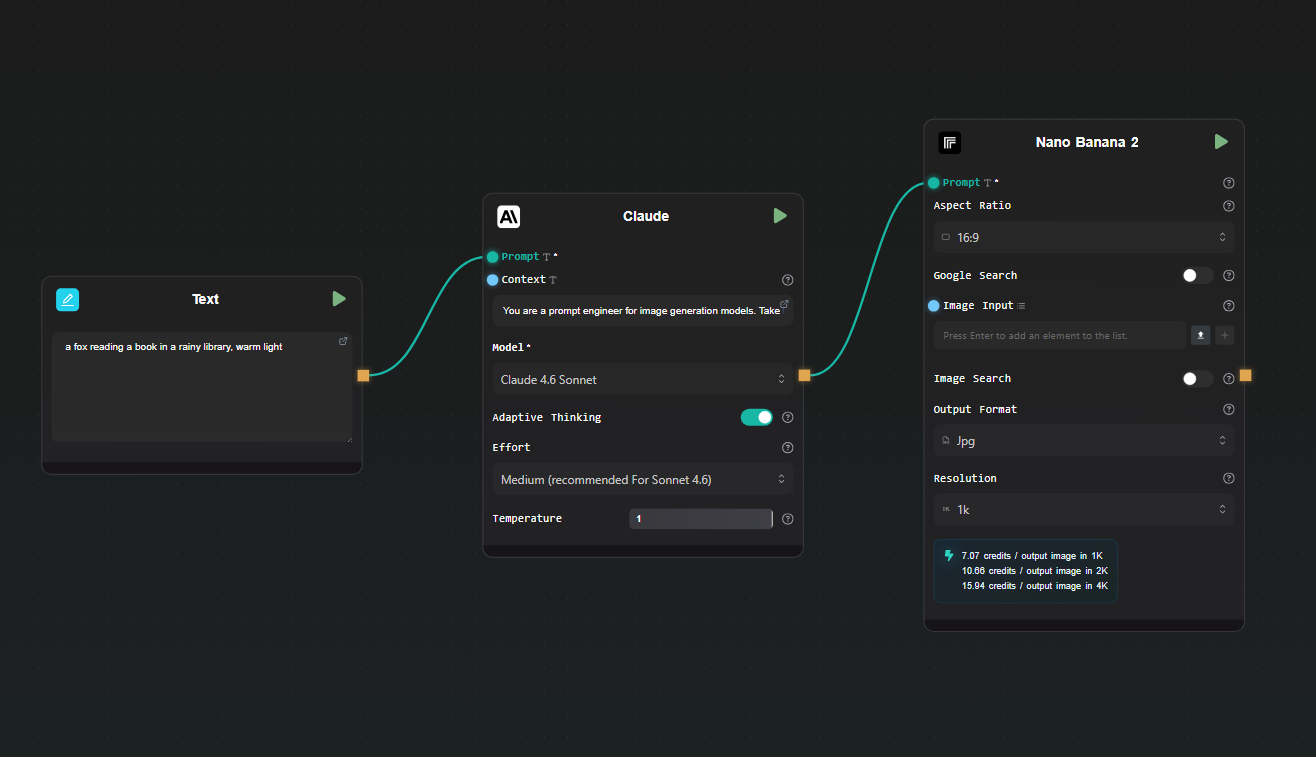
Drag in a Replicate node. Click the model selector and search for the image model you want to use — Nano Banana 2, Flux Max, or any other image model from the Replicate catalog.
Map the prompt input of the Replicate node to the output of the Claude node. Most image models on Replicate accept a prompt field — the node interface surfaces the model's input schema so you can map fields directly.
Step 5 — Run the workflow
Hit Run. AI-Flow executes the nodes in sequence: your raw concept goes into Claude, Claude returns an optimized prompt, that prompt goes to Replicate, and the generated image appears in the output node. The whole chain runs without you writing a single line of code.
To iterate, change the text in the Text Input node and run again. Claude will generate a different prompt, and Replicate will produce a new image.
Extending the workflow
Once the basic chain is working, there are natural extensions:
Add a second Replicate model. You could run the same Claude-generated prompt through two different image models side by side — connect the Claude output to two separate Replicate nodes to compare results.
Add conditional logic. AI-Flow supports branching nodes. If Claude's output contains certain keywords, you can route the prompt to a different model or add a negative prompt node before it reaches Replicate.
Expose it as an API. Use AI-Flow's API Builder to wrap the workflow as a REST endpoint. You POST a concept, the pipeline runs, and you get back the image URL — useful for integrating into your own app without maintaining the pipeline code yourself.
Use a template as a starting point. The AI-Flow templates library has ready-made workflows for image generation pipelines. Loading one and swapping in your own prompts and models is faster than building from scratch.
What this approach avoids
The straightforward alternative to this is writing two API clients and a small orchestration script. That works, but you're maintaining code, handling errors, managing keys in environment variables, and redeploying whenever the pipeline changes. For a pipeline you'll iterate on frequently — different models, different prompts, different output formats — the overhead adds up.
AI-Flow keeps the pipeline state in the canvas. Changing a model is a dropdown selection. Changing the prompt structure is editing a text field. There's no diff to review, no test suite to update, no deployment to trigger.
Try it
If you have Anthropic and Replicate API keys and want to run this kind of pipeline today, open AI-Flow and start with a blank canvas or pick a template from the templates page. The free tier is enough to build and run this workflow.