3 posts tagged with "No-Code"

View All Tags

· 9 min read
DahnM20

ComfyUI is a serious tool. The node-based canvas, the custom node ecosystem, the degree of control over the diffusion process — it's why it became the standard for local Stable Diffusion workflows. If you have the hardware and want to run models locally, it's hard to argue against it.

The problem is the "if you have the hardware" part. And even with capable hardware, the setup itself is its own project.

The actual friction with ComfyUI

These aren't complaints — they're documented realities the community openly discusses:

GPU requirements. Most workflows expect at least 8GB VRAM. SDXL models push that to 12GB for comfortable use. Running video models or multi-step pipelines needs more. On a machine without a capable Nvidia GPU, performance ranges from slow to unusable.

Python environment. ComfyUI runs on Python and requires specific versions of PyTorch, which requires specific CUDA versions, which depends on your GPU driver. On Windows this usually works if you follow the installation guide exactly. On Linux the steps change depending on your distribution. On Mac (Apple Silicon) you're on a separate path — different instructions, and not everything runs.

Dependency conflicts. Custom nodes are where it gets messy. Each one brings its own requirements. Even with ComfyUI-Manager, version conflicts happen. A node that worked last week can break after a ComfyUI update because something in its dependency tree shifted.

Accessibility. A running ComfyUI instance lives on one machine. Getting to it from another device requires a reverse proxy or tunneling setup. It's not something you pull up on a work laptop or hand off to a collaborator easily.

None of this makes ComfyUI bad. These are the trade-offs of running powerful local models on your own hardware. But if the setup is the wall between you and actually using the tool, that's worth solving differently.

What AI-Flow is, specifically

AI-Flow is a browser-based node canvas for building AI pipelines. Same mental model — nodes, connections, data flowing from one step to the next — but instead of running local models, it routes API calls to cloud providers: Replicate, Anthropic, OpenAI, Google.

You bring your own API keys (BYOK). Set them once in the key store and every node in every workflow draws from them automatically. No markup on provider costs — you pay Replicate or Anthropic directly at their rates.

The node logic will feel immediately familiar if you've spent time in ComfyUI. Text input → processing node → output. Conditional routing. Parallel branches. Chaining one model's output into another's input. Same compositional thinking, different execution environment.

What's different: no install. No GPU. No Python. Open a browser and build.
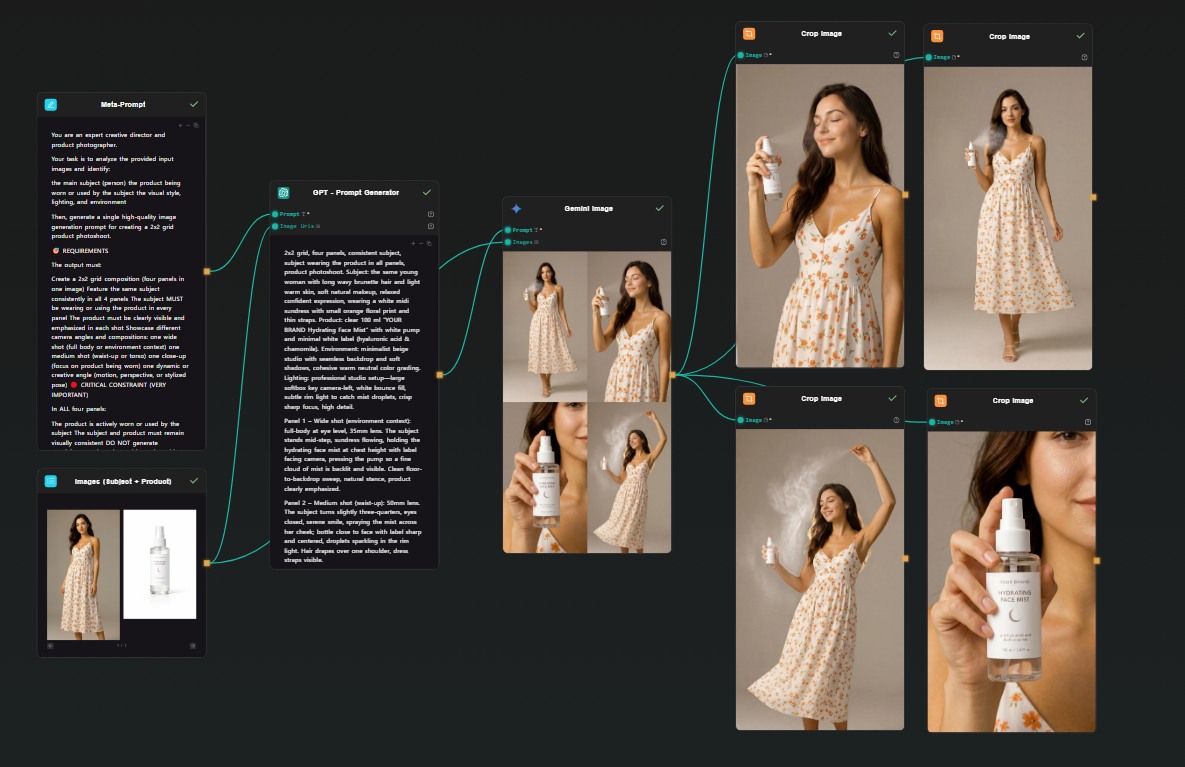
AI-Flow canvas — photoshoot pipeline showing the full node graph from image inputs to cropped outputs

What you give up

This is worth being direct about. AI-Flow is not a drop-in replacement if you're invested in the local model ecosystem.

No local models or custom checkpoints. Fine-tuned models, LoRAs, local .safetensors files — these are specific to local inference. API providers offer their own model catalog, but you can't upload arbitrary checkpoints.

No direct ControlNet equivalent. ComfyUI's ControlNet with local weights gives precise structural control. API image models have some comparable capabilities — depth guidance, style reference — but the control surface is different, and coverage varies by provider.

No custom node ecosystem. ComfyUI's community has thousands of contributed nodes. AI-Flow has a focused built-in set. If you need something that doesn't exist in the catalog, you're working around it.

Per-run API costs. Every generation costs something. You're also dependent on provider uptime — if Replicate has an issue, your pipeline waits. Local models don't have that dependency.

Less low-level control over diffusion. Specific samplers, exact CFG scale, step-level control — some of this is exposed via API, some isn't. The API layer abstracts parts of the process that ComfyUI exposes directly.

A workflow you'll recognize

Here's a concrete pipeline that maps cleanly to what you'd build in ComfyUI: two image inputs (subject + product) → prompt expansion via GPT → image generation via Google Nano Banana 2 → four cropped outputs. One shot, four consistent photos.

The use case is product photoshoot generation — you have a person and a product, you want four photoshoot-style images of that person holding, using, or interacting with it.

Step 1 — Two Image Input nodes

Drop two Image Input nodes on the canvas. Upload your subject photo (the person) to one, your product photo to the other. Both will feed into the next step together.

Step 2 — Meta Prompt node (instructions)

Add a Text node. This is your meta prompt — the instructions that tell the downstream GPT node what kind of photoshoot to generate. Something like:

You are an expert creative director and product photographer.
Your task is to analyze the provided input images and generate
a detailed, photorealistic image generation prompt for a 2x2 grid
photoshoot showing the subject using or holding the product in
different poses — close-up, full body, lifestyle, detail shot.
Describe lighting, composition, mood, and scene for each panel.
Output only the prompt.

Step 3 — GPT node (prompt expansion)

Add a GPT node. Connect both Image Input outputs and the Meta Prompt into it. GPT receives the two reference images plus your instructions and produces a single detailed prompt describing a 2x2 photoshoot grid — four distinct scenes, consistent subject and product across all panels, with specific lighting and composition direction for each.
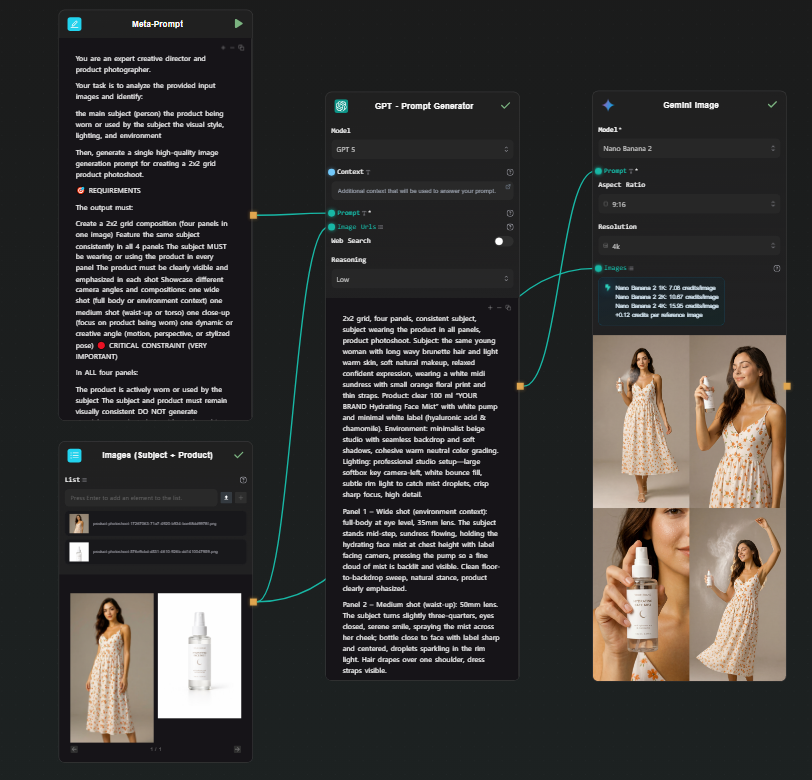
Meta Prompt and Image Input nodes feeding into GPT Prompt Generator and then into the Gemini Image generation node

Step 4 — Google Nano Banana 2 node (grid generation)

Add a Gemini Image node (Google Nano Banana 2). Connect the GPT prompt output to the prompt field, and connect both original images as reference inputs. Run.

Nano Banana 2 handles multi-image reference natively — it understands both the subject and the product from your input images and applies them consistently across the generated output. It produces a single high-resolution image structured as a 2x2 grid: four photoshoot scenes, one generation. The subject looks the same across all four panels because the model is working from your actual reference photo, not synthesizing a character from a text description.

Step 5 — Four Crop Image nodes (extract each panel)

Add four Crop Image nodes. Connect the Nano Banana 2 output to each. Configure each one to extract a different quadrant: top-left, top-right, bottom-left, bottom-right.

Each node outputs one clean photoshoot image. From a single generation, you have four consistent, usable photos.
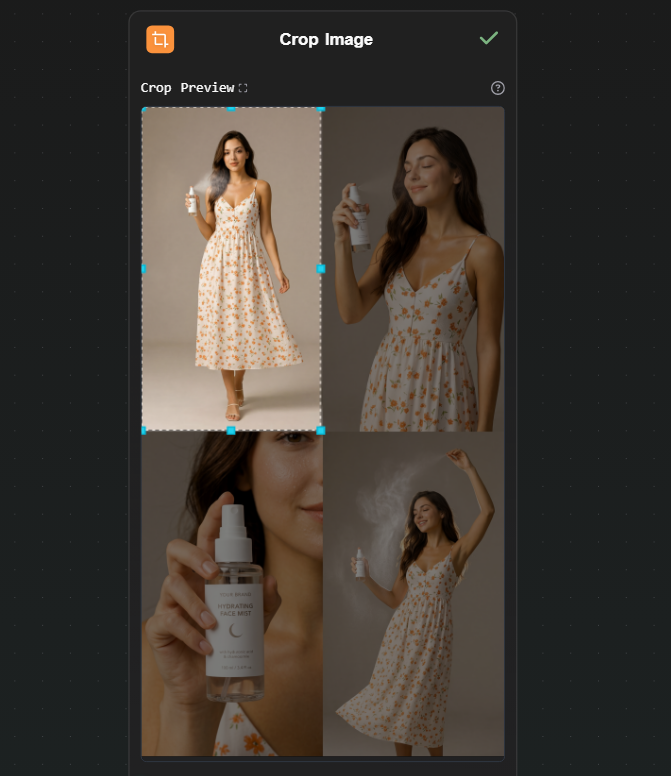
Crop Image node showing the 2x2 grid being split into four individual photoshoot images

Optionally, connect each cropped output to an upscaler node on Replicate if you need higher resolution for each individual image.

Why this works better than generating four separate images

Here, Nano Banana 2 achieves the same thing because all four panels come from a single generation with the reference image in context. The subject's face, the product's packaging, the visual style — consistent by construction, not by iteration.

The cost math

A ComfyUI user running local models pays upfront for hardware and ongoing electricity, but zero per run. That math works well at high volume once the hardware is paid for.

An API-based workflow pays per run, no hardware cost. Using your own API keys:

  • Google Nano Banana 2 (via Gemini API): ~$0.15 per generation
  • Upscaling (via Replicate): ~$0.002–0.01 depending on the model

The photoshoot workflow above generates four consistent images in a single run. At ~$0.15 for the generation step, that's four usable photos for a few cents — no GPU purchase, no electricity, no environment to maintain.

For moderate usage — iterating on a project, running a few dozen generations a day — the cost is low. For bulk production workloads, local hardware eventually wins on per-run economics, but that crossover requires both the hardware already purchased and consistently high volume.

When to use which tool

Use ComfyUI if:

  • You have a capable GPU and want to run models locally
  • You need specific LoRAs, custom checkpoints, or fine-tuned models
  • You want precise ControlNet control or deep access to the diffusion process
  • You're generating at high enough volume that per-run cost matters more than hardware cost

Use AI-Flow if:

  • You want node-based pipeline thinking without local setup
  • You're working with API-based models — Replicate's catalog (1000+ models), Anthropic, OpenAI, Google
  • You need to access the workflow from multiple machines or share it with collaborators
  • You don't have a capable GPU and don't want to buy one for this use case

If your situation fits the second list, the templates library has pre-built image and multi-model pipelines to start from. Add your API keys in the key store, open a template, run it. The free tier works with your own keys — no platform credit needed to see how it behaves.
· 7 min read
DahnM20

Replicate gives you API access to thousands of AI models — image generation, video generation, image editing, audio, and more. The API is clean, but using it in practice means writing a client for each model, handling polling for async predictions, managing file URLs, and wiring outputs from one model into inputs for the next. That's fine for a production service, but it's a lot of overhead when you're iterating on a pipeline.

AI-Flow can be used as Replicate API workflow builder that removes that overhead. You pick a model from a catalog (or type in any model ID directly), the interface generates the input form from the model's schema, and you connect models together visually. No API calls to write, no polling loop, no file handling code.

How the Replicate node works

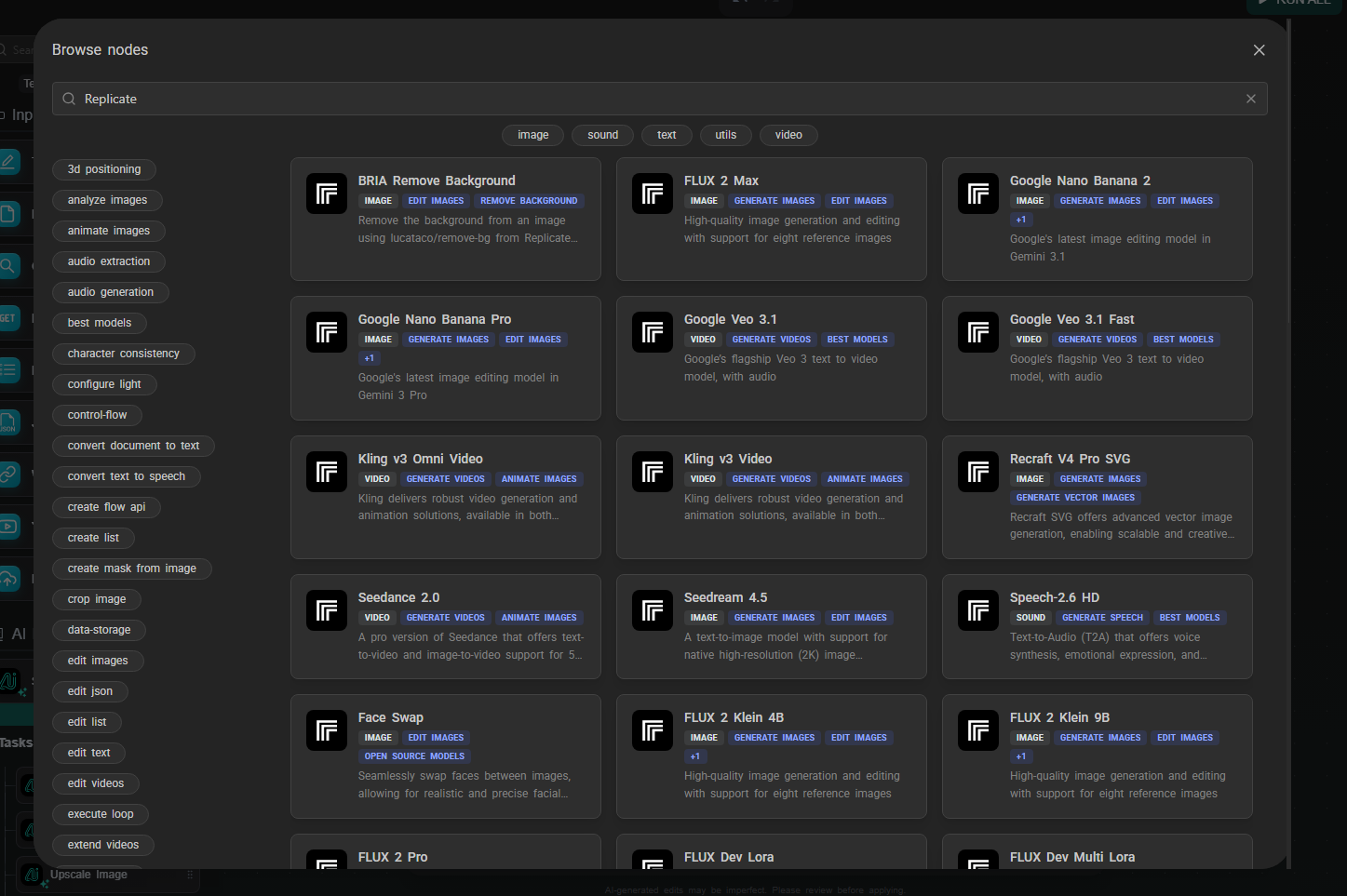
Drop a Replicate node on the canvas. You'll see a model selector with a curated list of featured models organized by category — image generation, image editing, video generation. Pick one and click confirm.

Replicate node model selector

The node reconfigures itself based on the selected model's input schema. If the model expects a prompt, a width, a height, and a num_outputs parameter, those fields appear in the node. Input fields that accept data from other nodes show connection handles, so you can wire outputs directly into them.

If the model you want isn't in the featured list, type the model ID directly in the format owner/model-name (for example, black-forest-labs/flux-2-max). AI-Flow fetches the schema from Replicate and builds the form the same way. This works for any model hosted on Replicate — not just the ones in the curated list.

Your Replicate API key lives in the key store (Settings → Secure Store). Set it once; every Replicate node in every workflow draws from it automatically. With your own key, you have access to the full Replicate catalog.

A few of the models currently in the spotlight catalog:

Image generation & editing:

  • FLUX 2 Max / Pro — Black Forest Labs' latest text-to-image models, high quality
  • FLUX 2 Klein 9B / 4B — faster, cheaper FLUX variants for rapid iteration
  • Google Nano Banana 2 — Google's image editing model (Gemini 3.1), handles style transfer, background replacement, inpainting, object removal, and more from a single prompt
  • Seedream 4.5 — text-to-image from ByteDance

Video generation:

  • Google Veo 3.1 — text-to-video with native synchronized audio (ambient sound, dialogue) baked in; no separate audio node needed
  • Google Veo 3.1 Fast — lower-cost variant, same native audio
  • Kling v3 Video / Omni — text-to-video and image-to-video, with native audio output
  • Kling v3 Motion Control — animates an image following a reference motion trajectory
  • Seedance 2.0 / Fast — ByteDance image-to-video and text-to-video

The catalog updates as new models are released on Replicate.

Workflow example: LLM-to-image pipeline

A common use case: use a language model to expand a rough concept into a detailed image prompt, then feed that into a Replicate image model. This avoids the prompt engineering overhead on the image model side and produces more consistent, detailed results.

Step 1 — Text Input

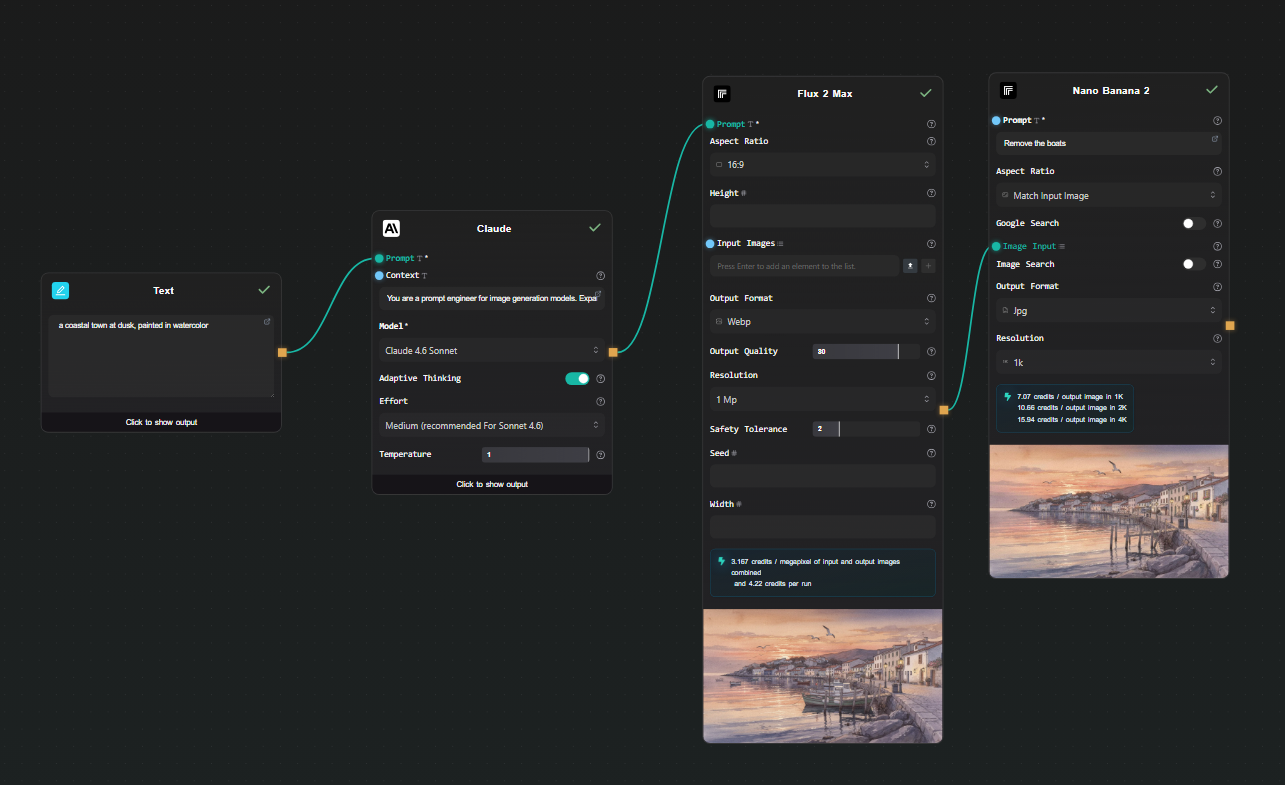
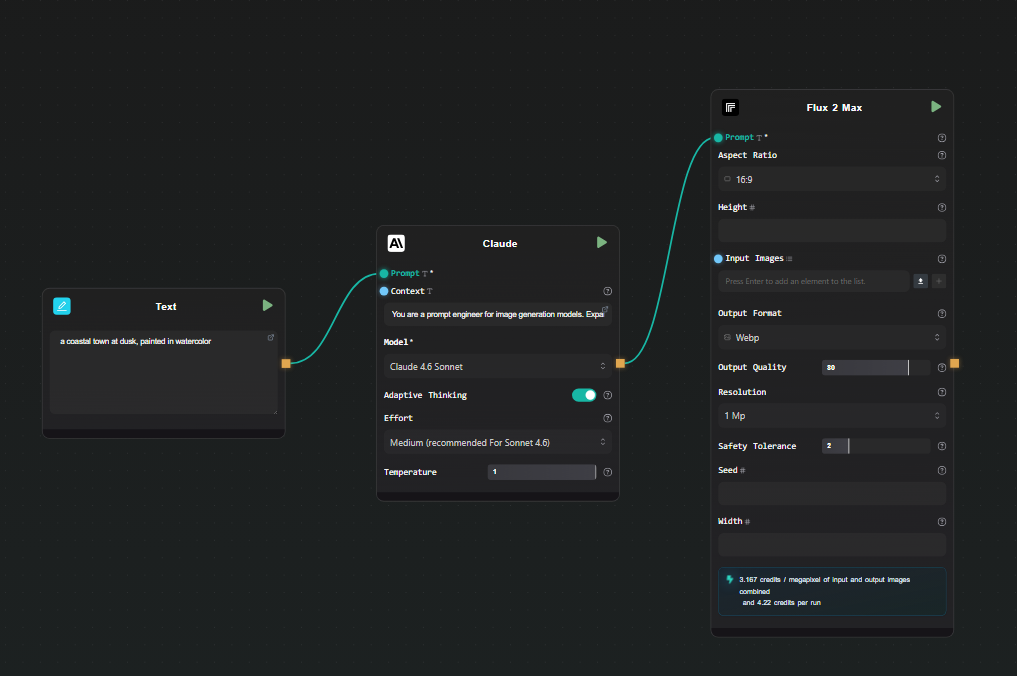
Add a Text Input node. Type your rough concept: "a coastal town at dusk, painted in watercolor".

Step 2 — Claude node (prompt expansion)

Add a Claude node. Connect the Text Input output to the Context field. In the Prompt field:

You are a prompt engineer for image generation models.
Expand the concept in the context into a detailed, vivid image generation prompt.
Describe lighting, composition, style, and mood. Output only the prompt, no commentary.

Select Claude 4.6 Sonnet. This gives you a detailed, model-optimized prompt from a two-word concept.

Step 3 — Replicate node (image generation)

Add a Replicate node. Select FLUX 2 Max from the model catalog. Connect the output of the Claude node to the prompt field of the Replicate node.

Set any other parameters you want — aspect ratio, output format — directly in the node.

Text Input to Claude to FLUX 2 Max pipeline

Step 4 — Run

Hit Run. The pipeline executes in order: your rough concept goes through Claude, an expanded prompt comes out, that prompt goes to FLUX 2 Max on Replicate, and the generated image appears beneath the node. AI-Flow handles the Replicate prediction polling and file storage automatically — you just see the result.

Swap the Text Input content and run again to iterate. Change the Replicate model to compare FLUX 2 Pro vs. FLUX 2 Klein without rewiring anything.

Extending the pipeline

Image editing as a second step

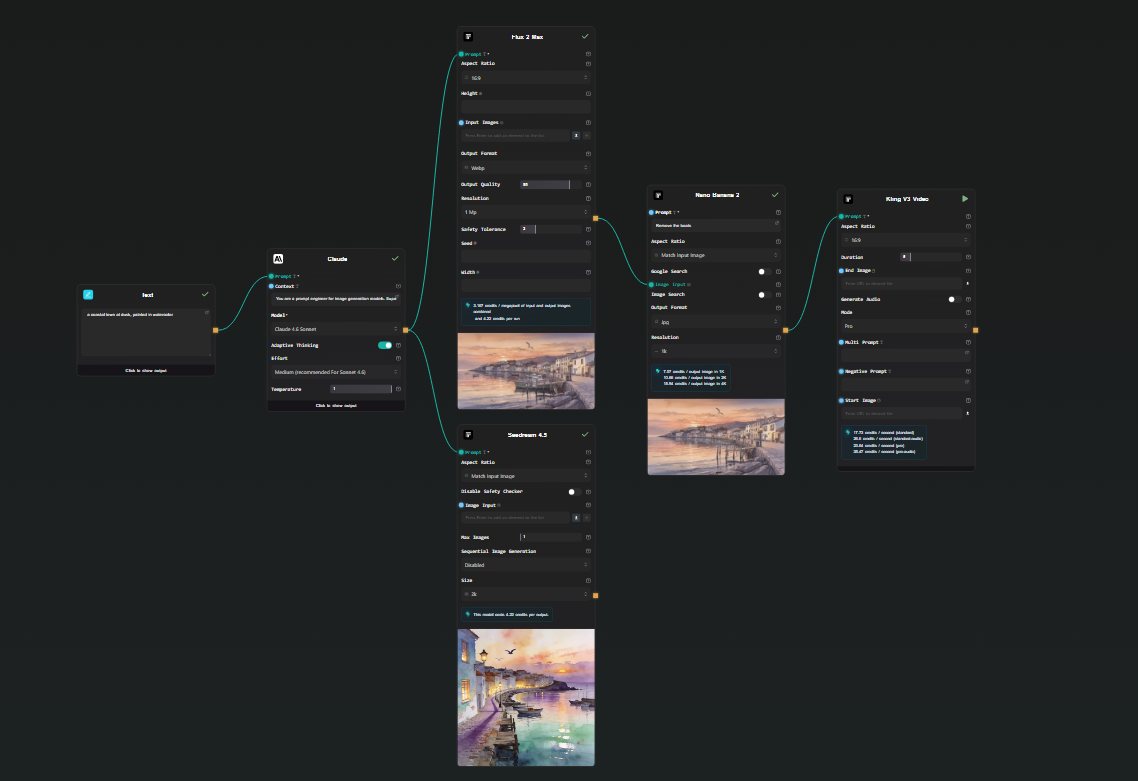
After generating an image, connect its output to a second Replicate node using Google Nano Banana 2. This model takes an image and a text instruction and edits it — change the background, alter the style, remove an object, adjust colors. You get a two-step generate-then-edit pipeline without any code.

Image to video pipeline with Kling v3

Image to video

Connect a Replicate image output to a Kling v3 Video node. Add a motion prompt in the node's text field. The result is a short video animated from your generated image — text → LLM → image → video, all in one workflow.

Note: Veo 3.1 and Kling v3 both output video with native audio already embedded. You don't need to add a separate audio generation node.

Run multiple models in parallel

Connect the Claude output to two separate Replicate nodes — FLUX 2 Max and Seedream 4.5, for example. Both run from the same prompt simultaneously. You get side-by-side results to compare outputs across models without running the pipeline twice.

Running FLUX 2 Max and Seedream 4.5 in parallel from the same prompt

Expose as an API

Add an API Input node at the start and an API Output node at the end. AI-Flow generates a REST endpoint — you POST a concept string, the full pipeline runs, and you get back the image URL. Useful for integrating into an external application without maintaining the pipeline code yourself.

What this removes from your workflow

Without a visual Replicate API workflow builder, running these pipelines means:

  • Writing replicate.run() calls with the right version IDs
  • Polling for prediction status
  • Downloading the output file from Replicate's temporary URL and re-hosting it if needed
  • Writing a second client call for the next model in the chain
  • Redeploying whenever you change a model or parameter

In AI-Flow, changing a model is a dropdown selection. Changing a prompt is editing a text field. Adding a step is dropping a node and drawing a connection. The iteration cycle is much shorter.

Try it

Add your Replicate API key in AI-Flow's key store, drop a Replicate node on the canvas, and pick a model. The templates library has pre-built image and video generation workflows to start from if you'd rather not build from scratch.

· 6 min read
DahnM20

Chaining Claude and Replicate models together normally means writing API clients for two different services, handling rate limits, serializing outputs from one into inputs for the next, and gluing it all together with Python or Node.js. It works, but it's tedious — and every time you want to tweak the pipeline, you're back in the code.

AI-Flow is a visual workflow builder built specifically for this kind of multi-model pipeline. You connect your own API keys, drop nodes onto a canvas, wire them together, and run. No boilerplate, no deployment headache. This article walks through a practical example: using Claude to write a prompt, then feeding that prompt into a Replicate image model.

Why combine Claude and Replicate?

Claude is a strong reasoning model — good at interpreting vague instructions, structuring text, and generating detailed, specific prompts. Replicate hosts hundreds of open-source image, video, and audio models that respond well to precise, descriptive inputs.

The combination is practical: Claude takes your rough idea and turns it into an optimized prompt; a Replicate model like FLUX or Stable Diffusion turns that prompt into an image. The quality difference between a vague prompt and a Claude-crafted one is significant, especially for generative image models.

The problem is that wiring this up with raw API calls is repetitive and fragile. AI-Flow removes that friction.

What you need

  • An AI-Flow account (free tier works)
  • An Anthropic API key (for Claude)
  • A Replicate API key (for image models)
  • Add them in AI-Flow Secure Store

You pay Anthropic and Replicate directly at their standard rates.

Building the workflow: step by step

Step 1 — Add a Text Input node

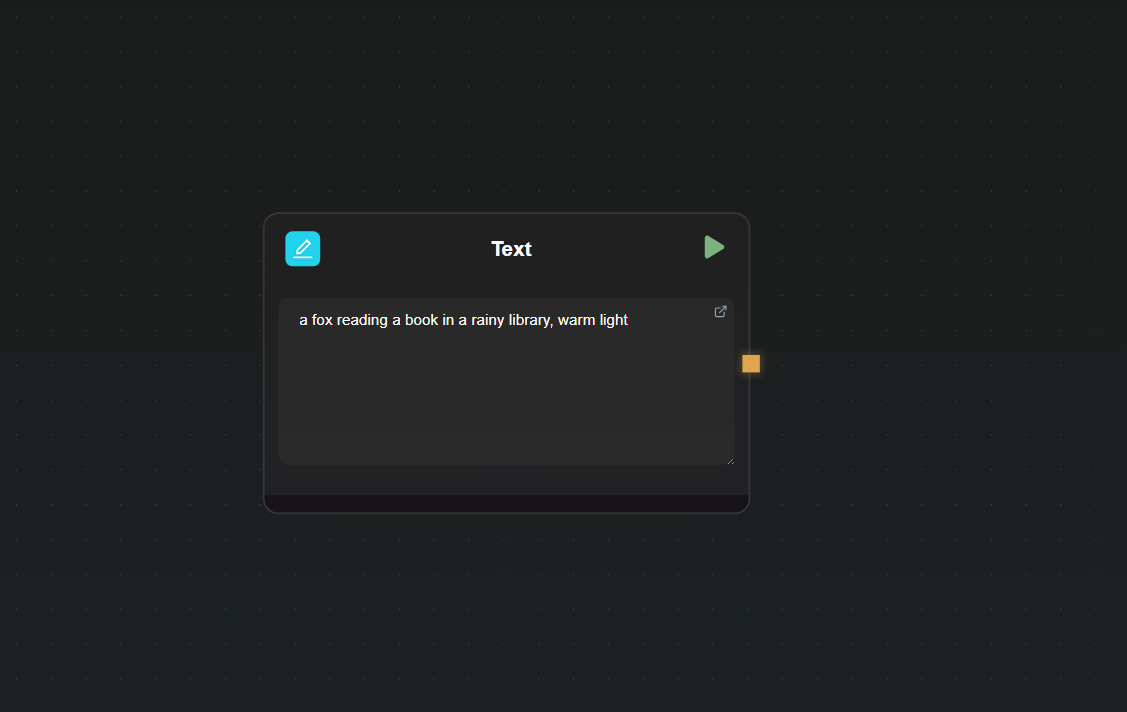
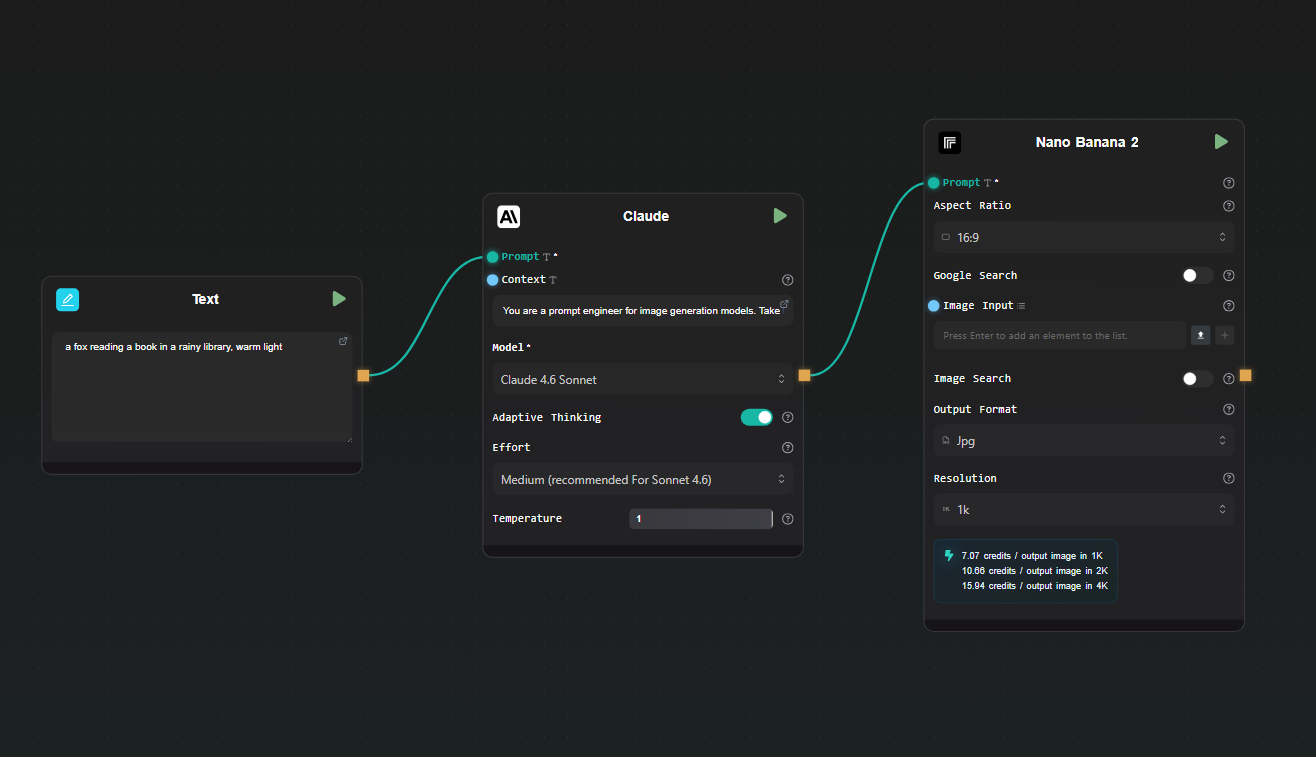
Open a new canvas and drag in a Text Input node. This is where you'll type your raw concept — something like "a fox reading a book in a rainy library, warm light". Keeping this as a separate node means you can re-run with different prompts without touching the rest of the workflow.

Text Input node on canvas

Step 2 — Add a Claude node and configure it

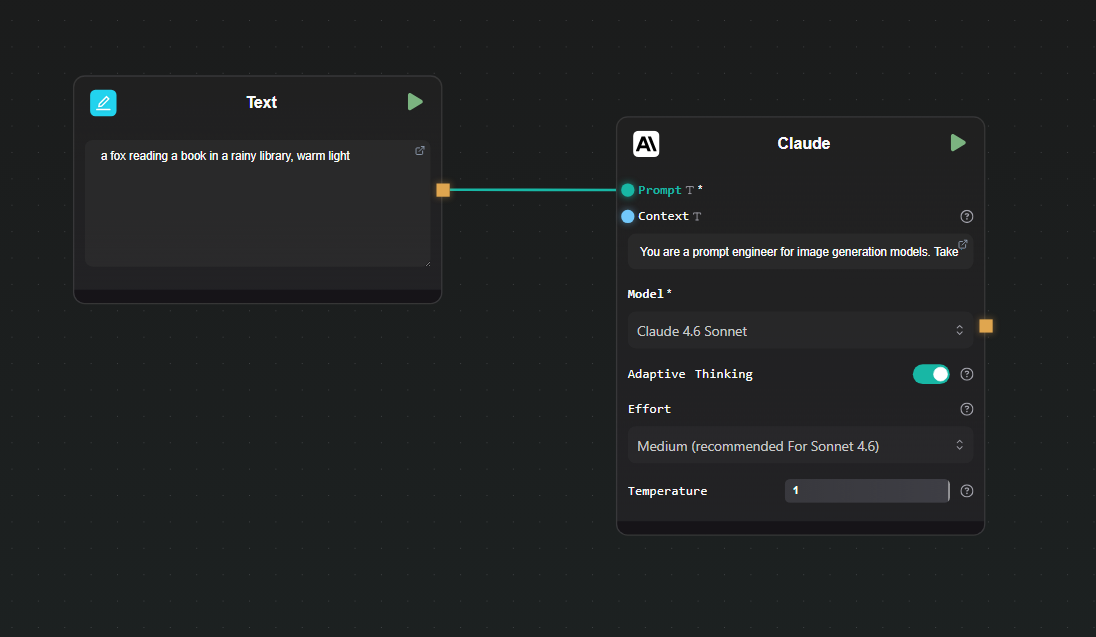
Drag in a Claude node. In the node settings:

  • Select your model (Claude 4.6 Sonnet is a good default for this task)
  • Set the system prompt to something like: "You are a prompt engineer for image generation models. Take the user's concept and rewrite it as a detailed, vivid image generation prompt. Output only the prompt, nothing else."

Connect the output of the Text Input node to the user message input of the Claude node.

Claude node configuration

Step 3 — Add a Replicate node

Drag in a Replicate node. Click the model selector and search for the image model you want to use — Nano Banana 2, Flux Max, or any other image model from the Replicate catalog.

Map the prompt input of the Replicate node to the output of the Claude node. Most image models on Replicate accept a prompt field — the node interface surfaces the model's input schema so you can map fields directly.

Replicate node connected to Claude output

Step 5 — Run the workflow

Hit Run. AI-Flow executes the nodes in sequence: your raw concept goes into Claude, Claude returns an optimized prompt, that prompt goes to Replicate, and the generated image appears in the output node. The whole chain runs without you writing a single line of code.

To iterate, change the text in the Text Input node and run again. Claude will generate a different prompt, and Replicate will produce a new image.

Extending the workflow

Once the basic chain is working, there are natural extensions:

Add a second Replicate model. You could run the same Claude-generated prompt through two different image models side by side — connect the Claude output to two separate Replicate nodes to compare results.

Add conditional logic. AI-Flow supports branching nodes. If Claude's output contains certain keywords, you can route the prompt to a different model or add a negative prompt node before it reaches Replicate.

Expose it as an API. Use AI-Flow's API Builder to wrap the workflow as a REST endpoint. You POST a concept, the pipeline runs, and you get back the image URL — useful for integrating into your own app without maintaining the pipeline code yourself.

Use a template as a starting point. The AI-Flow templates library has ready-made workflows for image generation pipelines. Loading one and swapping in your own prompts and models is faster than building from scratch.

What this approach avoids

The straightforward alternative to this is writing two API clients and a small orchestration script. That works, but you're maintaining code, handling errors, managing keys in environment variables, and redeploying whenever the pipeline changes. For a pipeline you'll iterate on frequently — different models, different prompts, different output formats — the overhead adds up.

AI-Flow keeps the pipeline state in the canvas. Changing a model is a dropdown selection. Changing the prompt structure is editing a text field. There's no diff to review, no test suite to update, no deployment to trigger.

Try it

If you have Anthropic and Replicate API keys and want to run this kind of pipeline today, open AI-Flow and start with a blank canvas or pick a template from the templates page. The free tier is enough to build and run this workflow.