
Replicate gives you API access to thousands of AI models — image generation, video generation, image editing, audio, and more. The API is clean, but using it in practice means writing a client for each model, handling polling for async predictions, managing file URLs, and wiring outputs from one model into inputs for the next. That's fine for a production service, but it's a lot of overhead when you're iterating on a pipeline.
AI-Flow can be used as Replicate API workflow builder that removes that overhead. You pick a model from a catalog (or type in any model ID directly), the interface generates the input form from the model's schema, and you connect models together visually. No API calls to write, no polling loop, no file handling code.
How the Replicate node works
Drop a Replicate node on the canvas. You'll see a model selector with a curated list of featured models organized by category — image generation, image editing, video generation. Pick one and click confirm.
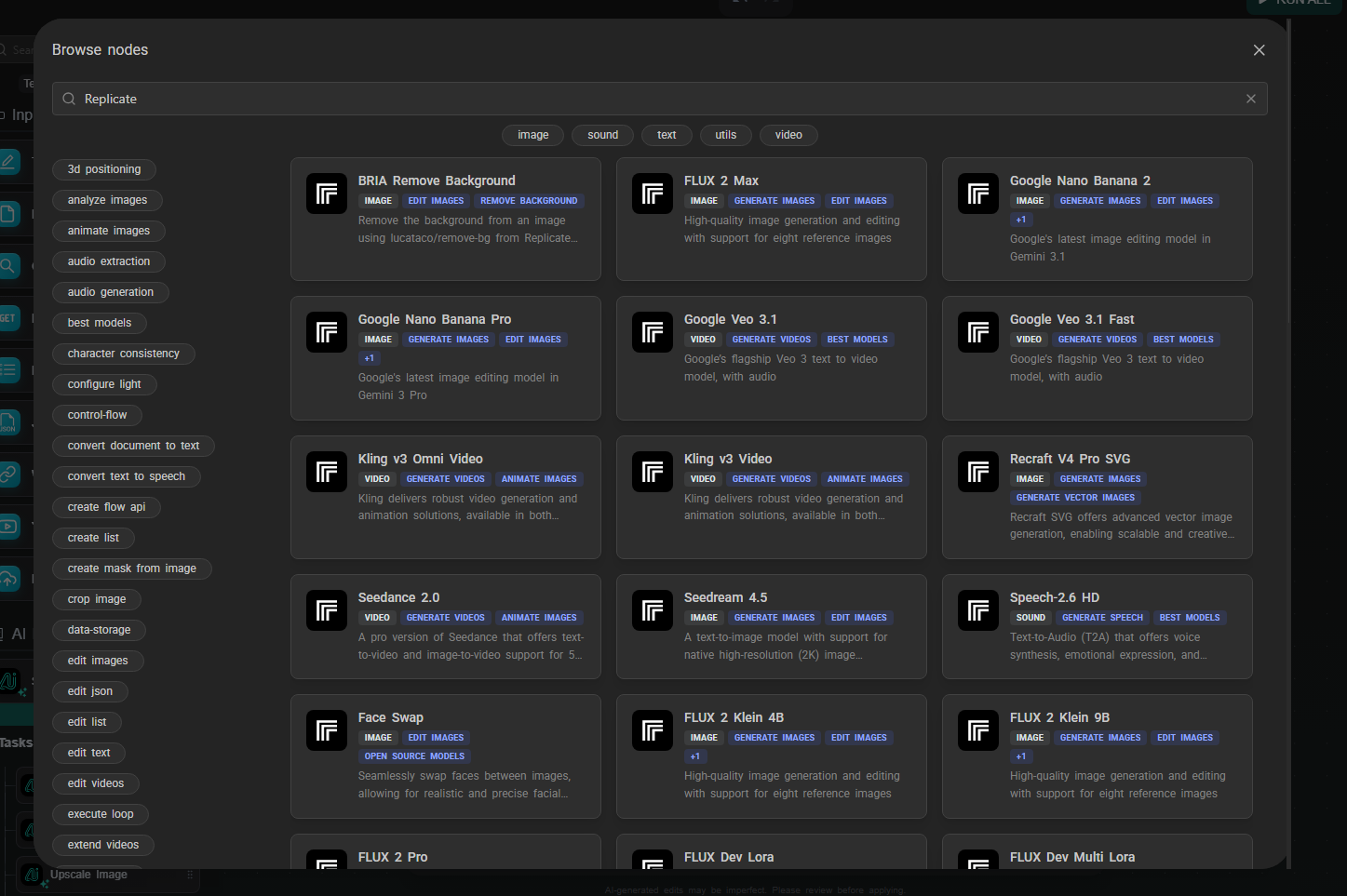
The node reconfigures itself based on the selected model's input schema. If the model expects a prompt, a width, a height, and a num_outputs parameter, those fields appear in the node. Input fields that accept data from other nodes show connection handles, so you can wire outputs directly into them.
If the model you want isn't in the featured list, type the model ID directly in the format owner/model-name (for example, black-forest-labs/flux-2-max). AI-Flow fetches the schema from Replicate and builds the form the same way. This works for any model hosted on Replicate — not just the ones in the curated list.
Your Replicate API key lives in the key store (Settings → Secure Store). Set it once; every Replicate node in every workflow draws from it automatically. With your own key, you have access to the full Replicate catalog.
Featured models
A few of the models currently in the spotlight catalog:
Image generation & editing:
- FLUX 2 Max / Pro — Black Forest Labs' latest text-to-image models, high quality
- FLUX 2 Klein 9B / 4B — faster, cheaper FLUX variants for rapid iteration
- Google Nano Banana 2 — Google's image editing model (Gemini 3.1), handles style transfer, background replacement, inpainting, object removal, and more from a single prompt
- Seedream 4.5 — text-to-image from ByteDance
Video generation:
- Google Veo 3.1 — text-to-video with native synchronized audio (ambient sound, dialogue) baked in; no separate audio node needed
- Google Veo 3.1 Fast — lower-cost variant, same native audio
- Kling v3 Video / Omni — text-to-video and image-to-video, with native audio output
- Kling v3 Motion Control — animates an image following a reference motion trajectory
- Seedance 2.0 / Fast — ByteDance image-to-video and text-to-video
The catalog updates as new models are released on Replicate.
Workflow example: LLM-to-image pipeline
A common use case: use a language model to expand a rough concept into a detailed image prompt, then feed that into a Replicate image model. This avoids the prompt engineering overhead on the image model side and produces more consistent, detailed results.
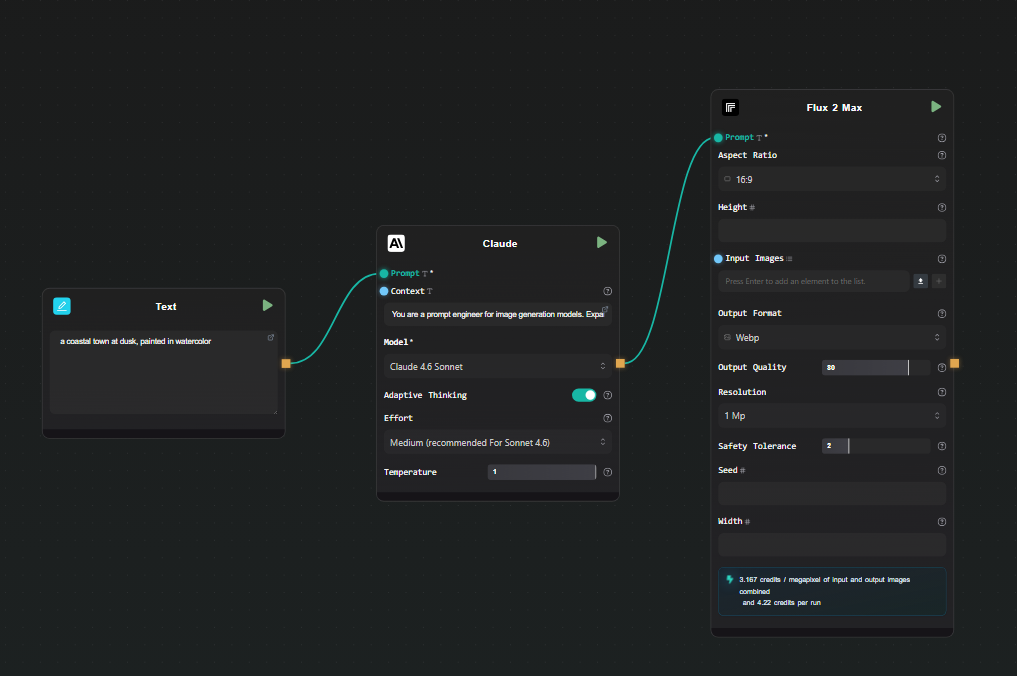
Step 1 — Text Input
Add a Text Input node. Type your rough concept: "a coastal town at dusk, painted in watercolor".
Step 2 — Claude node (prompt expansion)
Add a Claude node. Connect the Text Input output to the Context field. In the Prompt field:
You are a prompt engineer for image generation models.
Expand the concept in the context into a detailed, vivid image generation prompt.
Describe lighting, composition, style, and mood. Output only the prompt, no commentary.
Select Claude 4.6 Sonnet. This gives you a detailed, model-optimized prompt from a two-word concept.
Step 3 — Replicate node (image generation)
Add a Replicate node. Select FLUX 2 Max from the model catalog. Connect the output of the Claude node to the prompt field of the Replicate node.
Set any other parameters you want — aspect ratio, output format — directly in the node.
Step 4 — Run
Hit Run. The pipeline executes in order: your rough concept goes through Claude, an expanded prompt comes out, that prompt goes to FLUX 2 Max on Replicate, and the generated image appears beneath the node. AI-Flow handles the Replicate prediction polling and file storage automatically — you just see the result.
Swap the Text Input content and run again to iterate. Change the Replicate model to compare FLUX 2 Pro vs. FLUX 2 Klein without rewiring anything.
Extending the pipeline
Image editing as a second step
After generating an image, connect its output to a second Replicate node using Google Nano Banana 2. This model takes an image and a text instruction and edits it — change the background, alter the style, remove an object, adjust colors. You get a two-step generate-then-edit pipeline without any code.
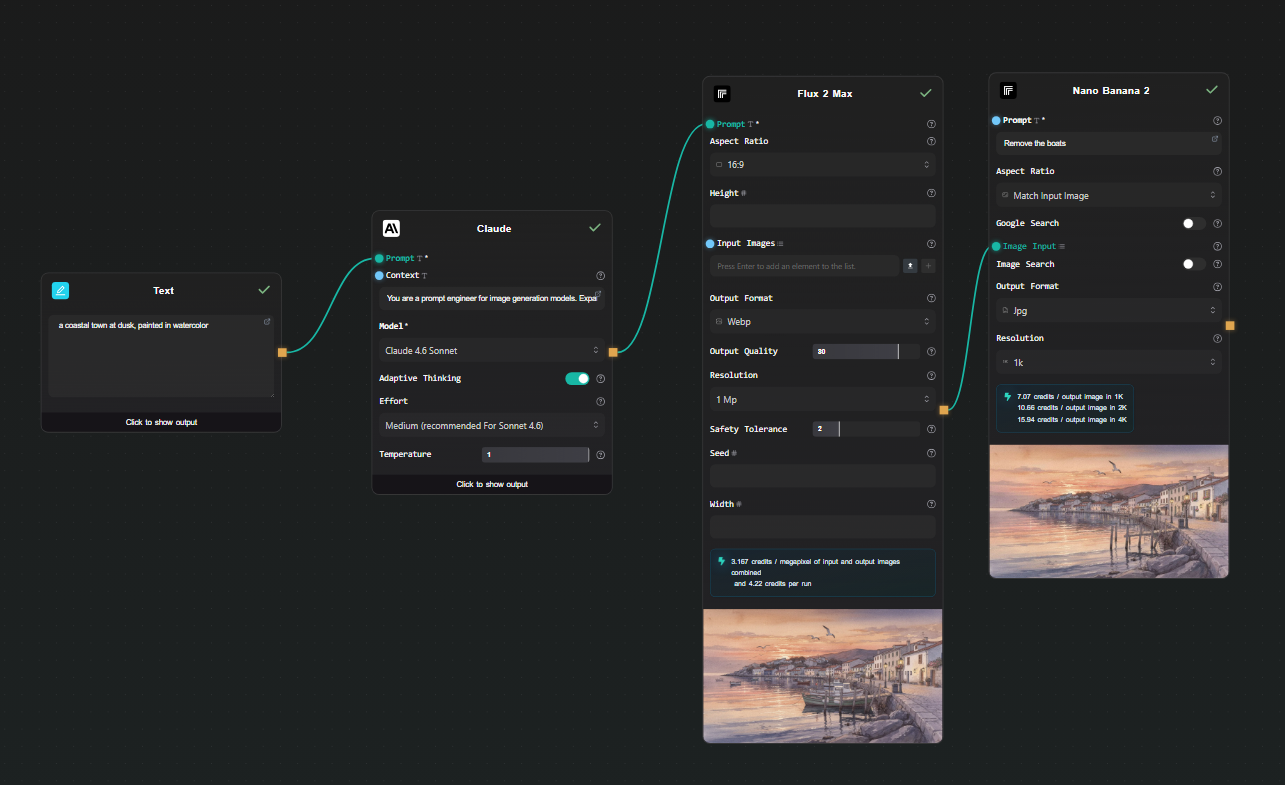
Image to video
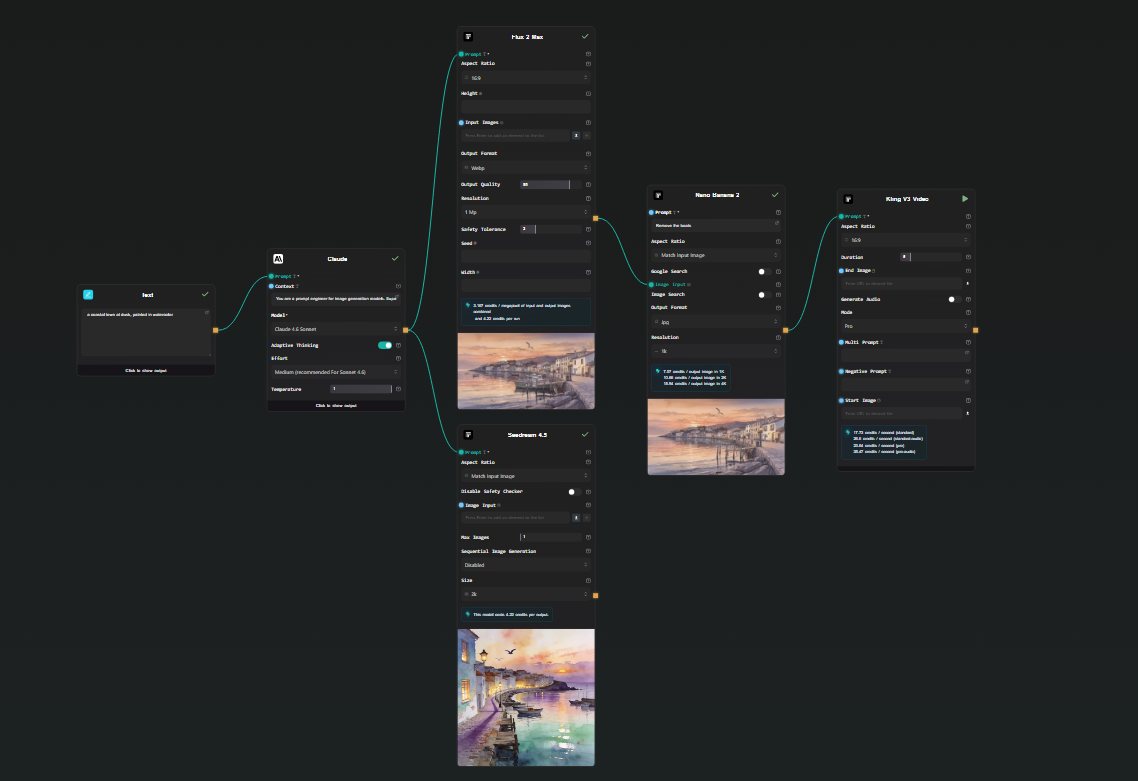
Connect a Replicate image output to a Kling v3 Video node. Add a motion prompt in the node's text field. The result is a short video animated from your generated image — text → LLM → image → video, all in one workflow.
Note: Veo 3.1 and Kling v3 both output video with native audio already embedded. You don't need to add a separate audio generation node.
Run multiple models in parallel
Connect the Claude output to two separate Replicate nodes — FLUX 2 Max and Seedream 4.5, for example. Both run from the same prompt simultaneously. You get side-by-side results to compare outputs across models without running the pipeline twice.
Expose as an API
Add an API Input node at the start and an API Output node at the end. AI-Flow generates a REST endpoint — you POST a concept string, the full pipeline runs, and you get back the image URL. Useful for integrating into an external application without maintaining the pipeline code yourself.
What this removes from your workflow
Without a visual Replicate API workflow builder, running these pipelines means:
- Writing
replicate.run()calls with the right version IDs - Polling for prediction status
- Downloading the output file from Replicate's temporary URL and re-hosting it if needed
- Writing a second client call for the next model in the chain
- Redeploying whenever you change a model or parameter
In AI-Flow, changing a model is a dropdown selection. Changing a prompt is editing a text field. Adding a step is dropping a node and drawing a connection. The iteration cycle is much shorter.
Try it
Add your Replicate API key in AI-Flow's key store, drop a Replicate node on the canvas, and pick a model. The templates library has pre-built image and video generation workflows to start from if you'd rather not build from scratch.