
AI-Flow
Course and Webinar Thumbnail Generator
Create stunning, high-converting thumbnails for courses, webinars, and YouTube videos using multiple host images and automated 16:9 designs.

Inputs


Outputs



About This Template
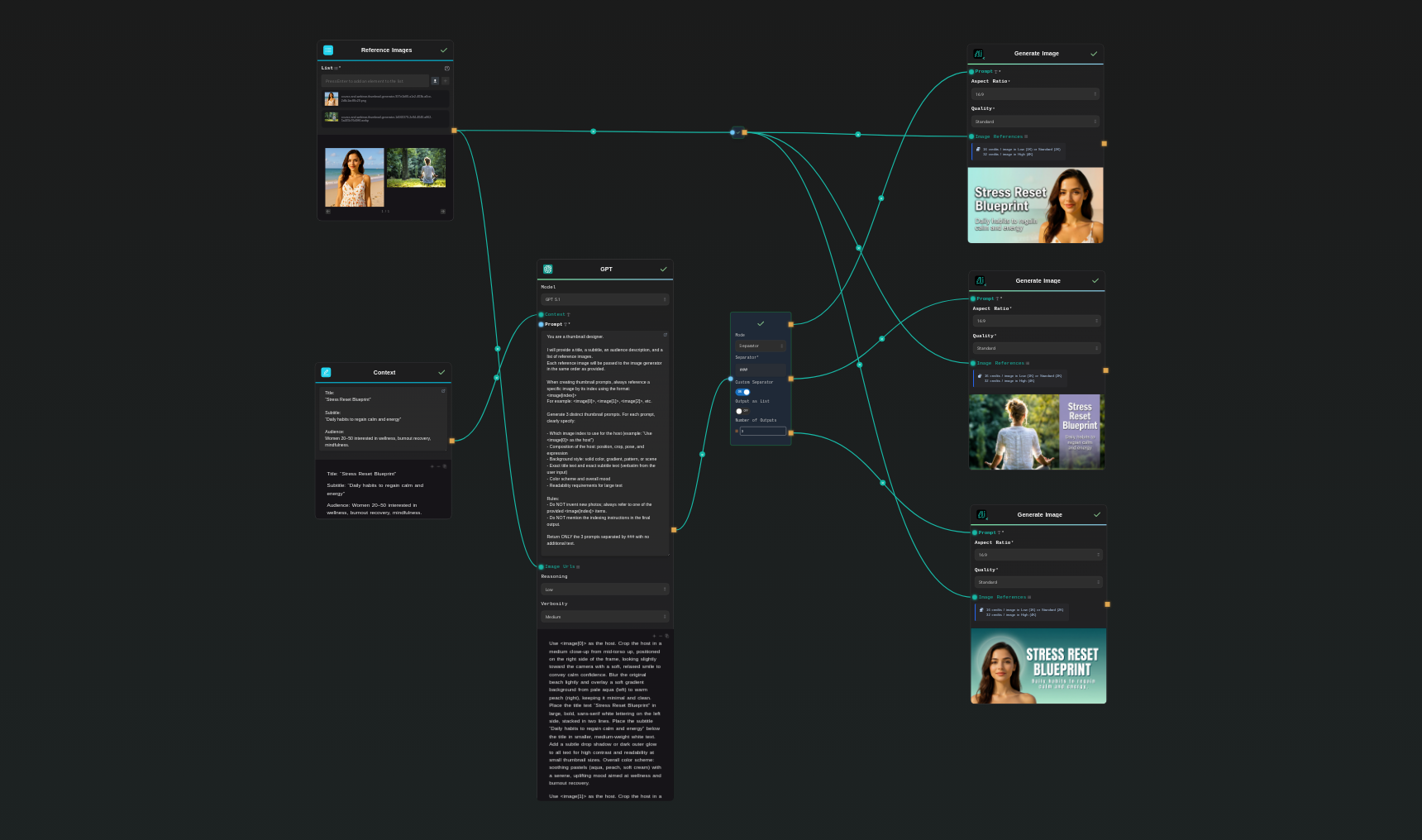
This AI workflow creates three polished thumbnail concepts using your provided title, subtitle, audience description, and host images. Begin by entering that information in the dedicated context node—it gives the model the clarity it needs to generate relevant, high-performing designs. The system accepts multiple host photos and indexes them so the GPT Node can reference each image precisely during prompt creation. You can fully customize the GPT Node prompt to match your needs: require the model to always use the same host image, enforce brand colors, define fixed text layouts, or guide how the background should be styled. This makes the workflow flexible for creators with specific visual standards. Each generated prompt produces a clean, consistent thumbnail layout: a strong visual focus on the host, clear hierarchy between title and subtitle, and a background chosen to support your topic and audience. The workflow outputs three distinct design directions so you can compare styles or run A/B tests effortlessly. Whether you're building course covers, webinar slides, YouTube thumbnails, or landing-page visuals, this template removes manual design work and ensures your output looks professional, readable, and optimized for engagement.
Template Workflow
How to Use This Template
Step 1: Upload your files
In the 'Reference Images' node, upload the files you want to use in the workflow.
Step 2: Enter your text in 'Context' Node
Fill the 'Context' node with the required text.
Title:
“Stress Reset Blueprint”

Subtitle:
“Daily habits to regain calm and energy”

Audience:
Women 20–50 interested in wellness, burnout recovery, mindfulness.
Step 3: Run the Flow
Click the 'Run' button to execute the flow and get the final output.
Who is this for?
Perfect for professionals and creators looking to streamline their workflow
Course creators and educators
People building online courses, workshops, and educational programs who need consistent, professional-looking 16:9 thumbnails for sales pages and lesson covers.
Webinar and live event hosts
Coaches, consultants, and companies running webinars, masterclasses, and live sessions who want fast, on-brand hero images featuring a specific host.
YouTube and content creators
Creators who regularly publish educational or talk-based videos and want to batch-generate thumbnail concepts using their go-to host photos.
Marketing teams and agencies
Teams producing lots of promo graphics for launches, funnels, and campaigns, who need repeatable thumbnail layouts with consistent hosts and branding.
You Might Also Like
Explore other powerful templates to enhance your AI workflow
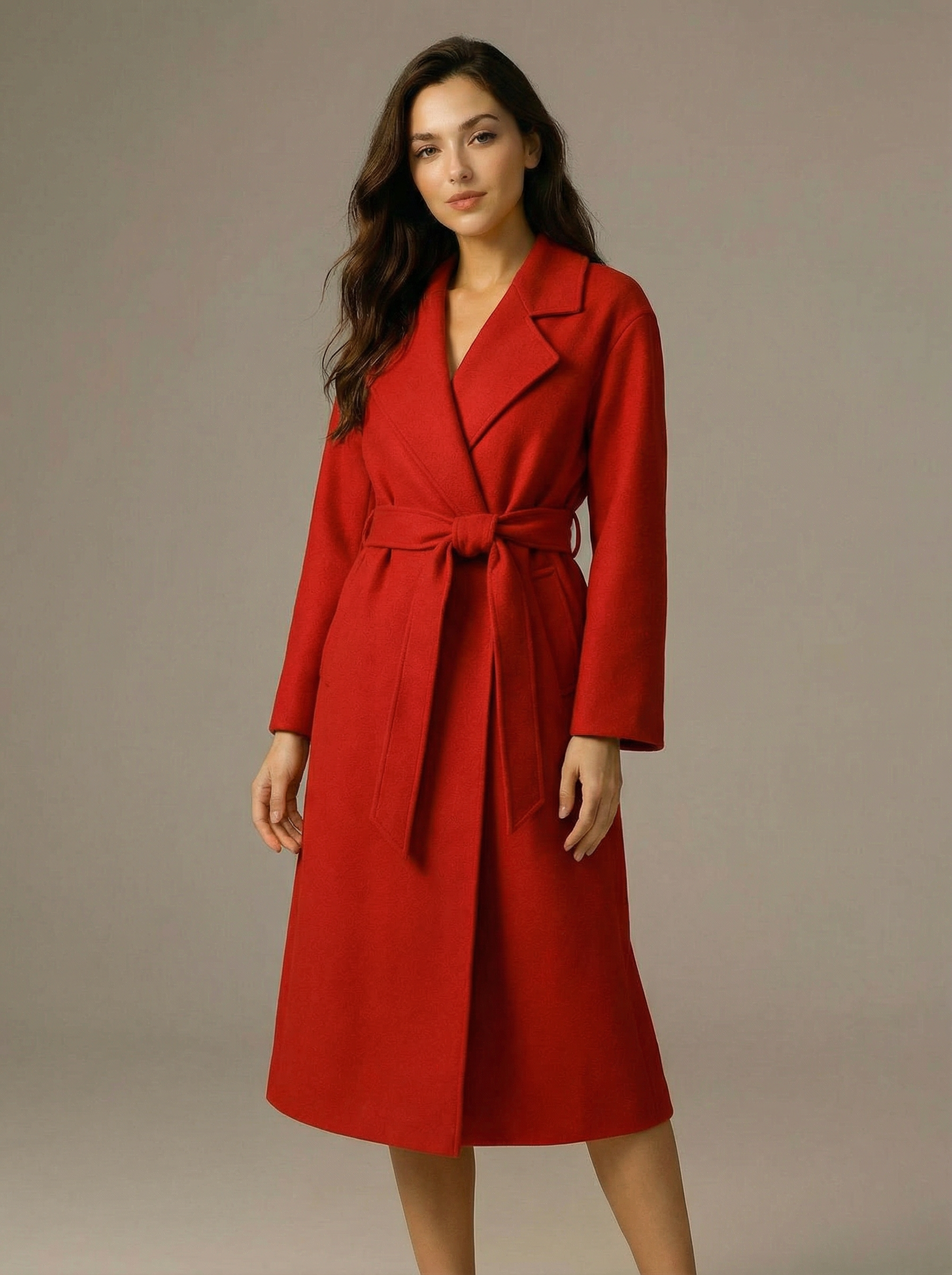
Virtual Try-on
A virtual try-on template that takes a subject image and an outfit image, then generates a realistic photo of the subject wearing the selected clothing.
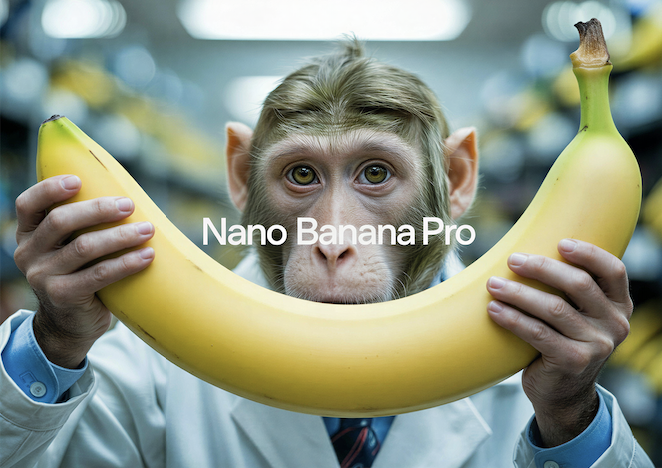
Nano Banana Pro
Generate images from text prompts or reference images using Google's Nano Banana Pro model.

Nano Banana
Google's image editing model in Gemini 2.5
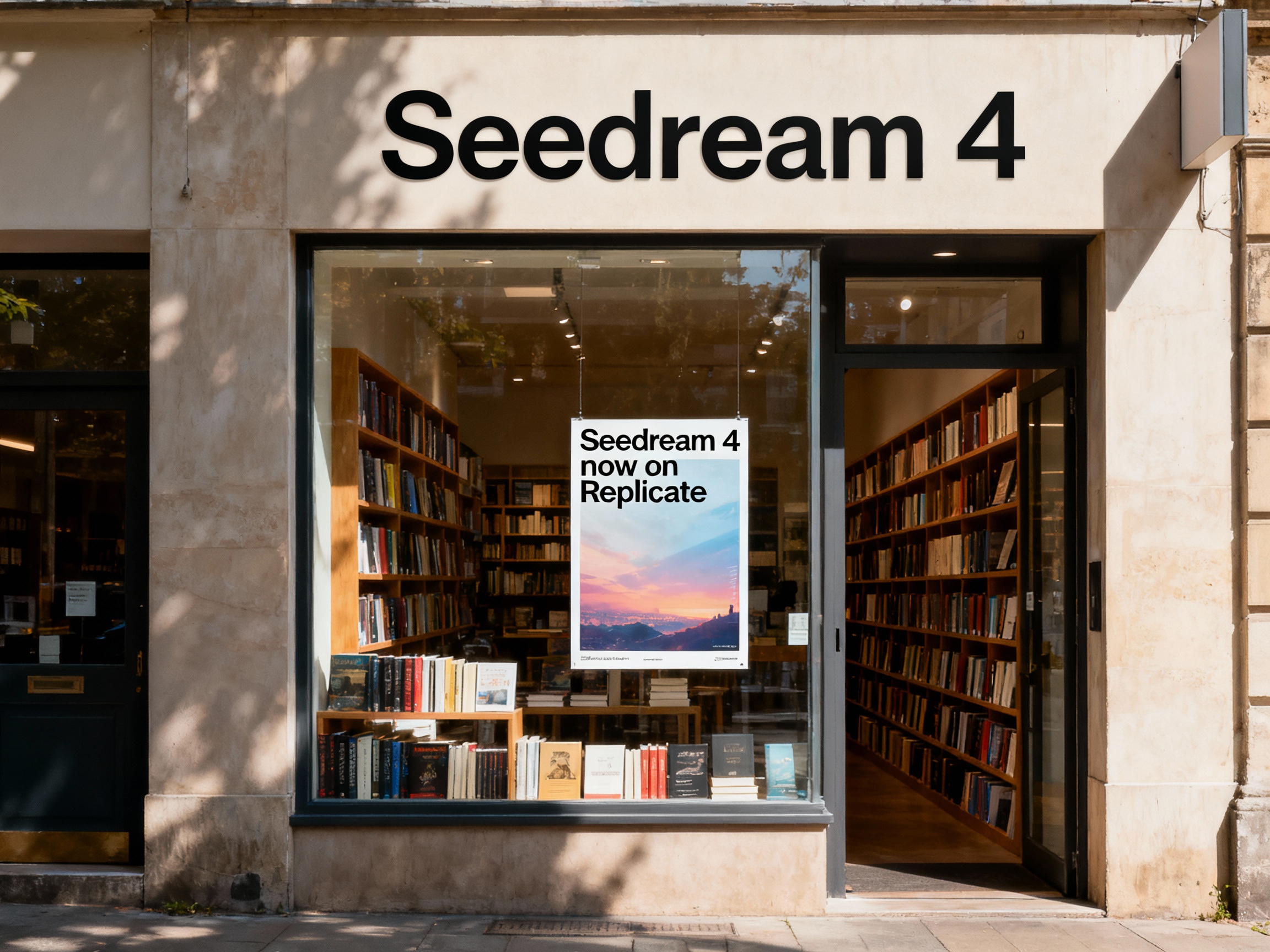
Seedream 4
Unified text-to-image generation and precise single-sentence editing at up to 4K resolution
Rotate Viewpoint – Image Set
Rotate viewpoint around the subject.
Portrait Series FLUX 1 Kontext
Generate a consistent series of portrait photos from a single image using the FLUX 1 Kontext portrait model.
Frequently Asked Questions
What does this template actually generate?
The template takes your title, subtitle, audience description, and a list of host images, then uses a GPT Node to create three detailed prompts for an image model. Each prompt is turned into a 16:9 thumbnail concept with clear text hierarchy and a well-positioned host.
What information do I need to provide before running it?
You should fill in the context node with your title, subtitle, and a short audience description. You should also upload one or more host images in the reference images node. The more clearly you describe the audience and topic, the more on-target the thumbnails will be.
Can I force the same host image to be used on all thumbnails?
Yes. You can edit the GPT Node prompt so it always uses a specific index like
Can I change the design rules or branding in the GPT Node?
Absolutely. You can update the GPT Node prompt to enforce your own brand colors, fonts, layouts, or composition rules—for example, always putting the host on the right, using dark backgrounds, or limiting palettes to your brand identity.
Is this only for courses and webinars?
No. While it’s optimized for courses and webinars, you can also use it for YouTube videos, live events, masterclasses, or any content that needs a strong 16:9 thumbnail with a host and clear text.
Can I generate more than three thumbnails?
By default, the workflow produces three distinct prompt variations. You can duplicate the image generation nodes or rerun the workflow with slightly tweaked context if you want more options.
How well does it work with different host photos?
The system indexes your reference images and the GPT Node explicitly tells the image model which one to use as the host. As long as your photos are clear and high enough quality, you can reuse them across many thumbnail concepts.
What is AI-FLOW and how can it help me?
AI-FLOW is an all-in-one AI platform that allows you to build, integrate, and automate AI-powered workflows using an intuitive drag-and-drop interface. Whether you're a beginner or an expert, you can leverage multiple AI models to create innovative solutions without any coding required.
Is there a free trial available?
Yes, AI-FLOW offers a free trial to get you started. After that, you can purchase credits as needed—no subscription or long-term commitment required.
Can I integrate my API keys from providers like OpenAI and Replicate with AI-FLOW Cloud Version ?
Yes, you can easily integrate your existing API keys with AI-FLOW. If specified, nodes related to the API Key provided will use your API key, significantly reducing your platform credit usage.