
AI-Flow
Flux 2 Klein 9b
Fast 4-step distilled FLUX.2 [klein] 9B text-to-image and image-to-image model with flexible controls for aspect ratio, resolution, format, and reproducibility.
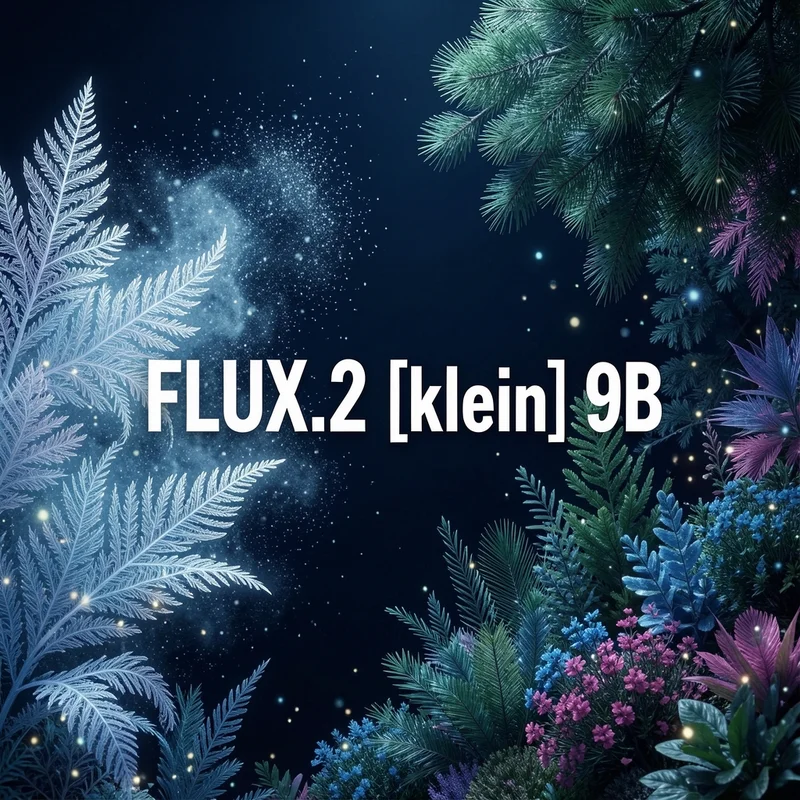
About This Template
Flux 2 Klein 9b is a 4‑step distilled version of FLUX.2 [klein], designed as a versatile foundation model for high‑quality, fast image generation. It supports both text‑to‑image and image‑to‑image workflows, giving you maximum flexibility and control over aspect ratio, resolution (megapixels), output format, quality, seeds, and safety settings. Key capabilities - Fast, reliable generation via 4-step distillation - Text-to-image and image-to-image with up to 5 reference images - Flexible aspect ratios, including matching the first input image - Reproducible results with a fixed seed - Tunable output format (jpg/png/webp) and quality - Optional speed optimizations with go_fast How it works - Provide a clear prompt describing the scene, style, and details you want - Optionally upload up to 5 images for image-to-image guidance - Choose an aspect ratio (or use match_input_image to mirror your first image) - Set megapixels to control output resolution and cost - Select output format and quality; PNG ignores the quality setting - Set a seed for repeatable outputs; leave unset for varied results Inputs - prompt (required): Natural language description for generation - images (optional): Up to 5 input images (jpeg, png, gif, webp) for image-to-image - aspect_ratio (optional): 1:1, 16:9, 9:16, 3:2, 2:3, 4:3, 3:4, 5:4, 4:5, 21:9, 9:21, or match_input_image - megapixels (optional): Output resolution budget (0.25, 0.5, 1, 2, 4) - seed (optional): Integer for reproducible generation - go_fast (optional): Speed-focused optimizations - output_format (optional): webp, jpg, or png - output_quality (optional): 0–100 quality for lossy formats (ignored for png) - disable_safety_checker (optional): Toggle safety filtering (use responsibly) Output - An array of URLs (URIs) pointing to the generated image(s) Pricing note - Estimated: 0.211 credits per megapixel of input and output images combined (actual cost depends on your chosen megapixels and number of input images) Best practices - Be specific and concise in prompts; include subject, style, lighting, and composition cues - For image-to-image, use match_input_image to preserve framing - Increase megapixels for print or detailed work; keep 1 MP for quick drafts - Use PNG for lossless edges/graphics; JPG/WebP for smaller files - Fix a seed to iterate consistently while changing one variable at a time
Template Workflow
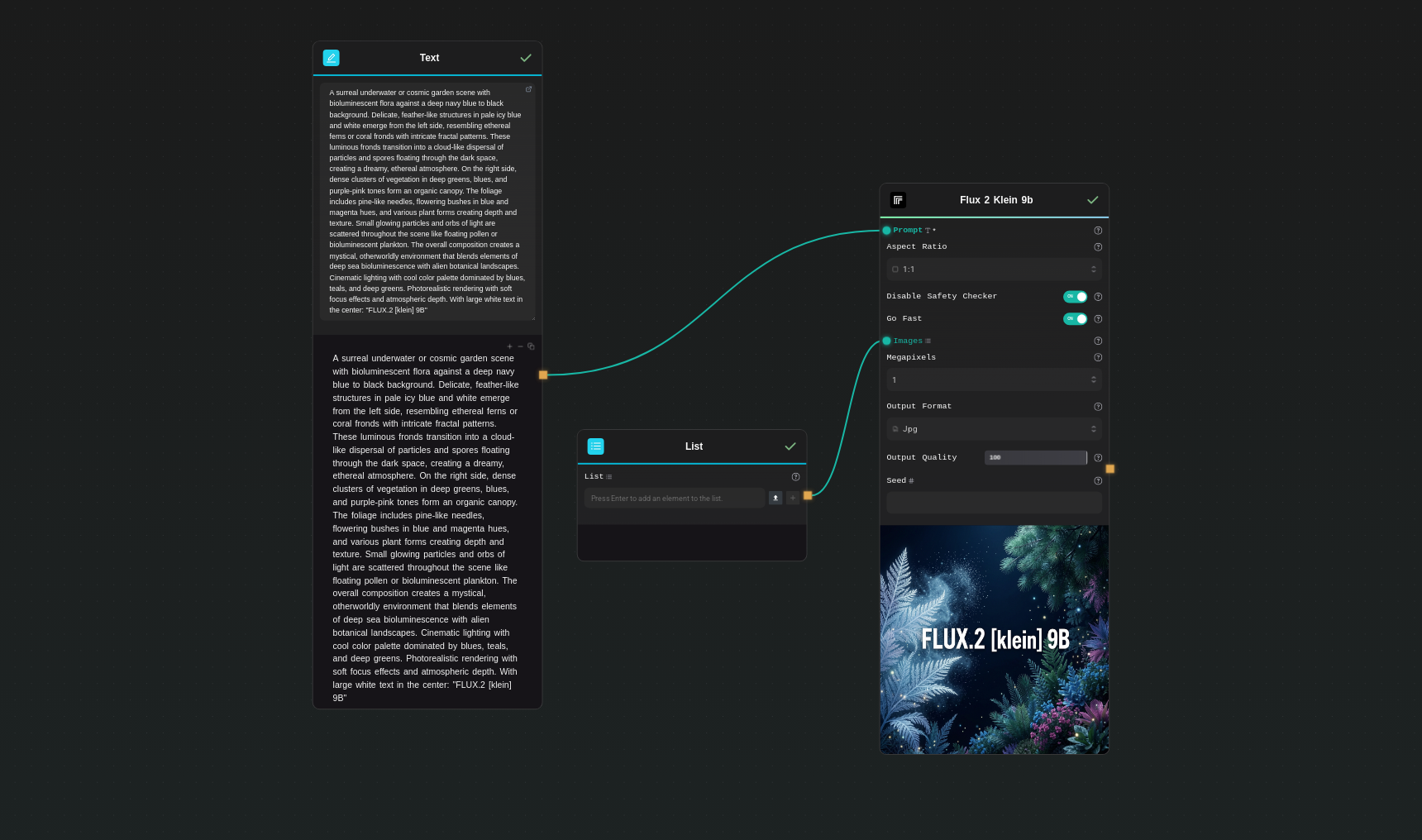
How to Use This Template
Step 1: Enter your text in 'Text' Node
In the 'Text' node, enter your instructions.
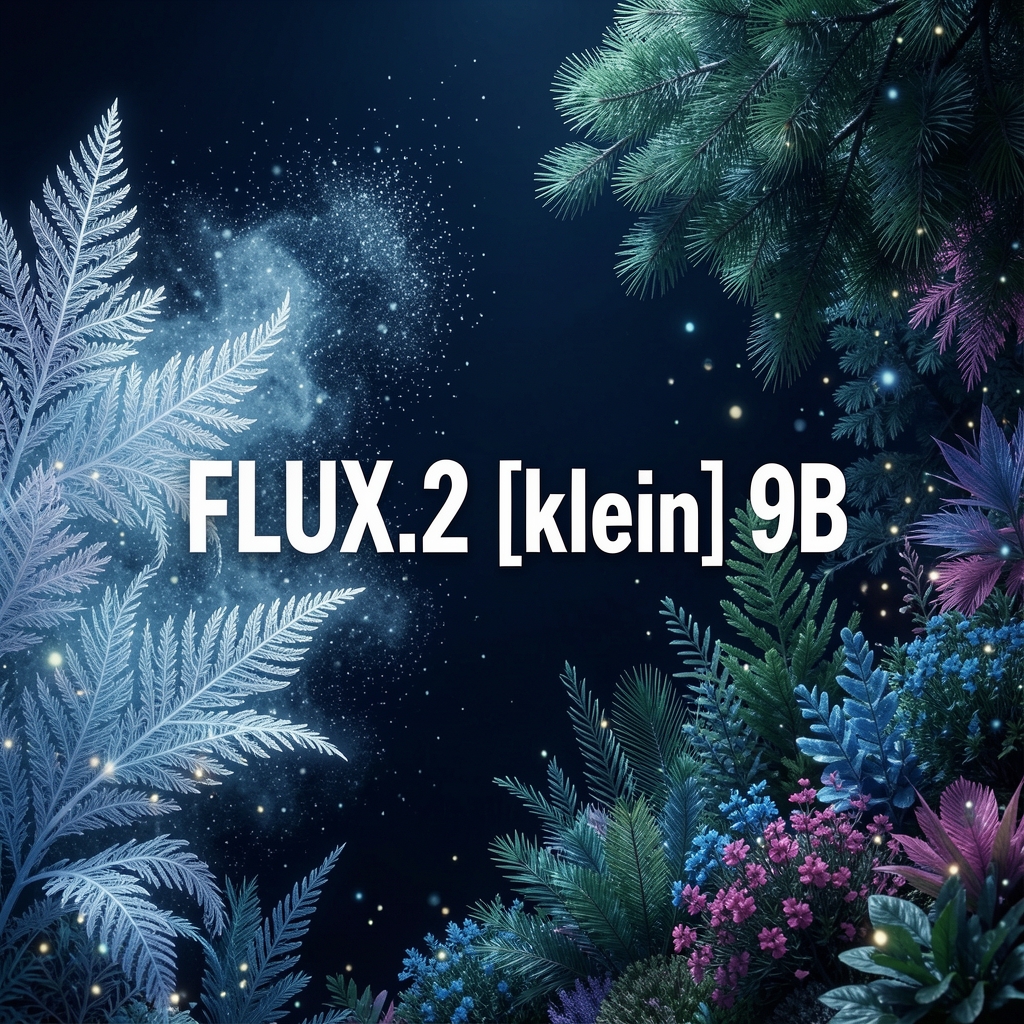
A surreal underwater or cosmic garden scene with bioluminescent flora against a deep navy blue to black background. Delicate, feather-like structures in pale icy blue and white emerge from the left side, resembling ethereal ferns or coral fronds with intricate fractal patterns. These luminous fronds transition into a cloud-like dispersal of particles and spores floating through the dark space, creating a dreamy, ethereal atmosphere. On the right side, dense clusters of vegetation in deep greens, blues, and purple-pink tones form an organic canopy. The foliage includes pine-like needles, flowering bushes in blue and magenta hues, and various plant forms creating depth and texture. Small glowing particles and orbs of light are scattered throughout the scene like floating pollen or bioluminescent plankton. The overall composition creates a mystical, otherworldly environment that blends elements of deep sea bioluminescence with alien botanical landscapes. Cinematic lighting with cool color palette dominated by blues, teals, and deep greens. Photorealistic rendering with soft focus effects and atmospheric depth. With large white text in the center: "FLUX.2 [klein] 9B"
Step 2: Upload your files
In the 'List' node, upload the files you want to use in the workflow.
Step 3: Run the Flow
Click the 'Run' button to execute the flow and get the final output.
Who is this for?
Perfect for professionals and creators looking to streamline their workflow
Designers and art directors
Quickly explore visual directions, iterate on compositions, and refine style with precise control over ratio, resolution, and format.
Marketers and brand teams
Generate on-brand campaign visuals, social assets, and ad variants at speed, with reproducible settings for approvals.
Game and concept artists
Prototype worlds, props, and characters using text prompts or reference images to guide look and feel.
Product and UX teams
Create mockups, feature illustrations, and UI supporting art in consistent aspect ratios and formats.
Developers and ML engineers
Integrate fast, controllable image generation into pipelines; evaluate distillation, seeds, and parameter impacts.
Content creators
Produce thumbnails, covers, and editorial visuals with repeatable outputs and efficient resolution control.
You Might Also Like
Explore other powerful templates to enhance your AI workflow
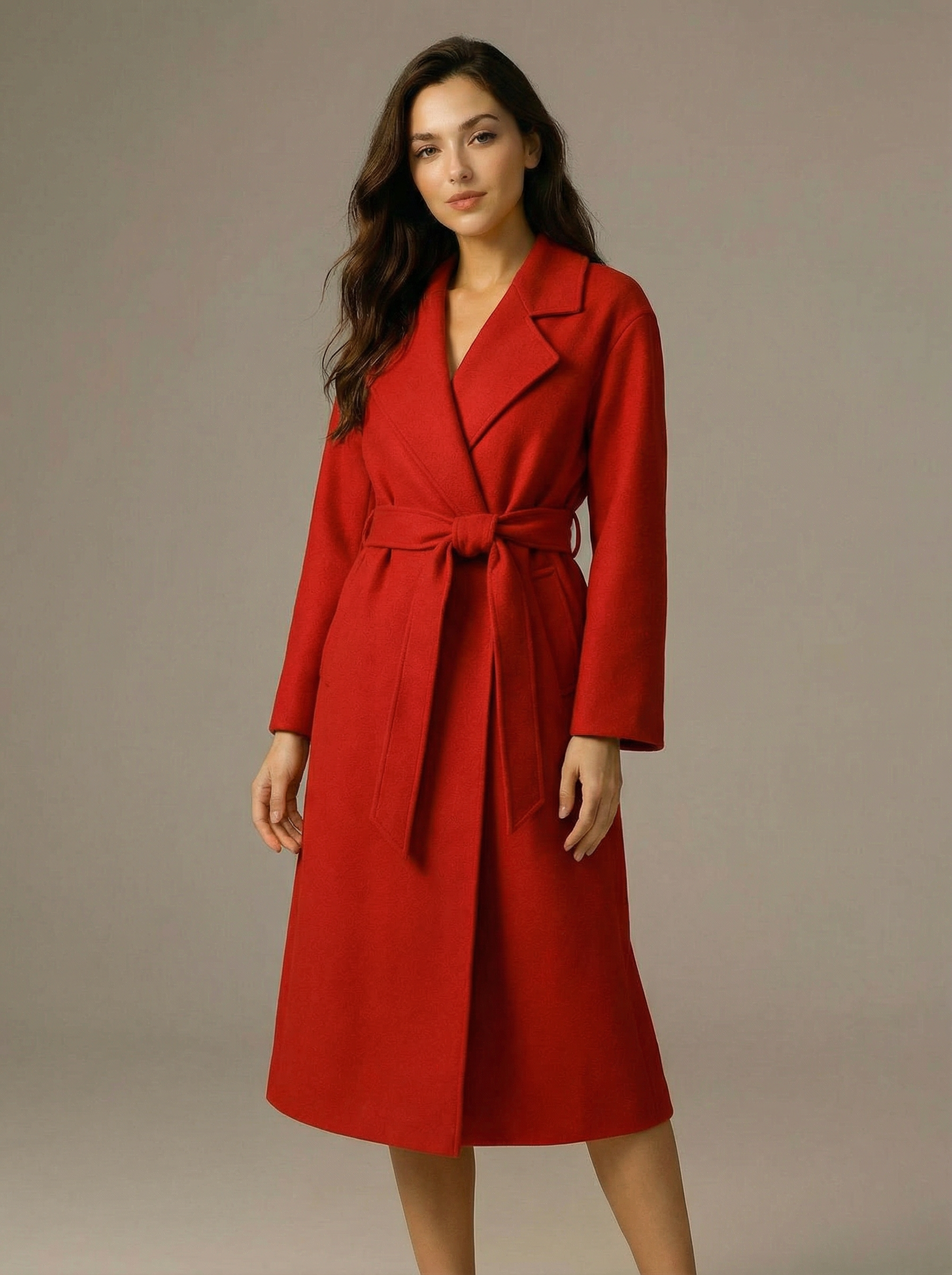
Virtual Try-on
A virtual try-on template that takes a subject image and an outfit image, then generates a realistic photo of the subject wearing the selected clothing.
Nano Banana Pro
Generate images from text prompts or reference images using Google's Nano Banana Pro model.
Nano Banana
Google's image editing model in Gemini 2.5
Seedream 4
Unified text-to-image generation and precise single-sentence editing at up to 4K resolution
Rotate Viewpoint – Image Set
Rotate viewpoint around the subject.
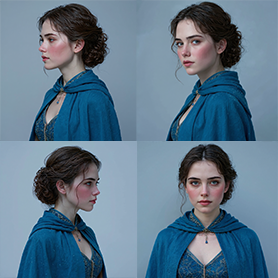
Portrait Series FLUX 1 Kontext
Generate a consistent series of portrait photos from a single image using the FLUX 1 Kontext portrait model.
Frequently Asked Questions
What is Flux 2 Klein 9b?
A 4-step distilled variant of FLUX.2 [klein] (9B), built for fast, high-quality text-to-image and image-to-image generation with granular controls for aspect ratio, resolution, output format, and reproducibility.
How do I use it for image-to-image?
Upload up to 5 images (jpeg, png, gif, or webp), write a prompt describing the desired transformation or style, and optionally set aspect_ratio to match_input_image to preserve framing. Adjust megapixels for output size and set a seed for reproducibility.
Which aspect ratios are supported?
Choose from 1:1, 16:9, 9:16, 3:2, 2:3, 4:3, 3:4, 5:4, 4:5, 21:9, 9:21, or use match_input_image to mirror the first uploaded image.
What does megapixels control?
megapixels sets the output resolution budget (0.25, 0.5, 1, 2, or 4 MP). Higher values produce larger, more detailed images but increase compute cost. Choose based on your use case (draft vs. final).
How do I get repeatable results?
Set the seed to a fixed integer. Using the same prompt, inputs, and parameters with the same seed yields reproducible outputs. Leaving seed empty introduces variation.
When should I use PNG vs JPG or WebP?
Use PNG for lossless edges, graphics, or post-processing; use JPG or WebP for smaller file sizes. output_quality affects JPG/WebP but is ignored for PNG.
What does go_fast do?
go_fast enables additional optimizations for faster predictions, ideal for drafts and rapid iteration. For maximum fidelity, you can disable it.
Can I disable the safety checker?
Yes, via disable_safety_checker. Only disable it if your use case complies with all applicable content policies and laws, and you have proper controls in place.
What file types can I upload and how many?
You can upload up to 5 images in jpeg, png, gif, or webp formats for image-to-image generation.
What does the API return?
An array of URIs (URLs) to the generated image(s). You can download or process them in your pipeline as needed.
What is AI-FLOW and how can it help me?
AI-FLOW is an all-in-one AI platform that allows you to build, integrate, and automate AI-powered workflows using an intuitive drag-and-drop interface. Whether you're a beginner or an expert, you can leverage multiple AI models to create innovative solutions without any coding required.
Is there a free trial available?
Yes, AI-FLOW offers a free trial to get you started. After that, you can purchase credits as needed—no subscription or long-term commitment required.
Can I integrate my API keys from providers like OpenAI and Replicate with AI-FLOW Cloud Version ?
Yes, you can easily integrate your existing API keys with AI-FLOW. If specified, nodes related to the API Key provided will use your API key, significantly reducing your platform credit usage.