
Compositeur de calques
Superposez et fusionnez des images en une scène photoréaliste. Ce template présente le nœud Compositor avec un arrière-plan, un plan intermédiaire et un premier plan, la suppression automatique des fonds, puis un relighting IA, des ombres et des reflets.

Aperçu du workflow
Fonctionnement du template Compositeur de calques
File
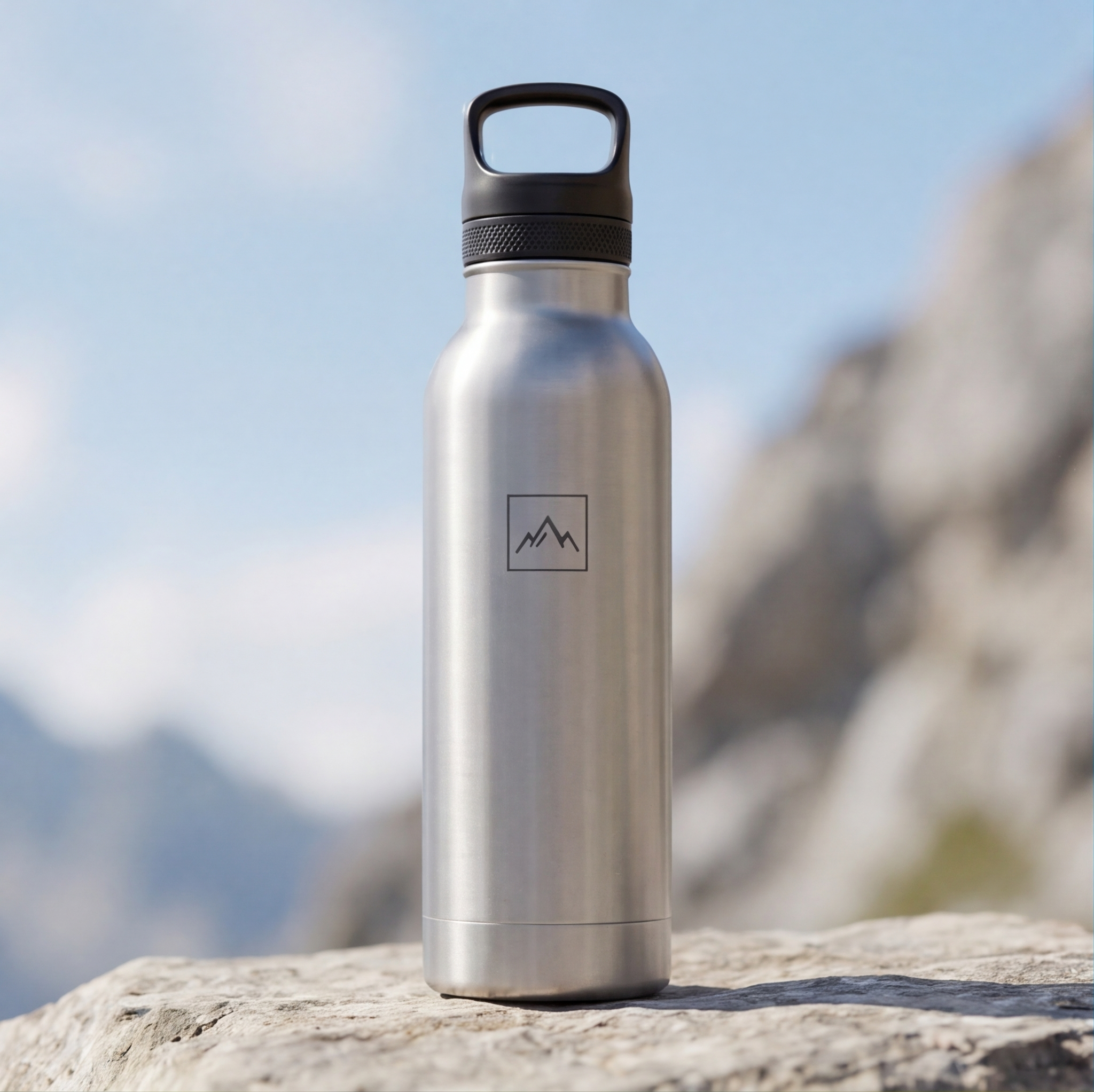
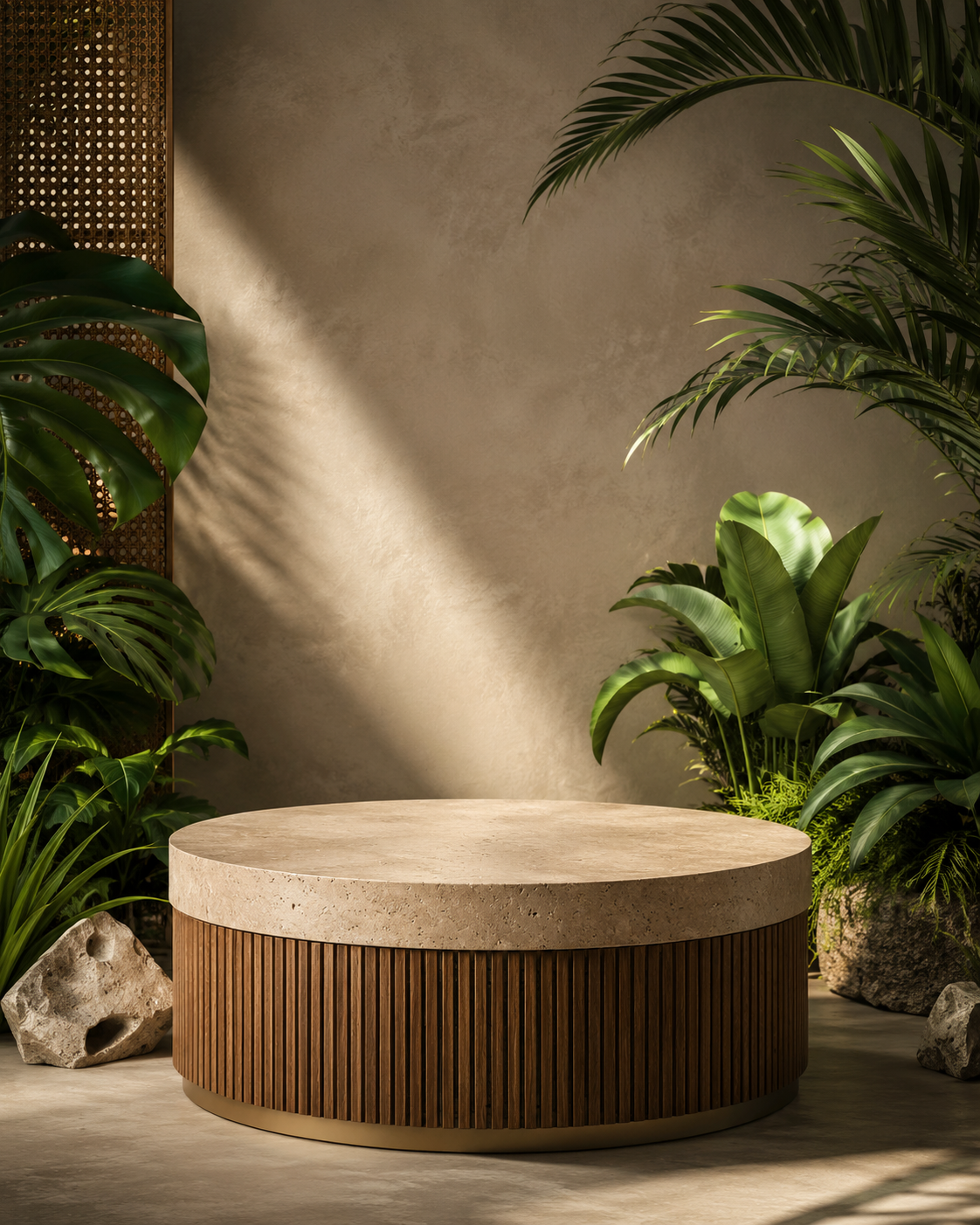
File

File
Remove Background
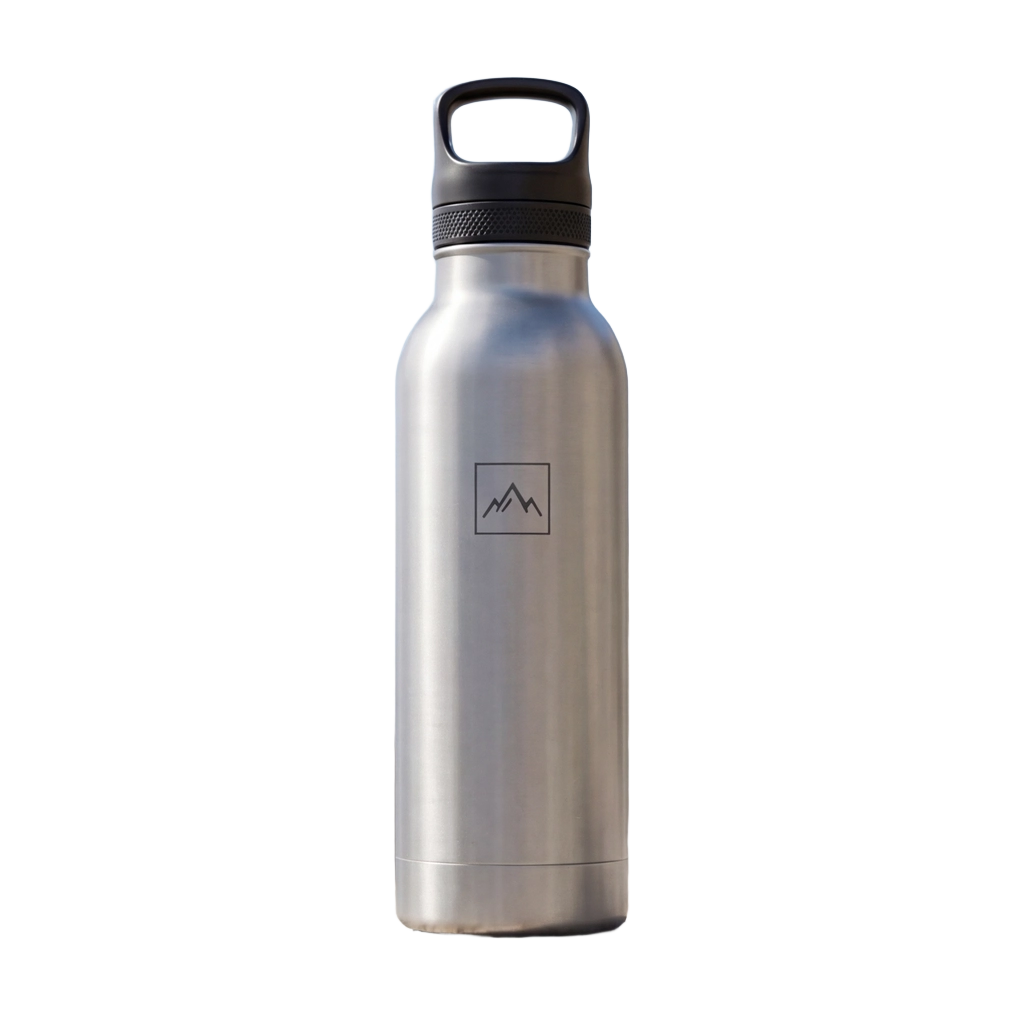
Remove Background

Compositor

Gemini Image
À propos de ce template
Compositeur de calques est un template tutoriel pratique qui illustre le compositing d’images de bout en bout : importez vos visuels, supprimez les arrière-plans, positionnez les calques et produisez une image finale aboutie.
Comment ça marche
Déposez vos images d’arrière-plan et d’objets (par exemple un flacon et une tasse)
Supprimez l’arrière-plan en un clic (transparence préservée) grâce au sous-flux Remove Background intégré
Organisez les calques dans le Compositor (arrière-plan, plan intermédiaire, premier plan) et ajustez taille, position, rotation, opacité et ordre
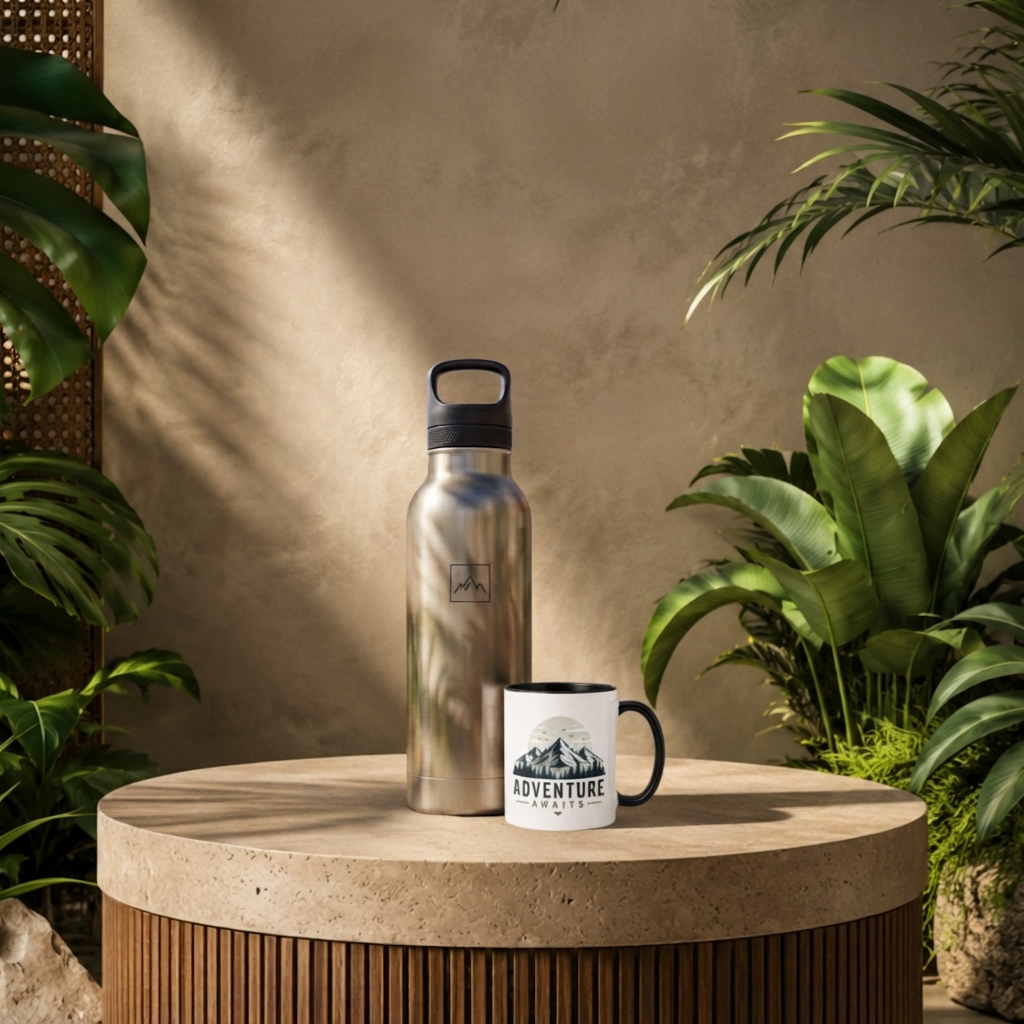
Envoyez l’image composée vers une passe de finition IA pour ajouter des ombres de contact réalistes, des reflets et un éclairage cohérent avec la scène — sans modifier le produit lui-même
Exportez une image propre pour vos publicités, bannières d’accroche, miniatures ou maquettes
Ce que contient le template
Un nœud Compositor préconfiguré avec trois calques d’exemple (arrière-plan, flacon, tasse)
Un sous-flux « Remove Background » de Bria pour isoler les produits et conserver la transparence
Une passe de finition Gemini Image pour une intégration photoréaliste (relighting, ombres, reflets) tout en respectant le placement et l’échelle d’origine
Un pipeline non destructif et reproductible, que vous pouvez étendre avec d’autres calques, d’autres canevas et vos visuels de marque
Cas d’usage
Photos produit e-commerce, maquettes lifestyle, sections d’accroche et publications sociales
Itération créative rapide sur des visuels marketing, sans détourage manuel
Intégration cohérente d’une même scène sur plusieurs rendus produit
Remarques
Le prompt de finition est réglé pour respecter la position et la taille des objets et pour éviter de modifier le produit lui-même ; il se concentre sur l’éclairage et le réalisme des contacts
Le template produit une image fixe (vous pouvez ajuster la largeur, la hauteur et le format du canevas).
Comment utiliser ce template
Étape 1 : Importez votre fichier
Dans le nœud « Fichier », importez le fichier que vous souhaitez traiter.
Étape 2 : Importez votre fichier
Dans le nœud « Fichier », importez le fichier que vous souhaitez traiter.
Étape 3 : Importez votre fichier
Dans le nœud « Fichier », importez le fichier que vous souhaitez traiter.
Étape 4 : Exécutez le workflow
Cliquez sur le bouton « Exécuter » pour lancer le workflow et obtenir le résultat final.
À qui s’adresse ce template ?
Idéal pour les professionnels et les créateurs qui souhaitent simplifier leur workflow
Designers et directeurs artistiques
Intégrez rapidement vos produits dans des scènes, itérez sur les placements et produisez des maquettes prêtes à présenter, avec des ombres et un éclairage réalistes.
Marketeurs e-commerce et produit
Créez des images d’accroche de campagne, des visuels de fiche produit et des publicités sociales en intégrant des photos produit détourées dans des décors de marque, sans nouvelle séance photo en studio.
Créateurs de contenu et community managers
Transformez des empilements de calques bruts en publications et miniatures abouties, avec un minimum de retouche manuelle.
Photographes et retoucheurs
Accélérez le détourage et l’intégration dans la scène tout en préservant la fidélité du produit.
Créateurs no-code et développeurs
Apprenez à maîtriser le nœud Compositor, les sous-flux et la finition d’images pour bâtir des pipelines visuels reproductibles.
Enseignants et étudiants
Un template concret pour enseigner l’ordre des calques, la gestion de la transparence et le relighting assisté par IA.
Prêt à construire ?
Commencez à utiliser ce template
Ouvrez-le directement dans AI-Flow et commencez à créer en quelques minutes
Vous aimerez peut-être aussi
Explorez d’autres templates puissants pour enrichir votre workflow IA

Génération d’images avec GPT Image 2.5 Flare
Générez des images haute fidélité avec GPT Image 2.5 Flare, optimisé pour la typographie réaliste, les écritures multilingues, les mises en page structurées et les formats prêts à imprimer jusqu’en 4K, pour affiches, bandes dessinées, marketing, maquettes UI et réseaux sociaux.
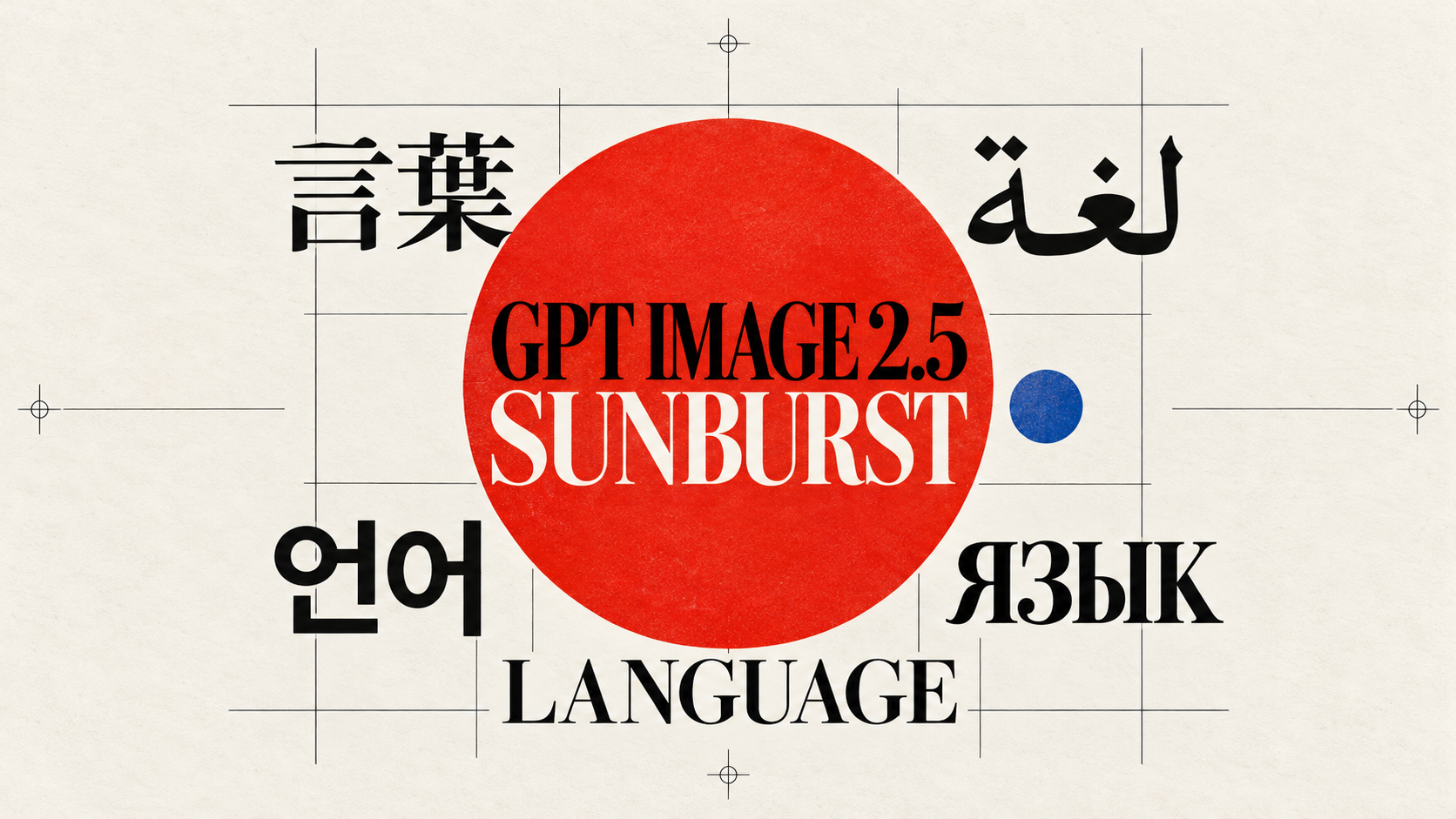
Génération d’images avec GPT Image 2.5 Sunburst
Générez des images haute fidélité avec GPT Image 2.5 Sunburst, optimisé pour la typographie réaliste, les écritures multilingues, les mises en page structurées et les formats prêts à imprimer jusqu’en 4K, pour affiches, bandes dessinées, marketing, maquettes UI et réseaux sociaux.
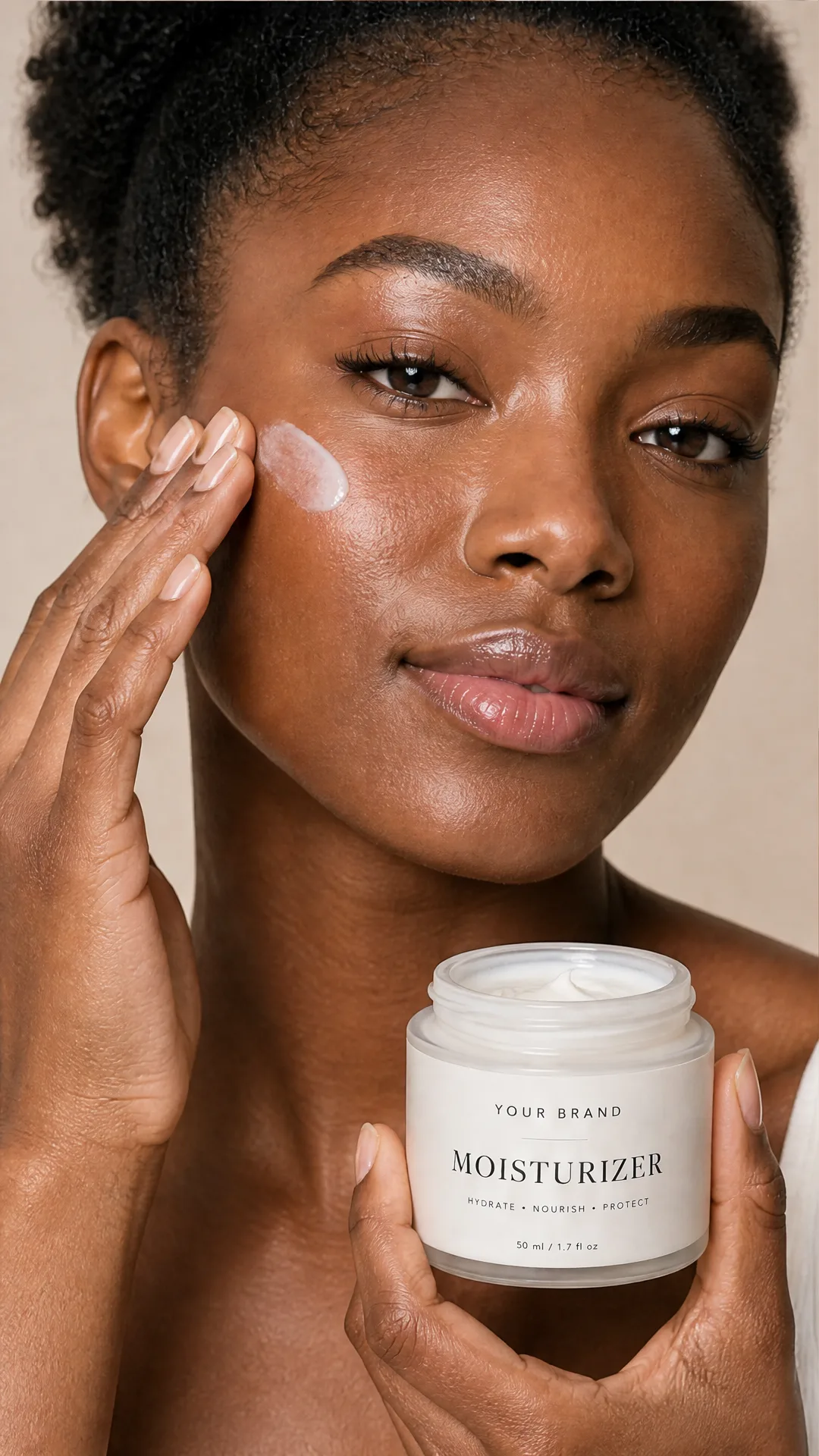
Générateur IA de photos produit de soin
Transformez une seule image de crème, de sérum ou de pot cosmétique en shooting complet : une grille 2 × 2 et quatre visuels recadrés (plan large, plan moyen, gros plan, angle créatif), porté ou produit seul, pour l'e-commerce beauté, les marketplaces et la publicité.

Générateur IA de photos produit de crème solaire
Transformez une seule image de tube ou de flacon solaire en shooting complet : une grille 2 × 2 et quatre visuels recadrés (plan large, plan moyen, gros plan, angle créatif), porté ou produit seul, pour l'e-commerce beauté, les marketplaces et la publicité.

Générateur IA de mockups de t-shirts
Transformez une seule image de t-shirt en mockups print-on-demand portés : une grille 2 × 2 et quatre visuels recadrés (plan large, plan moyen, gros plan sur l'impression, angle créatif), pour Etsy, Shopify et vos boutiques POD.
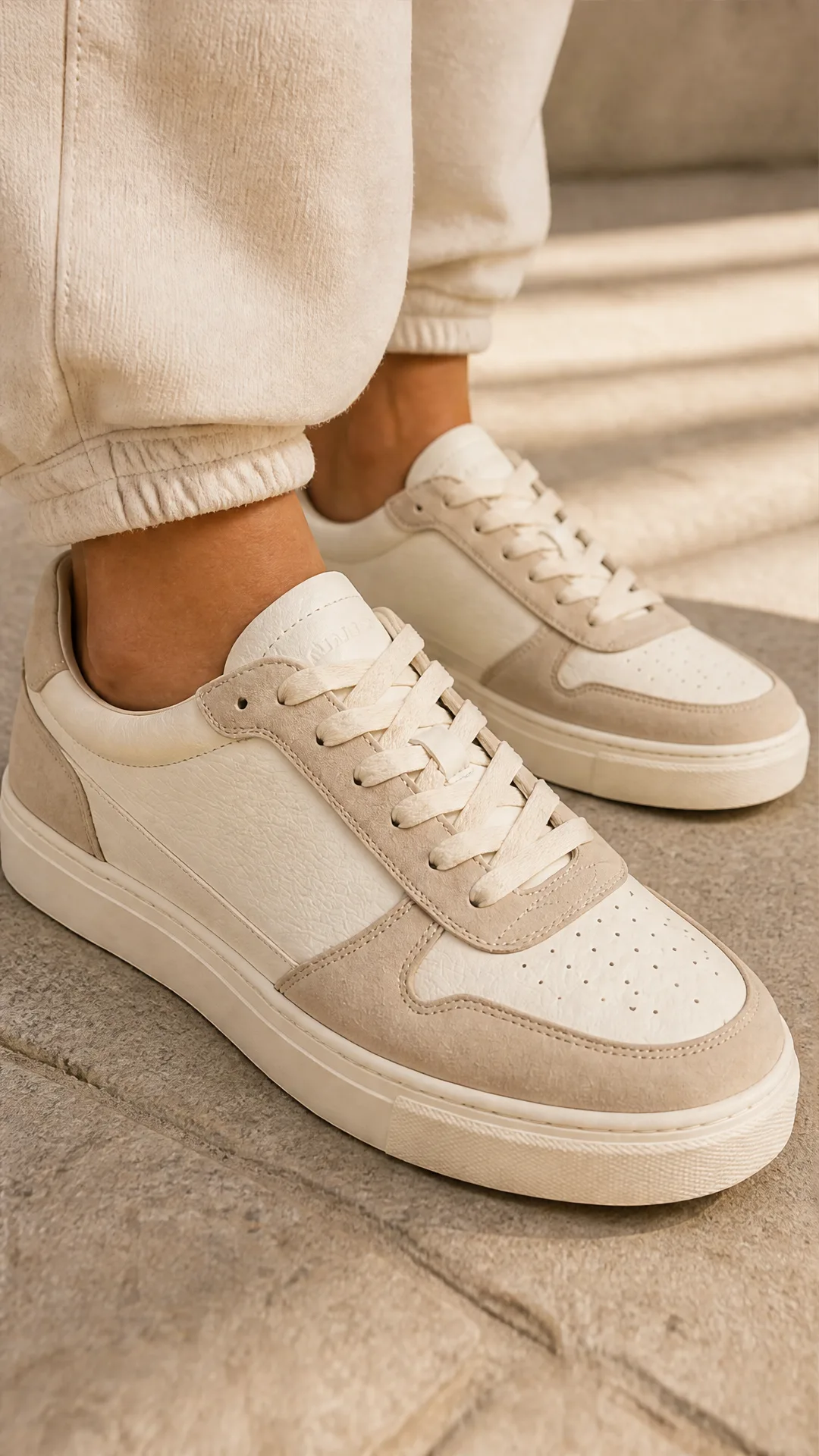
Générateur IA de photos produit de sneakers
Générez des photos produit de sneakers à partir d'une seule image de chaussure : une grille 2 × 2 et quatre visuels recadrés (plan large, plan moyen, gros plan, angle créatif), en mode porté ou produit seul, pour vos fiches e-commerce, marketplaces et publicités.
Questions fréquentes
Que fait ce template ?
Il illustre un workflow de compositing complet : charger des images, supprimer automatiquement les arrière-plans, organiser les calques (arrière-plan / plan intermédiaire / premier plan), puis faire passer la composition par une étape IA qui ajoute ombres, reflets et éclairage afin que les objets s’intègrent naturellement à la scène.
Quels modèles et outils sont utilisés ?
Les arrière-plans sont supprimés par le modèle Bria Remove Background (transparence préservée). Le nœud Compositor contrôle l’ordre des calques et leurs transformations. Une passe de finition Gemini Image ré-éclaire la composition et ajoute des effets de contact réalistes, tout en respectant le placement et l’échelle des objets.
Puis-je téléverser mes propres calques ?
Oui. Remplacez les images d’exemple (arrière-plan, flacon, tasse) ou ajoutez d’autres calques dans le Compositor. Le sous-flux de suppression d’arrière-plan peut être réutilisé pour chaque nouvel objet.
L’IA va-t-elle modifier mon produit ?
Non. La passe de finition est configurée pour laisser le produit intact et n’améliorer que le réalisme (ombres, reflets et éclairage cohérent avec la scène).
La transparence (canal alpha) est-elle préservée ?
Oui. L’étape de suppression d’arrière-plan conserve le canal alpha afin que vos objets se composent proprement. Vous pouvez aussi exporter avec transparence en contournant ou en ajustant l’arrière-plan uni.
Comment contrôler l’ordre et la position des calques ?
Utilisez le nœud Compositor pour réordonner les calques et ajuster leur position, leur échelle, leur rotation, leur opacité et leur mode de fusion. La taille du canevas et la couleur de fond sont également paramétrables.
Quelles tailles et quels formats de sortie sont pris en charge ?
Vous pouvez définir des dimensions de canevas personnalisées dans le Compositor. La passe de finition prend en charge le carré, le 16:9, le 9:16, le 4:3 et le 3:4, ou peut reprendre le format de la composition d’entrée.
Dois-je fournir des masques ?
Aucun masque n’est nécessaire. Le template inclut un sous-flux de suppression d’arrière-plan qui génère automatiquement des couches alpha propres pour vos calques produit.
Puis-je ajouter d’autres objets ou d’autres scènes ?
Oui. Dupliquez le sous-flux Remove Background pour chaque nouvel objet, ajoutez-les comme nouveaux calques dans le Compositor, puis relancez le pipeline.
Des conseils pour des résultats plus réalistes ?
Utilisez des images sources haute résolution, veillez à ce que la perspective du produit soit cohérente avec l’arrière-plan, et affinez l’échelle des objets et leur contact avec le sol dans le Compositor avant de lancer la passe de finition.
Ce template gère-t-il l’animation ?
Cette configuration est destinée aux images fixes. Même si le Compositor propose des champs de cadence et de durée, le flux fourni exporte une seule image.
Quels sont les cas d’usage courants ?
Créer des images d’accroche e-commerce, des créations publicitaires, des photos de catalogue, des maquettes lifestyle et des miniatures sociales en intégrant de façon convaincante des produits détourés dans des arrière-plans aux couleurs de la marque.
Qu’est-ce qu’AI-FLOW et comment peut-il m’aider ?
AI-FLOW est une plateforme d’IA tout-en-un qui vous permet de créer, d’intégrer et d’automatiser des workflows alimentés par l’IA grâce à une interface intuitive en glisser-déposer. Débutant ou expert, vous pouvez combiner plusieurs modèles d’IA pour créer des solutions innovantes sans écrire de code.
Un essai gratuit est-il disponible ?
Oui, AI-FLOW propose un essai gratuit pour commencer. Vous pouvez ensuite acheter des crédits selon vos besoins, sans abonnement ni engagement à long terme.
Puis-je intégrer mes clés API OpenAI, Replicate et d’autres fournisseurs dans la version Cloud d’AI-FLOW ?
Oui, vous pouvez facilement intégrer vos propres clés API à AI-FLOW. Les nœuds associés utiliseront alors votre clé, ce qui réduit considérablement votre consommation de crédits sur la plateforme.