
Layer Composer
Layer and blend images into a single, photorealistic scene. This template teaches the Compositor node by stacking a background, midground, and foreground, auto-removing backgrounds, and finishing with AI relighting, shadows, and reflections.

Workflow overview
How the Layer Composer template works
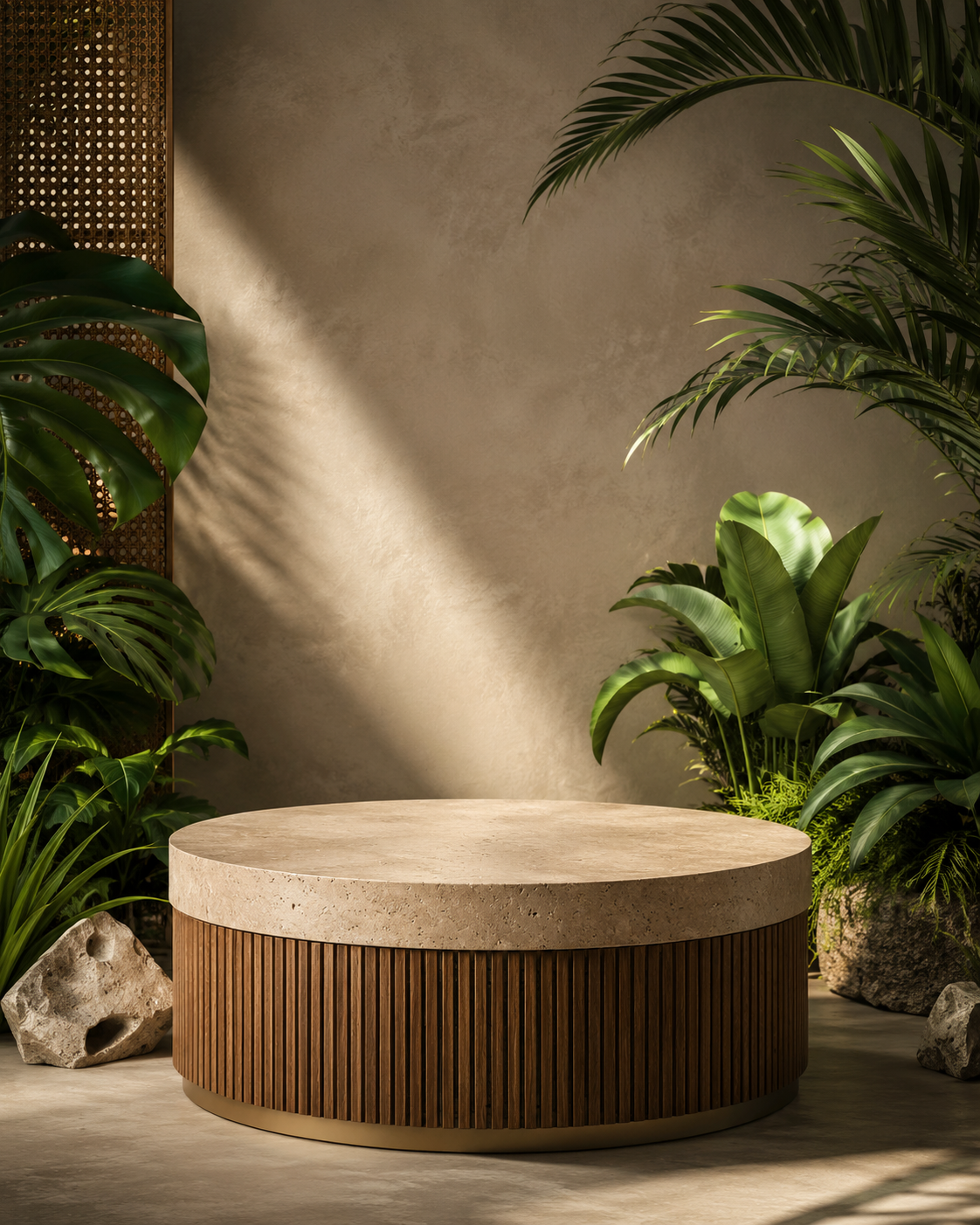
File
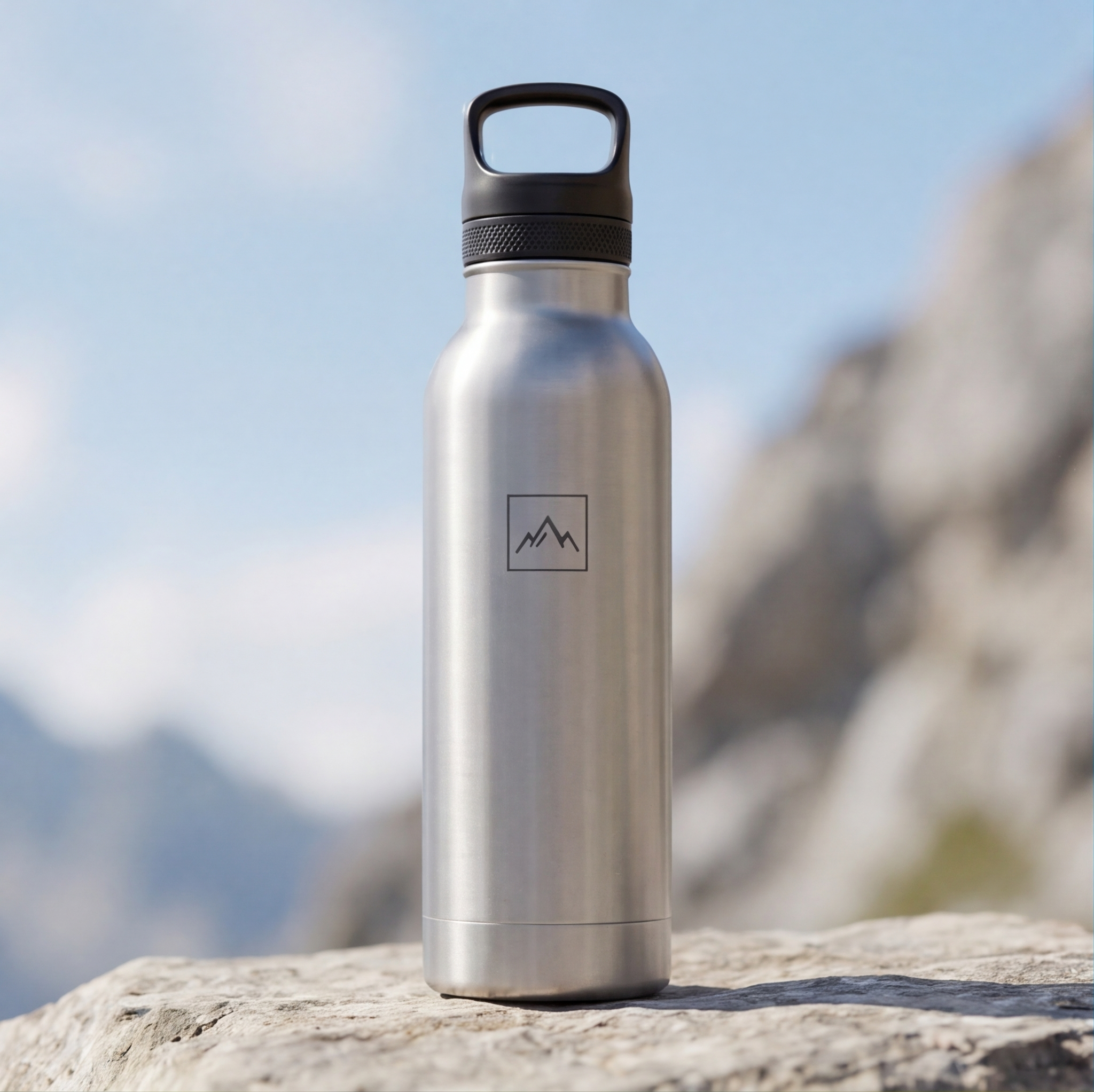
File
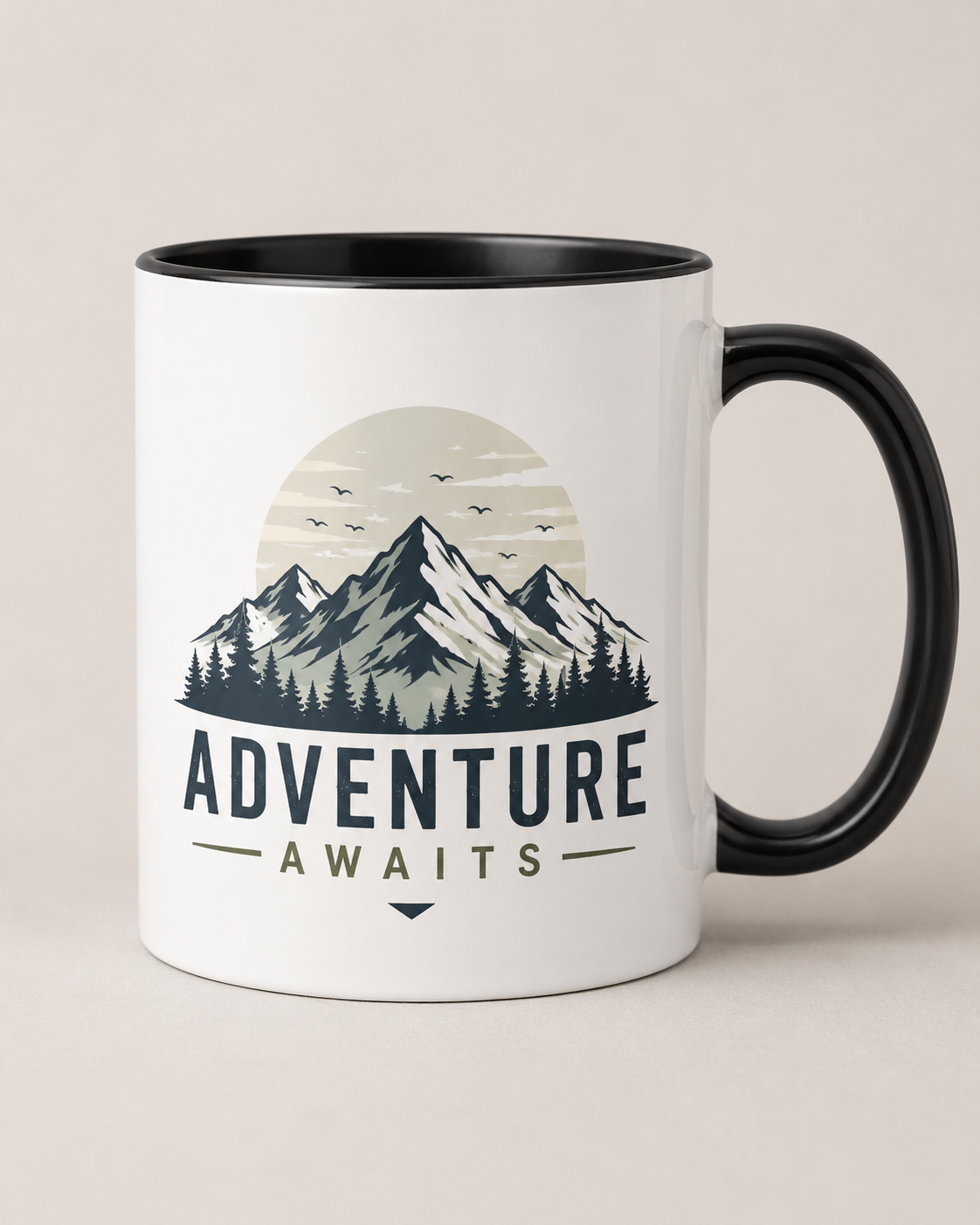
File
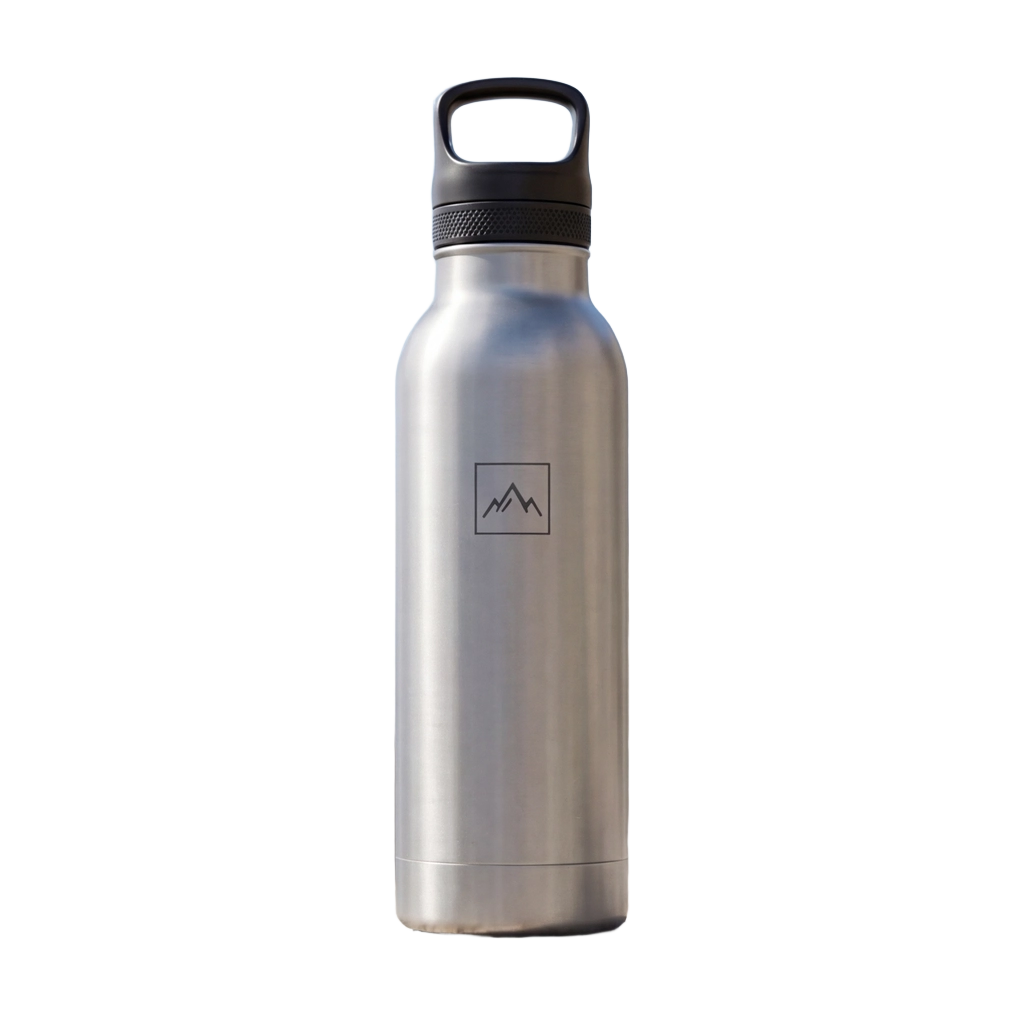
Remove Background
Remove Background
Compositor
Gemini Image
About This Template
Layer Composer is a hands-on tutorial template that demonstrates end‑to‑end image compositing: import assets, remove backgrounds, position layers, and render a polished final image.
How it works
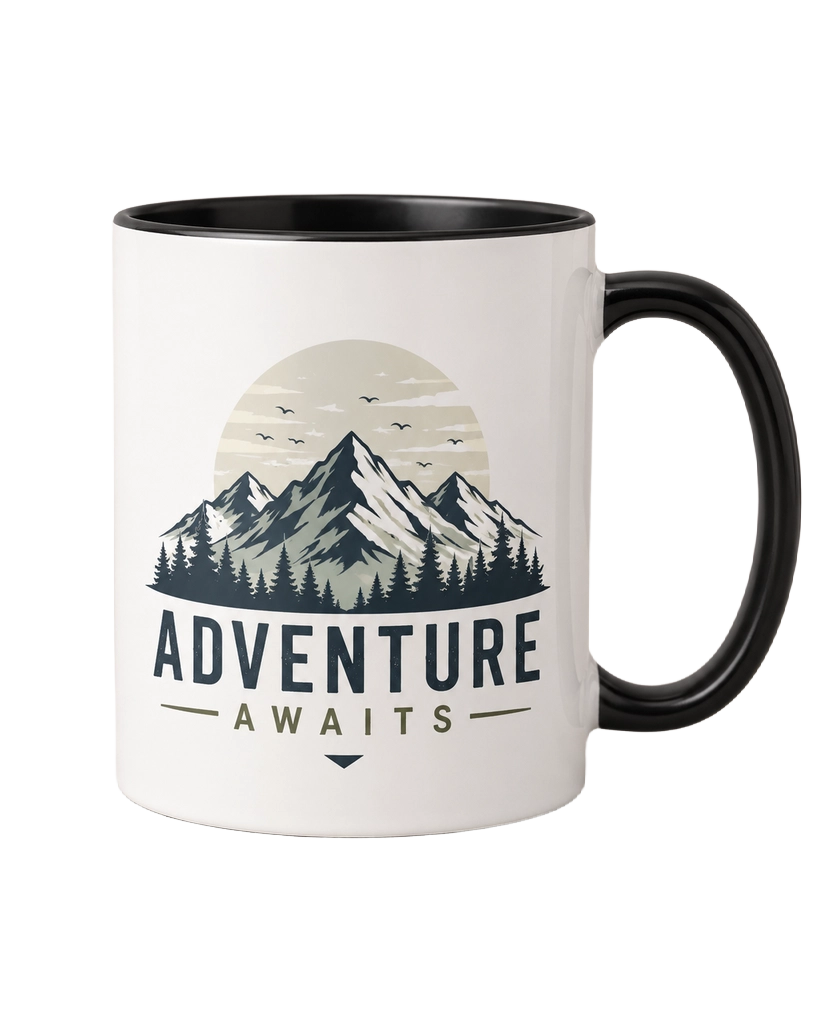
Drop in your background and object images (e.g., a product bottle and mug)
One‑click background removal (alpha preserved) with the built‑in Remove Background subflow
Arrange layers in the Compositor (background, midground, foreground), adjust size, position, rotation, opacity, and order
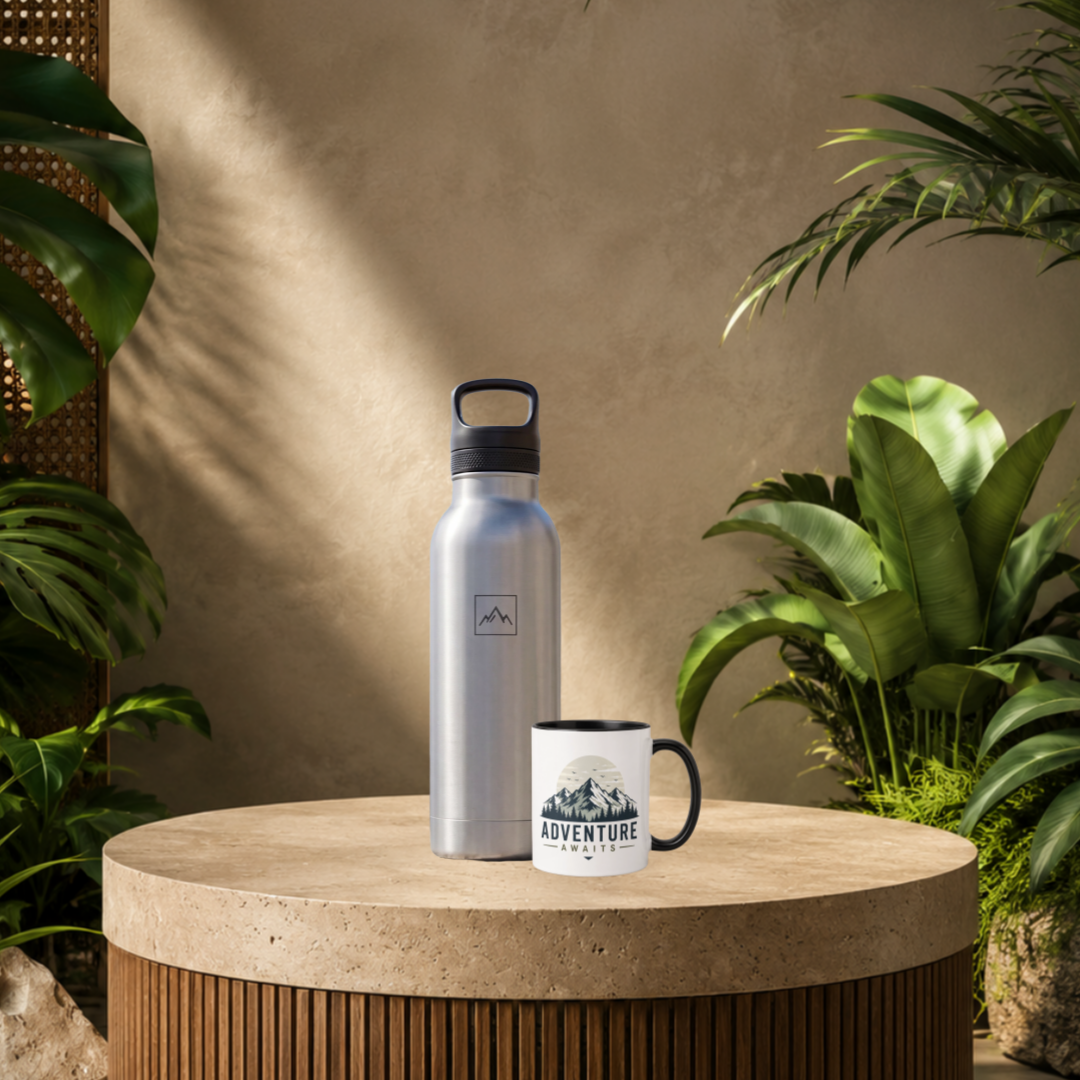
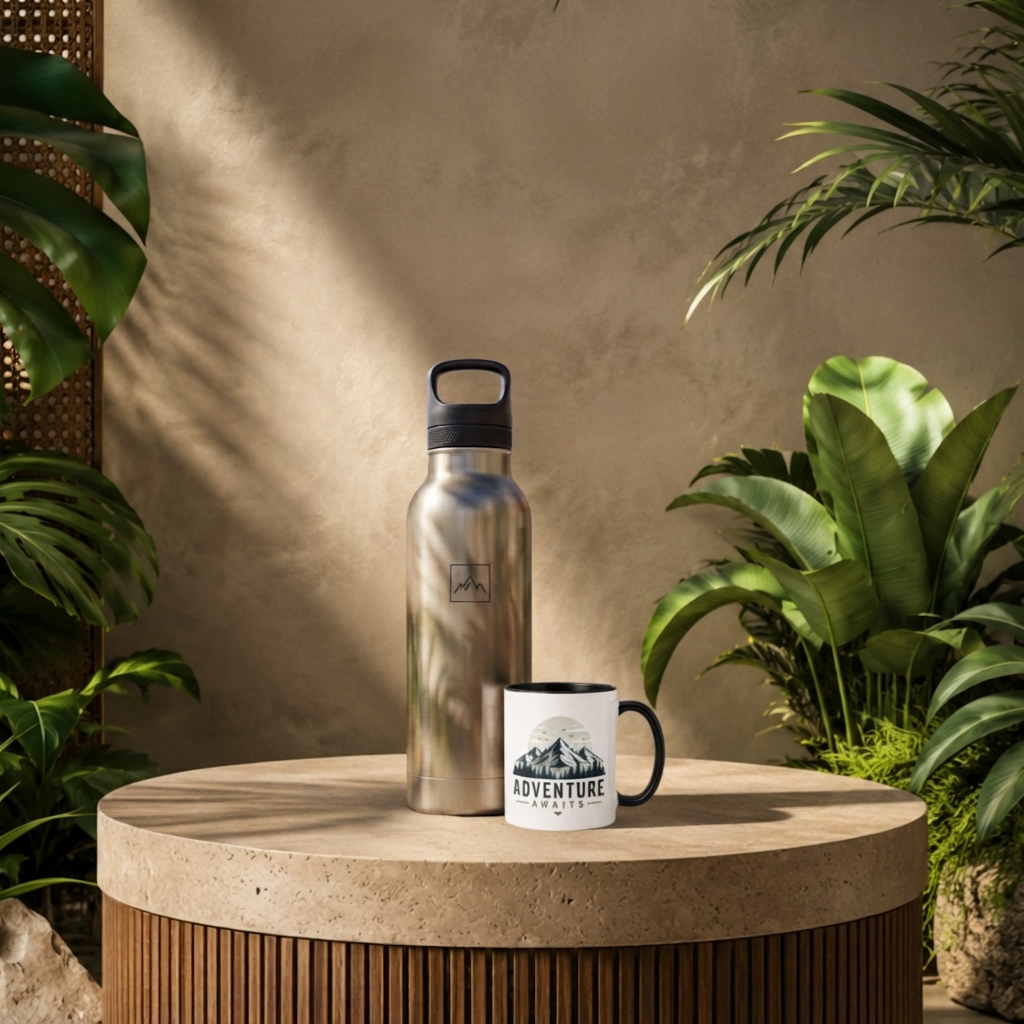
Send the composed frame to an AI finishing pass to add realistic contact shadows, reflections, and scene‑consistent lighting—without altering the product itself
Export a clean image for ads, hero banners, thumbnails, or mockups
What’s inside
Compositor node preconfigured with three example layers (Background, Bottle, Mug)
Bria “Remove Background” subflow to isolate products and keep transparency
Gemini Image finishing pass for photorealistic integration (relighting, shadows, reflections) while respecting the original placement and scale
Non‑destructive, reproducible pipeline you can extend with more layers, different canvases, and brand assets
Use cases
E‑commerce product shots, lifestyle mockups, hero sections, and social posts
Rapid creative iteration for marketing visuals without manual masking
Consistent scene integration across multiple product renders
Notes
The finishing prompt is set to respect object position and size and to avoid changing the product itself; it focuses on lighting and contact realism
The template outputs a still image (you can adjust canvas width/height and aspect).
How to Use This Template
Step 1: Upload your file
In the 'File' node, upload the file you want to process.
Step 2: Upload your file
In the 'File' node, upload the file you want to process.
Step 3: Upload your file
In the 'File' node, upload the file you want to process.
Step 4: Run the Flow
Click the 'Run' button to execute the flow and get the final output.
Who is this for?
Perfect for professionals and creators looking to streamline their workflow
Designers and art directors
Quickly composite products into scenes, iterate on placements, and produce client‑ready mockups with realistic shadows and lighting.
E‑commerce and product marketers
Create campaign hero images, PDP visuals, and social ads by blending isolated product shots into brand scenes without a studio reshoot.
Content creators and social media managers
Turn rough layer stacks into polished posts and thumbnails with minimal manual retouching.
Photographers and retouchers
Speed up background removal and scene integration while preserving product fidelity.
No‑code makers and developers
Learn the Compositor node, subflows, and image finishing to build repeatable visual pipelines.
Educators and students
A practical template to teach layer order, alpha handling, and AI‑assisted relighting.
Ready to build?
Start using this template
Open it directly in AI-Flow and start creating in minutes
You Might Also Like
Explore other powerful templates to enhance your AI workflow
GPT Image 2.5 Flare
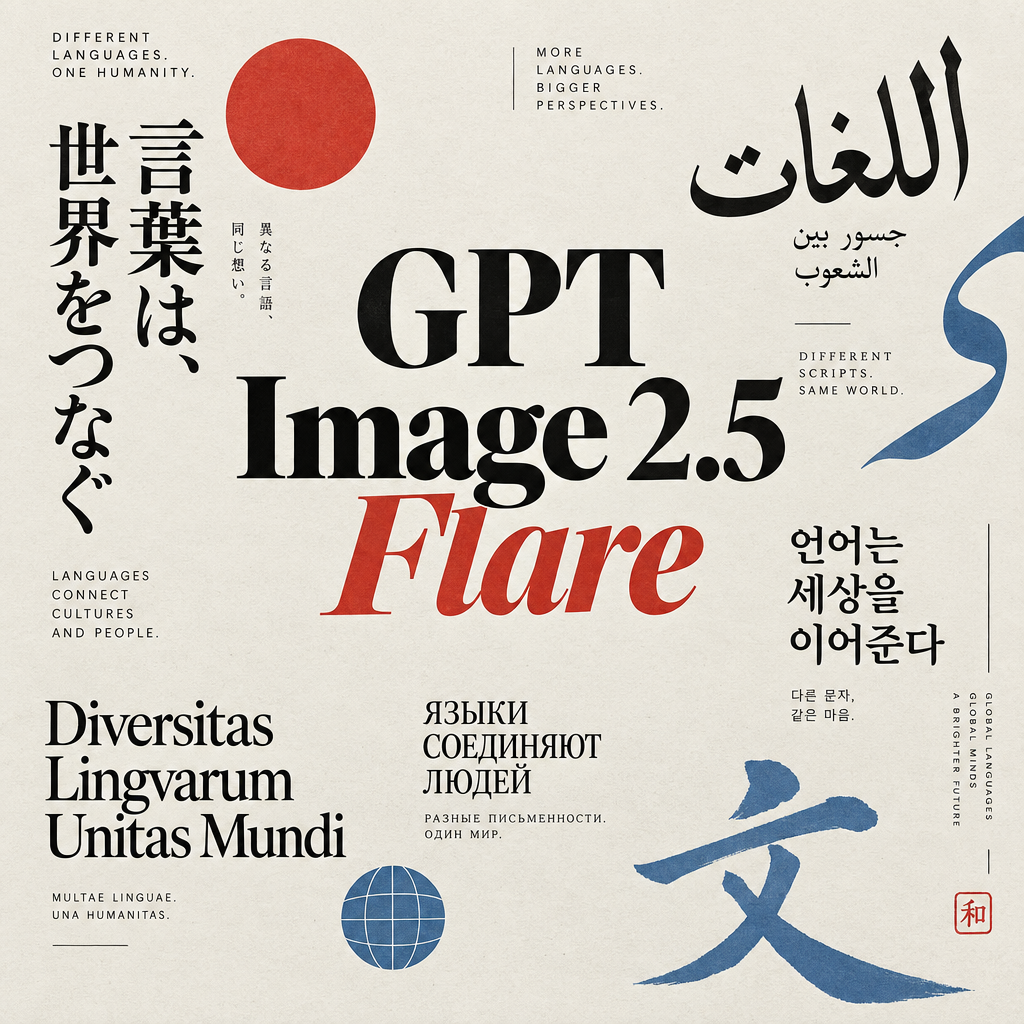
Generate high-fidelity images with GPT Image 2.5 Flare, optimized for real typography, multilingual scripts, structured layouts, and print-ready formats up to 4K—ideal for editorial posters, comics, marketing assets, UI comps, and social graphics.
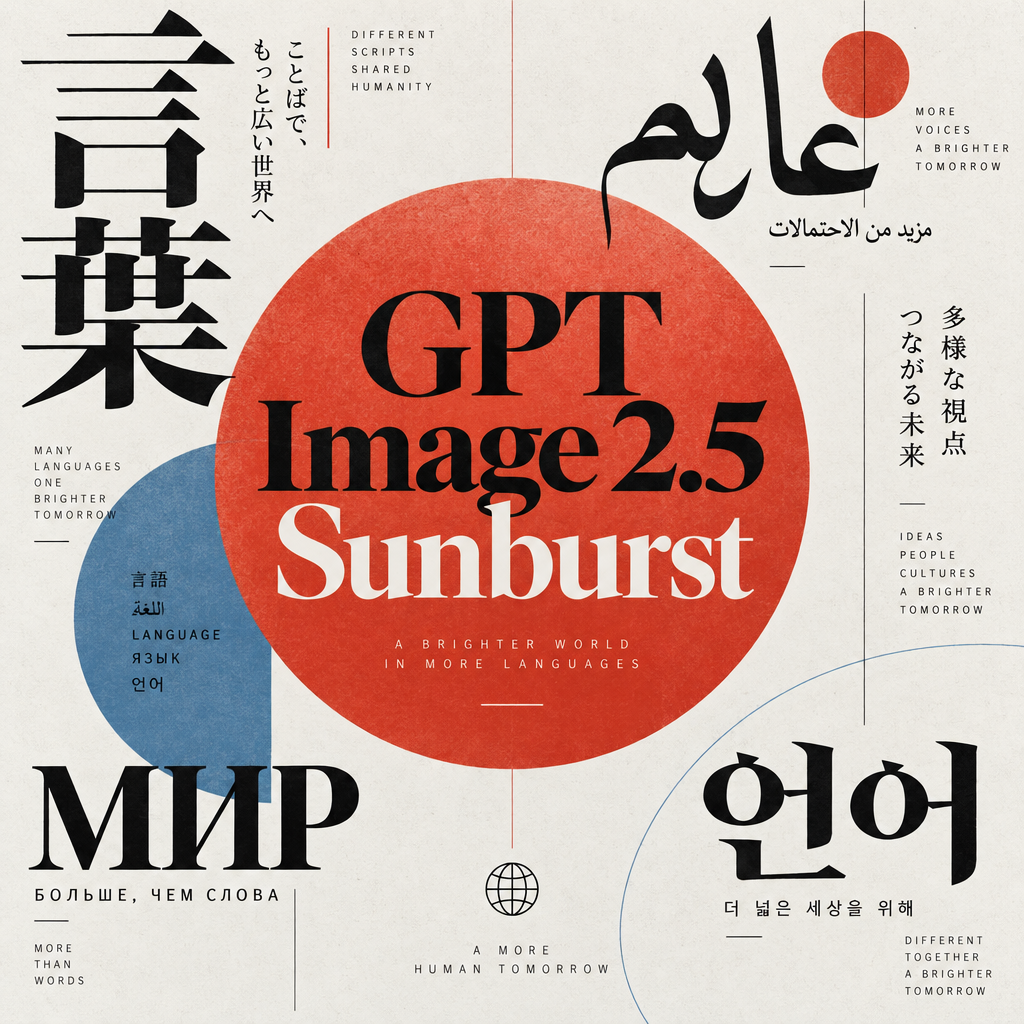
GPT Image 2.5 Sunburst
Generate high-fidelity images with GPT Image 2.5 Sunburst, optimized for real typography, multilingual scripts, structured layouts, and print-ready formats up to 4K—ideal for editorial posters, comics, marketing assets, UI comps, and social graphics.
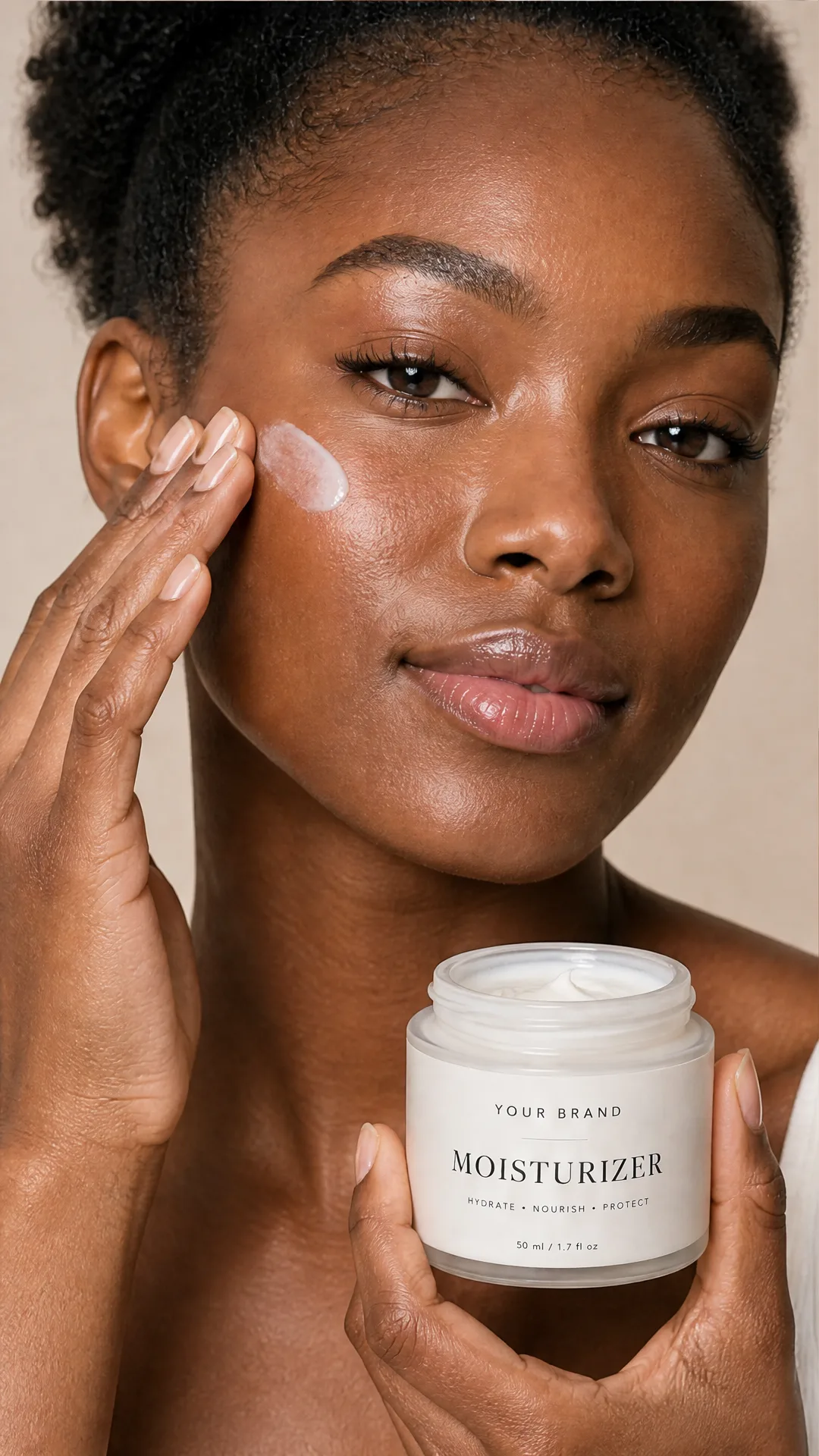
AI Skincare Product Photo Generator
Turn one cream, serum, or cosmetic jar image into a full skincare photoshoot: a 2x2 grid plus four cropped shots (wide, medium, close-up, creative), on-model or product-only, for beauty ecommerce, marketplaces, and ads.
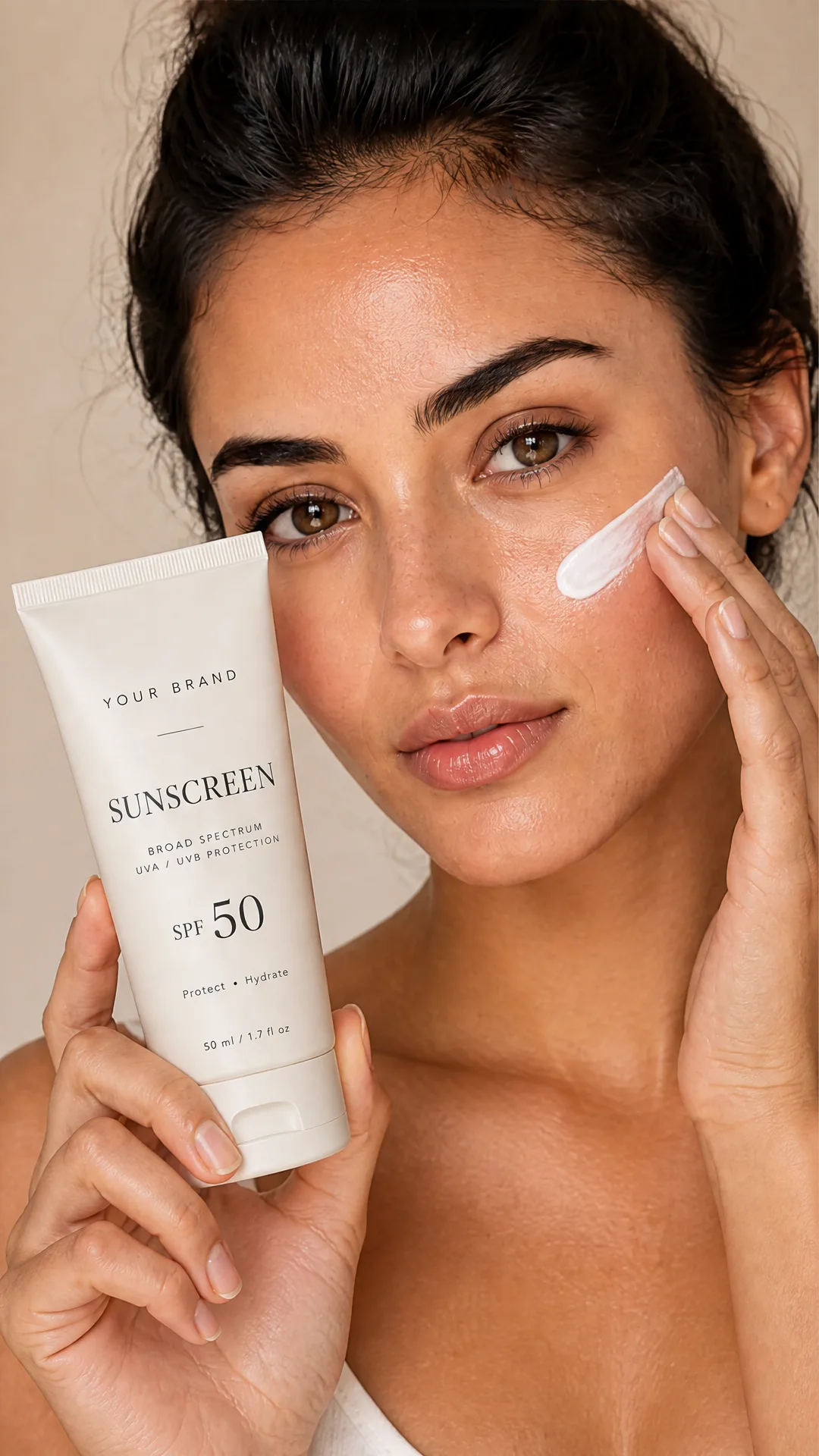
AI Sunscreen Product Photo Generator
Turn one sunscreen tube or bottle image into a full suncare photoshoot: a 2x2 grid plus four cropped shots (wide, medium, close-up, creative), on-model or product-only, for beauty ecommerce, marketplaces, and ads.

AI T-Shirt Mockup Generator
Turn one t-shirt design image into on-model print-on-demand mockups: a 2x2 photoshoot grid plus four cropped shots (wide, medium, close-up on the print, creative), for Etsy, Shopify, and POD storefronts.
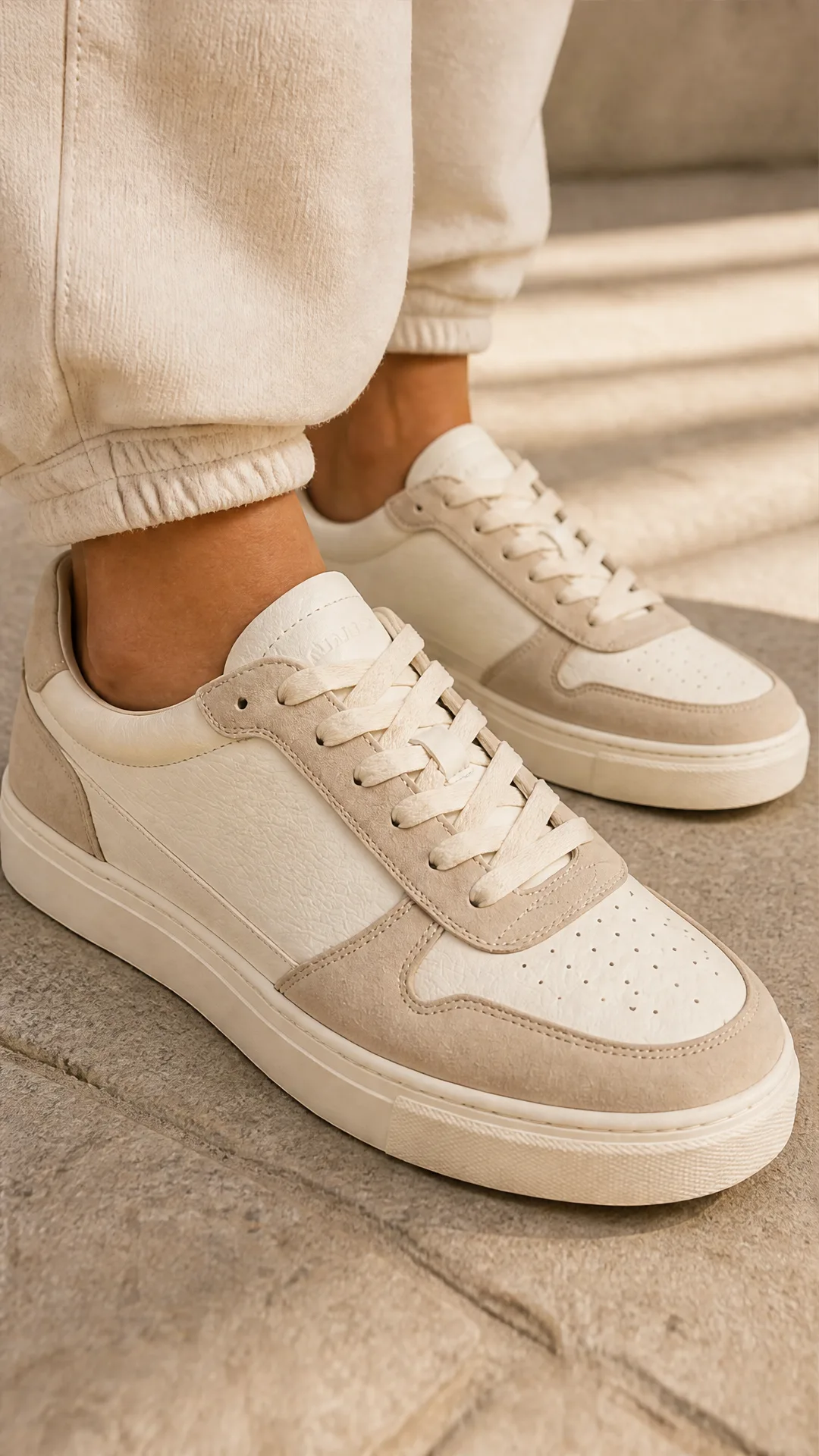
AI Sneaker Product Photo Generator
Generate sneaker product photos from a single shoe image: a 2x2 photoshoot grid plus four cropped shots (wide, medium, close-up, creative), in on-foot or product-only mode, for ecommerce listings, marketplaces, and ads.
Frequently Asked Questions
What does this template do?
It demonstrates a complete compositing workflow: load images, auto‑remove backgrounds, arrange layers (background/midground/foreground), then pass the composite through an AI step that adds shadows, reflections, and lighting so objects sit naturally in the scene.
Which models and tools are used?
Backgrounds are removed via the Bria Remove Background model (alpha preserved). The Compositor node controls layer order and transforms. A Gemini Image finishing pass relights the composite and adds realistic contact effects while respecting object placement and scale.
Can I upload my own layers?
Yes. Replace the example images for Background, Bottle, and Mug, or add more layers in the Compositor. The background‑removal subflow can be reused for any object layer you add.
Will the AI change my product?
No. The finishing pass is configured to keep the product intact and only enhance realism (shadows, reflections, and scene‑consistent lighting).
Does it preserve transparency (alpha)?
Yes. The Remove Background step preserves the alpha channel so your objects composite cleanly. You can also export with transparency if you bypass or adjust the solid background.
How do I control layer order and position?
Use the Compositor node to reorder layers and adjust their position, scale, rotation, opacity, and blend mode. The canvas size and background color are also configurable.
What output sizes and aspect ratios are supported?
You can set custom canvas dimensions in the Compositor. The finishing pass supports square, 16:9, 9:16, 4:3, and 3:4, or you can match the composite input.
Do I need to provide masks?
No masks are required. The template includes a background‑removal subflow that generates clean alphas for product layers automatically.
Can I add more objects or scenes?
Yes. Duplicate the Remove Background subflow for new objects, add them as new layers in the Compositor, and rerun the pipeline.
Any tips for more realistic results?
Use high‑resolution source images, keep product perspectives consistent with the background, and fine‑tune object scale and ground contact in the Compositor before running the finishing pass.
Does this template support animation?
This setup is intended for still images. While the Compositor supports FPS and duration fields, the provided flow exports a single image.
What are common use cases?
Creating e‑commerce hero images, ad creatives, catalog shots, lifestyle mockups, and social thumbnails by blending isolated products convincingly into on‑brand backgrounds.
What is AI-FLOW and how can it help me?
AI-FLOW is an all-in-one AI platform that allows you to build, integrate, and automate AI-powered workflows using an intuitive drag-and-drop interface. Whether you're a beginner or an expert, you can leverage multiple AI models to create innovative solutions without any coding required.
Is there a free trial available?
Yes, AI-FLOW offers a free trial to get you started. After that, you can purchase credits as needed—no subscription or long-term commitment required.
Can I integrate my API keys from providers like OpenAI and Replicate with AI-FLOW Cloud Version ?
Yes, you can easily integrate your existing API keys with AI-FLOW. If specified, nodes related to the API key provided will use your API key, significantly reducing your platform credit usage.