De l’image au mouvement
Transformez une photo en court clip cinématographique. Importez une première image, décrivez la suite, ajoutez éventuellement des références, puis laissez le LLM construire un prompt précis et une image suivante cohérente avant de produire une vidéo fluide.
Aucune configuration requise · Entièrement personnalisable dans AI-Flow
Ce que fait cette application
De l’image au mouvement anime une image fixe pour en faire une vidéo aboutie, en un seul plan. Fournissez une image de départ et une brève note sur ce qui doit se passer ensuite ; le LLM intégré développe votre note en un prompt prêt pour la production, génère une image suivante stylistiquement cohérente, puis produit un mouvement fluide entre les deux images.
Comment ça marche
Image de départ — téléversez l’image à animer.
Ce qui se passe ensuite — rédigez une brève description naturelle de l’action ou de la révélation.
Références facultatives — ajoutez des images pour de nouveaux éléments (accessoires, vêtements, repères de style), et le système expliquera comment ils apparaissent et interagissent.
Rédaction du prompt — un LLM convertit votre note et vos références en un prompt clair et dirigeable (caméra, rythme, éclairage, ambiance) et produit une image de fin cohérente.
Rendu vidéo — un modèle vidéo (Kling V3 par défaut) crée un plan fluide de l’image de départ à l’image de fin, avec un mouvement cohérent.
Ce template est idéal pour transformer des visuels de marque ou produit, des portraits, des miniatures et des storyboards en courtes vidéos, sans keyframing manuel. Il privilégie la continuité (éclairage, style, identité du sujet) et une direction créative claire, pour des résultats qui paraissent intentionnels plutôt que génériques.
Principaux avantages
Un rendu cohérent — la tenue, le stylisme, l’éclairage et l’environnement restent alignés entre les images.
Un contrôle créatif — dirigez le mouvement du sujet et/ou de la caméra, le rythme et l’ambiance en langage courant.
La prise en compte des références — intégrez des images de référence facultatives pour introduire de nouveaux détails ou accessoires fidèles.
Une itération rapide — ajustez la note, changez de références ou modifiez la durée pour affiner rapidement le résultat.
Sorties : un court clip vidéo (généralement 3 à 5 s) adapté aux publications sociales, publicités, teasers ou études de mouvement.
Comment utiliser l’application
Voici ce que vous obtenez en ouvrant l’application : un formulaire court, un bouton d’exécution et vos résultats, sans nœuds ni configuration.
Image en mouvement
Aperçu de l’applicationRemplissez le formulaire
Start Frame
RequisAjouter des images ou des fichiers
What Happens Next
She reaches into her tote bag and pulls out her phone, glances at it with a slight smile
Optional References
FacultatifAjouter des images ou des fichiers
≈ 97–210 crédits / exécution
Récupérez votre résultat
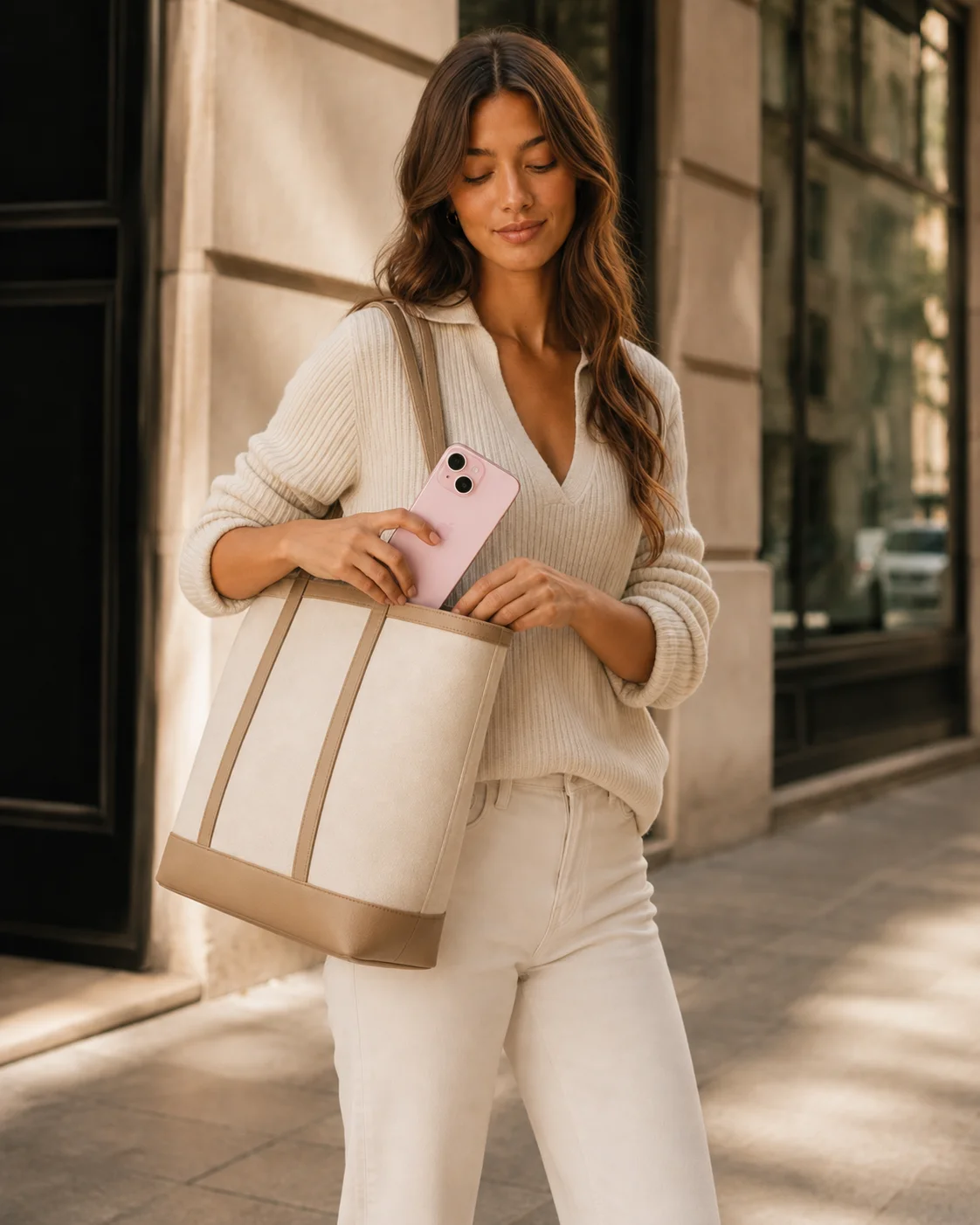
Résultat réel généré avec cette application
Sous le capot
Vous souhaitez plus de contrôle ?
Cette application repose sur un workflow AI-Flow entièrement modifiable. Changez le modèle, les prompts, la disposition ou la résolution, ou connectez-le à d’autres étapes.
What Happens Next
She reaches into her tote bag and pulls out her phone, glances at it with a slight smile
Optional References
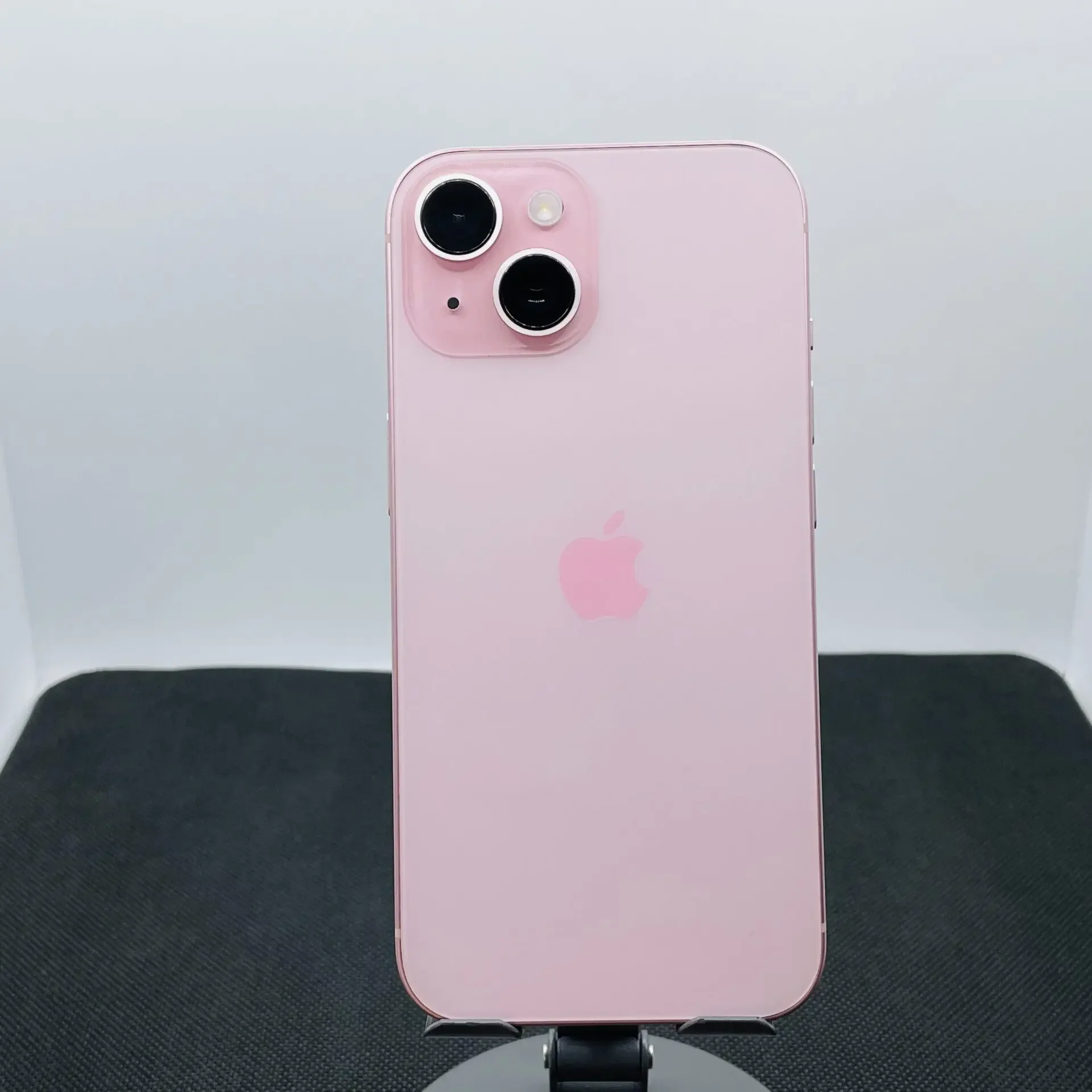
Start Frame
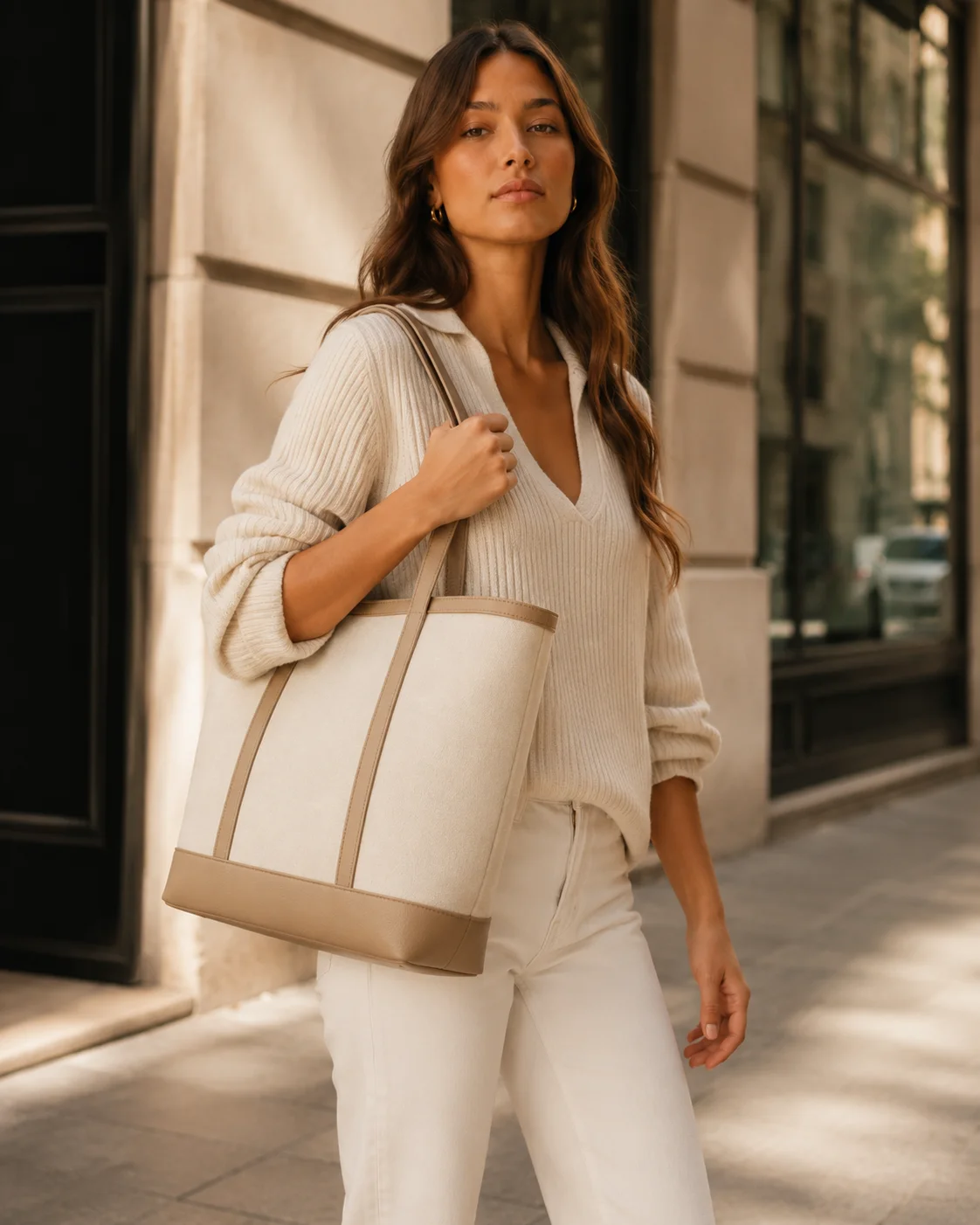
Next Frame Generator
Video Prompt Writer
Medium portrait shot at eye level with a 50mm lens and shallow depth of field, camera locked off with only a subtle natural handheld drift; the woman stands on the warm sunlit city sidewalk beside the stone building and dark window frames, wearing her cream...
Kling V3 Video
Comment utiliser ce template
Étape 1 : Importez votre fichier
Dans le nœud « Start Frame », importez le fichier que vous souhaitez traiter.
Étape 2 : Saisissez votre texte dans le nœud « What Happens Next »
Renseignez le nœud « What Happens Next » avec le texte demandé.
She reaches into her tote bag and pulls out her phone, glances at it with a slight smile
Étape 3 : Importez vos fichiers
Dans le nœud « Optional References », importez les fichiers que vous souhaitez utiliser dans le workflow.
Étape 4 : Exécutez le workflow
Cliquez sur le bouton « Exécuter » pour lancer le workflow et obtenir le résultat final.
Personnalisez le workflow sous-jacent
Ouvrez le workflow complet dans l’éditeur AI-Flow pour changer de modèle, réécrire les prompts ou le connecter à d’autres étapes.
À qui s’adresse ce template ?
Idéal pour les professionnels et les créateurs qui souhaitent simplifier leur workflow
Créateurs de contenu et community managers
Animez rapidement vos images fixes pour en faire des reels, des stories et des teasers, avec une identité et une ambiance cohérentes.
Marketeurs et équipes de marque
Transformez vos photos produit ou lifestyle en courts visuels animés pour vos publicités et landing pages, sans tournage complet.
Photographes et directeurs artistiques
Explorez le mouvement à partir de portraits ou de photos produit existants, tout en préservant le style photographique d’origine.
Réalisateurs et motion designers
Pré-visualisez vos temps forts à partir d’images clés et affinez rapidement le comportement de la caméra, le rythme et les transitions.
E-commerce et mode
Ajoutez un mouvement subtil — geste, révélation d’un accessoire, tombé du tissu — à vos prises de vue portées ou en pack shot.
Équipes produit et prototypeurs
Convertissez vos maquettes d’interface ou visuels d’accroche en courtes démos animées pour vos présentations et vos annonces.
Prêt à créer ?
Commencez à utiliser cette application
Aucune configuration requise — ouvrez l’application et commencez à créer en quelques minutes
Vous aimerez peut-être aussi
Explorez d’autres templates puissants pour enrichir votre workflow IA
Génération vidéo avec Gemini Omni 1.1 Flash
Créez des vidéos IA cinématographiques à partir de texte, d’images ou de séquences existantes avec Gemini Omni 1.1 Flash : texte-vers-vidéo, image-vers-vidéo et vidéo-vers-vidéo multimodaux, avec conception sonore native et mouvements réalistes cohérents.
MiniMax H3 - De la première à la dernière image
Animez une première image en une vidéo 2K cohérente (5 à 15 s) avec MiniMax H3 : image de fin facultative, mouvement dirigé par le prompt et audio stéréo natif.
Génération vidéo avec Gemini Omni Flash
Créez des vidéos IA cinématographiques à partir de texte, d’images ou de séquences existantes avec Gemini Omni Flash : texte-vers-vidéo, image-vers-vidéo et vidéo-vers-vidéo multimodaux, avec conception sonore native et mouvements réalistes cohérents.
Transformer un storyboard en vidéo cinématographique
Transformez un storyboard de 4 images en une vidéo cinématographique multi-plans soignée. Générez le storyboard à partir d’un seul prompt, puis laissez ses échelles de plan, son cadrage et son rythme de caméra guider un spot continu de 5 secondes, avec audio synchronisé.
Animer une image avec Seedance 2.0
Animez n’importe quelle image fixe en vidéo cinématographique avec Seedance 2.0 : mouvements fluides, caméra dynamique et audio IA facultatif, tout en préservant le style et la composition d’origine.
Génération vidéo avec Grok Imagine
Créez rapidement des vidéos IA cinématographiques de haute qualité avec audio, à partir de prompts textuels ou d’une image de départ. Contrôlez la durée, le ratio et la résolution.
Questions fréquentes
Que fait « De l’image au mouvement » ?
Il anime une image fixe pour en faire une courte vidéo en un seul plan. Vous fournissez une image de départ et décrivez ce qui se passe ensuite ; le système rédige un prompt solide, génère une image suivante cohérente et produit le mouvement entre les deux.
Dois-je fournir une image de fin ?
Non. Si vous n’en avez pas, le template peut générer une image suivante stylistiquement cohérente à partir de votre note et de vos références. Si vous avez déjà une image de fin souhaitée, vous pouvez la fournir.
En quoi les images de référence facultatives aident-elles ?
Les références introduisent ou précisent de nouveaux éléments — accessoires, objets, repères de style. Le LLM explique comment chaque référence doit apparaître et interagir, afin que le mouvement final corresponde à votre intention.
Puis-je contrôler le mouvement de caméra et le rythme ?
Oui. Décrivez le mouvement du sujet, le comportement de la caméra (panoramique, travelling avant, zoom, plan fixe, léger flottement à main levée), la vitesse et l’ambiance. Le rédacteur de prompt traduit tout cela en directives claires pour le modèle vidéo.
Quel modèle vidéo est utilisé ?
Par défaut, le template effectue le rendu avec Kling V3 Video. Vous pouvez remplacer le générateur dans votre espace de travail si vous préférez un autre modèle vidéo.
Quels formats et quelles durées sont pris en charge ?
Les durées courantes vont de 3 à 5 secondes, et le format vertical 9:16 est très prisé pour les réseaux sociaux. Lorsqu’une image de départ est fournie, le rendu reprend généralement son format afin de préserver la continuité visuelle.
Comment garder un style et une identité cohérents ?
Partez d’une image de départ de bonne qualité, gardez une note précise (tenue, éclairage, ambiance) et joignez des références pour tout nouvel élément. Le système préserve l’éclairage, le décor et le stylisme d’une image à l’autre.
L’audio est-il pris en charge ?
Le template se concentre sur le mouvement visuel. Vous pouvez indiquer une ambiance sonore, des effets ou des repères musicaux dans le prompt à titre d’orientation pour la post-production, ou générer un audio natif si le modèle vidéo sélectionné le permet.
Des conseils pour de meilleurs résultats ?
Écrivez des phrases courtes et concrètes ; précisez ce qui bouge (le sujet, la caméra ou les deux), à quelle vitesse et pendant combien de temps. Décrivez l’éclairage et l’ambiance, et ajoutez des images de référence si vous introduisez de nouveaux détails.
En quoi est-ce différent du texte-vers-vidéo ?
Au lieu d’inventer une scène de zéro, De l’image au mouvement part de votre image réelle, en préserve l’allure, puis y ajoute un mouvement maîtrisé — pour un résultat plus cohérent et plus fidèle à votre marque.
Quels types de fichiers image fonctionnent le mieux ?
Les images fixes JPG ou PNG de bonne qualité, avec un éclairage clair et un sujet détaillé, donnent les meilleurs résultats. Des entrées plus grandes et plus nettes produisent en général un mouvement plus cohérent et des textures plus fidèles.
Puis-je enchaîner des plans ou créer des boucles ?
Oui. Vous pouvez réutiliser l’image finale comme nouvelle image de départ, ou rédiger des prompts qui ramènent le sujet ou la caméra à la composition initiale pour approcher une boucle.
Qu’est-ce qu’AI-FLOW et comment peut-il m’aider ?
AI-FLOW est une plateforme d’IA tout-en-un qui vous permet de créer, d’intégrer et d’automatiser des workflows alimentés par l’IA grâce à une interface intuitive en glisser-déposer. Débutant ou expert, vous pouvez combiner plusieurs modèles d’IA pour créer des solutions innovantes sans écrire de code.
Un essai gratuit est-il disponible ?
Oui, AI-FLOW propose un essai gratuit pour commencer. Vous pouvez ensuite acheter des crédits selon vos besoins, sans abonnement ni engagement à long terme.
Puis-je intégrer mes clés API OpenAI, Replicate et d’autres fournisseurs dans la version Cloud d’AI-FLOW ?
Oui, vous pouvez facilement intégrer vos propres clés API à AI-FLOW. Les nœuds associés utiliseront alors votre clé, ce qui réduit considérablement votre consommation de crédits sur la plateforme.