Shot to Motion
Turn a single photo into a short, cinematic motion clip. Upload a start frame, describe what happens next, optionally add reference images, and let the LLM build a precise prompt and consistent next frame before rendering a smooth video.
No workflow setup required · Fully customizable in AI-Flow
What This App Does
Shot to Motion animates a still image into a polished, single-shot video. Provide a start frame and a short note about what should happen next; the built‑in LLM expands your note into a production‑ready prompt, generates a stylistically consistent next frame, and then renders a seamless motion between frames.
How it works
Start frame — Upload the image you want to animate.
What happens next — Write a brief, natural description of the action or reveal.
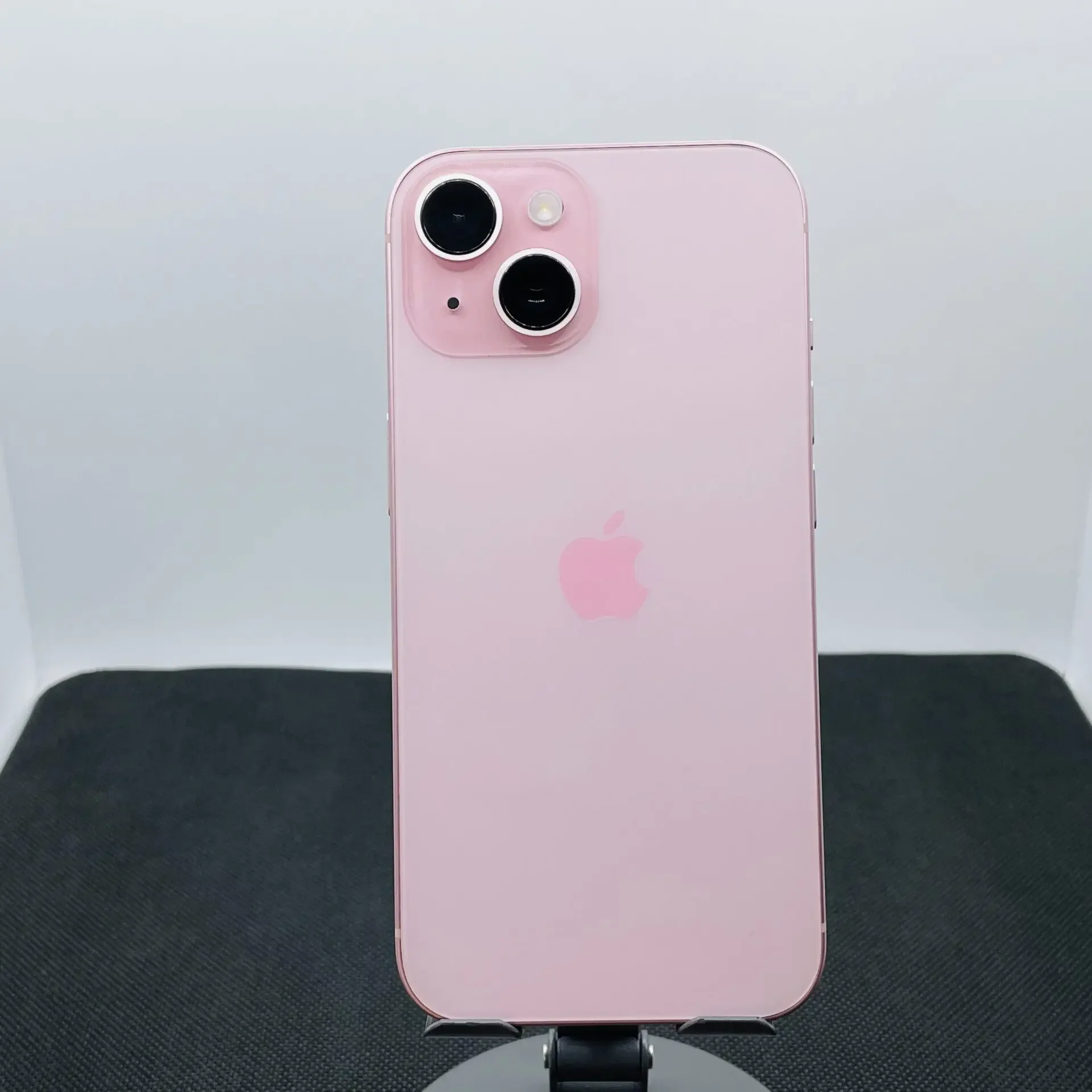
Optional references — Add images for new elements (props, wardrobe, style cues) and the system will explain how they appear and interact.
Prompt crafting — An LLM converts your note and references into a clear, directable prompt (camera, pacing, lighting, mood) and produces a consistent end frame.
Video render — A video model (Kling V3 by default) creates a smooth shot from the start to the end frame with coherent motion.
This template is ideal for turning brand/product shots, portraits, thumbnails, and storyboards into short videos without manual keyframing. It prioritizes continuity (lighting, style, subject identity) and clear creative direction so results feel intentional rather than generic.
Key benefits
Consistent look — Keeps wardrobe, styling, lighting, and environment aligned between frames.
Creative control — Directs subject and/or camera motion, pacing, and mood in plain language.
Reference‑aware — Integrates optional reference images to introduce new on‑model details or props.
Fast iteration — Adjust the note, swap references, or tweak duration to refine results quickly.
Outputs: A short video clip (commonly 3–5s) suitable for social posts, ads, teasers, or motion studies.
How to Use the App
Here’s what you get when you open the app: a short form, one run button, your results — no nodes, no setup.
Shot to Motion
App previewFill in the form
Start Frame
RequiredAdd images or files
What Happens Next
She reaches into her tote bag and pulls out her phone, glances at it with a slight smile
Optional References
OptionalAdd images or files
≈ 97–210 credits / run
Get your result
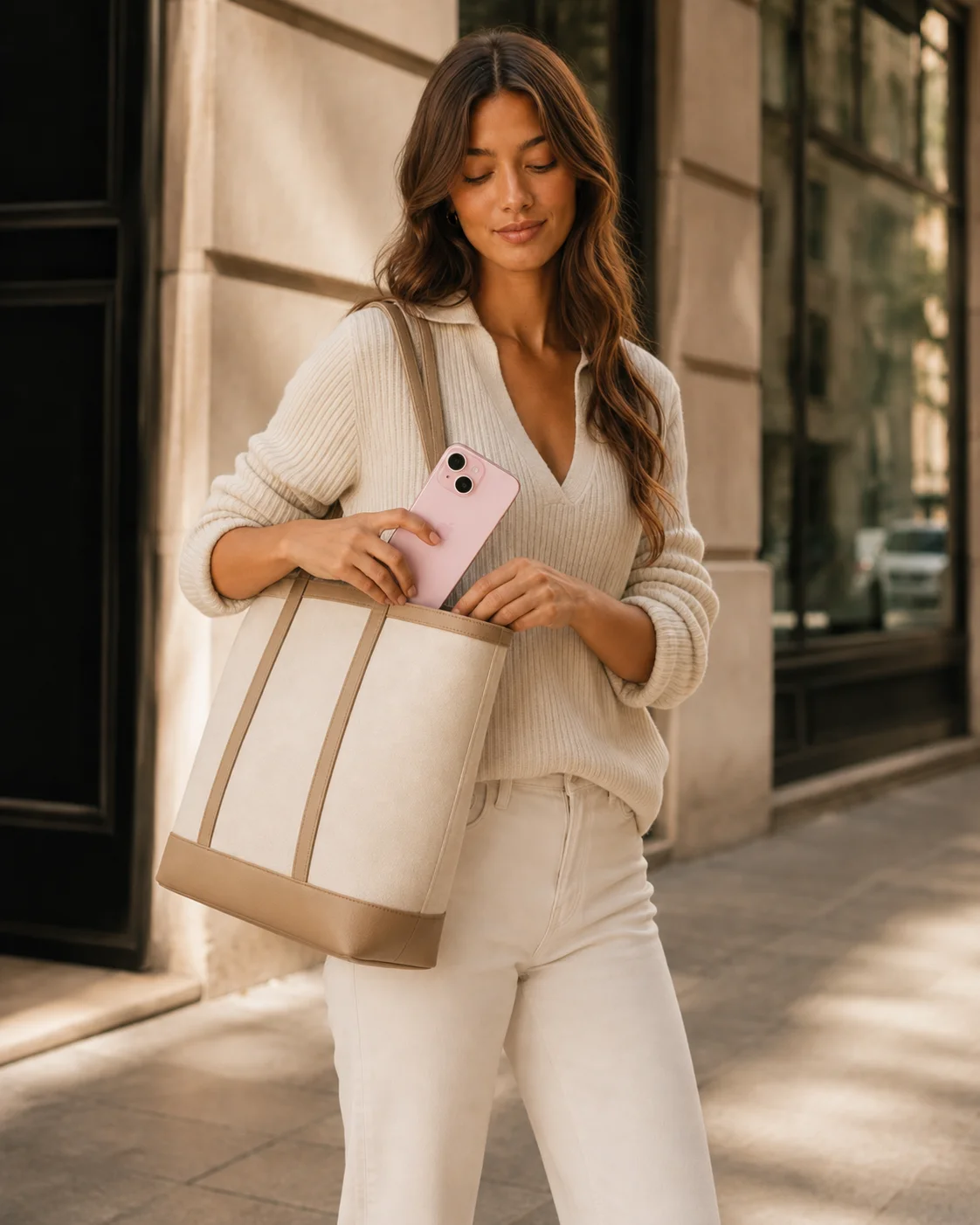
Real output generated with this app
Under the Hood
Want more control?
This app is powered by a fully editable AI-Flow workflow. Change the model, prompts, layout, resolution — or connect it to other steps.
What Happens Next
She reaches into her tote bag and pulls out her phone, glances at it with a slight smile
Optional References
Start Frame
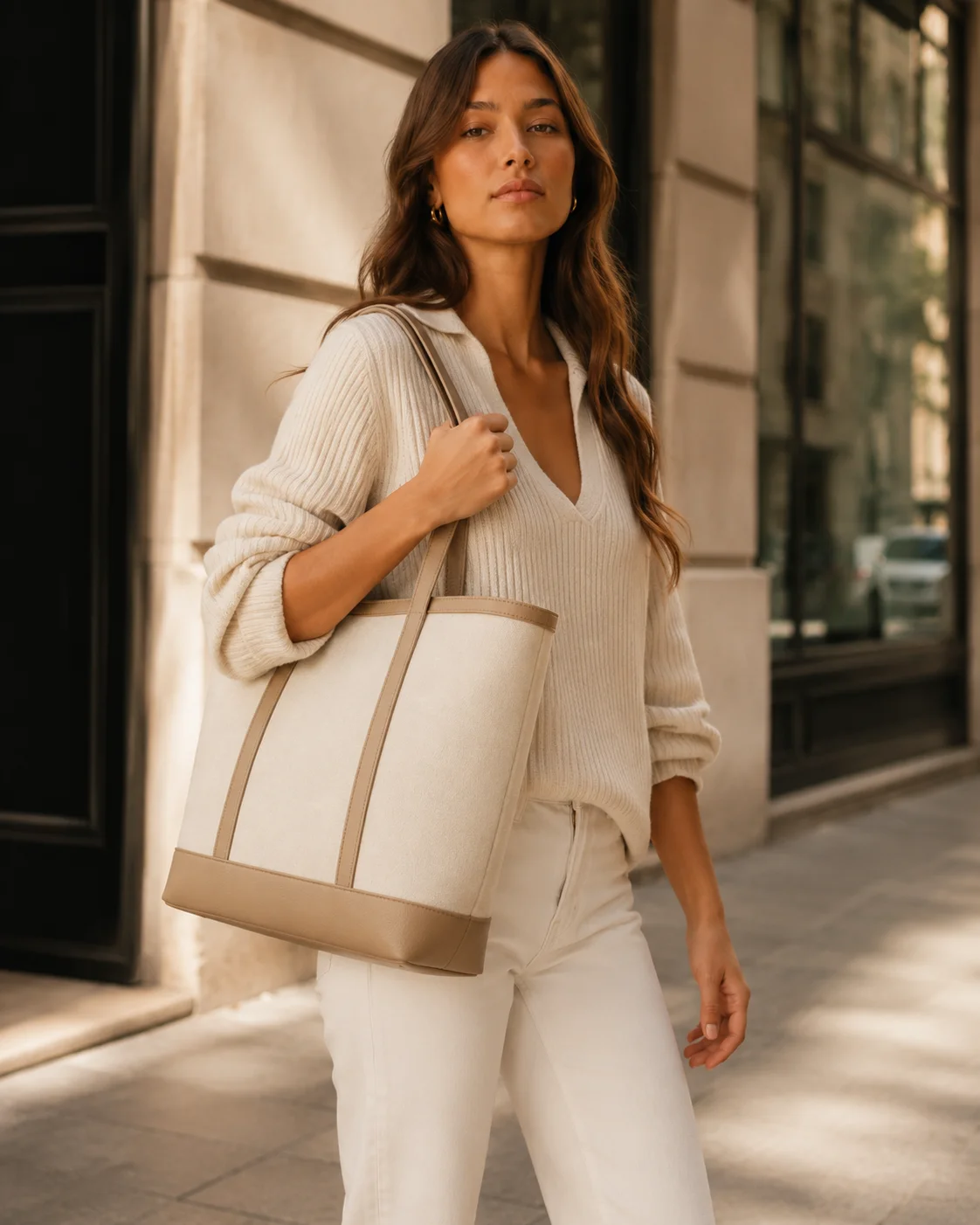
Next Frame Generator
Video Prompt Writer
Medium portrait shot at eye level with a 50mm lens and shallow depth of field, camera locked off with only a subtle natural handheld drift; the woman stands on the warm sunlit city sidewalk beside the stone building and dark window frames, wearing her cream...
Kling V3 Video
How to Use This Template
Step 1: Upload your file
In the 'Start Frame' node, upload the file you want to process.
Step 2: Enter your text in 'What Happens Next' Node
Fill the 'What Happens Next' node with the required text.
She reaches into her tote bag and pulls out her phone, glances at it with a slight smile
Step 3: Upload your files
In the 'Optional References' node, upload the files you want to use in the workflow.
Step 4: Run the Flow
Click the 'Run' button to execute the flow and get the final output.
Customize the underlying workflow
Open the full workflow in the AI-Flow editor to swap models, rewrite prompts, or connect it to other steps.
Who is this for?
Perfect for professionals and creators looking to streamline their workflow
Content creators and social media managers
Quickly animate stills into reels, stories, and teasers with consistent branding and mood.
Marketers and brand teams
Turn product or lifestyle shots into short motion assets for ads and landing pages without a full video shoot.
Photographers and art directors
Explore motion from existing portraits or product stills while preserving the original photographic style.
Filmmakers and motion designers
Previsualize beats from keyframes and refine camera behavior, pacing, and transitions rapidly.
Ecommerce and fashion
Add subtle movement—gesture, prop reveals, fabric shifts—to on‑model or tabletop shots.
Product teams and prototypers
Convert UI mocks or hero shots into short motion demos for pitches and updates.
Ready to create?
Start using this app
No workflow setup required — open the app and start creating in minutes
You Might Also Like
Explore other powerful templates to enhance your AI workflow
Gemini Omni 1.1 Flash
Create cinematic AI videos from text, images, or existing footage with Gemini Omni 1.1 Flash—multimodal text-to-video, image-to-video, and video-to-video with native sound design and coherent, real‑world motion.
MiniMax H3 - First to Last Frame
Animate a first frame into a coherent 2K video (5–15s) with optional last frame matching, prompt-directed motion, and native stereo audio using MiniMax H3.
Gemini Omni Flash
Create cinematic AI videos from text, images, or existing footage with Gemini Omni Flash—multimodal text-to-video, image-to-video, and video-to-video with native sound design and coherent, real‑world motion.
Storyboard to Cinematic Video with Seedance
Turn a 4-panel storyboard into a polished, multi-shot cinematic video. Generate the storyboard from a single prompt, then let its shot sizes, framing and camera rhythm drive one continuous 5-second spot with synchronized audio.
Animate Image with Seedance 2.0
Animate any still image into a cinematic video with Seedance 2.0—smooth motion, dynamic camera moves, and optional AI audio while preserving your original style and composition.
Grok Imagine Video
Create high‑quality AI videos with audio from text prompts or a starting image using Grok Imagine Video. Control duration, aspect ratio, and resolution for fast, cinematic results.
Frequently Asked Questions
What does Shot to Motion do?
It animates a still image into a short, single-shot video. You provide a start frame and describe what happens next; the system writes a strong prompt, generates a consistent next frame, and renders the motion between them.
Do I need to provide an end frame?
No. If you don’t have an end frame, the template can generate a stylistically consistent next frame from your note and references. If you already have a desired end frame, you can provide it.
How do optional reference images help?
References introduce or clarify new elements—like accessories, props, or style cues. The LLM explains how each reference should appear and interact so the final motion matches your intent.
Can I control camera movement and pacing?
Yes. Describe subject motion, camera behavior (pan, push, zoom, static, handheld drift), speed, and mood. The prompt writer translates this into clear directives for the video model.
What video model is used?
By default, the template renders with Kling V3 Video. You can swap the generator in your workspace if you prefer a different video model.
What aspect ratios and durations are supported?
Common durations are 3–5 seconds, and vertical 9:16 is a popular choice for social. When a start image is supplied, the output typically follows its aspect ratio to maintain visual continuity.
How do I keep the style and identity consistent?
Use a high‑quality start frame, keep your note specific (wardrobe, lighting, mood), and include references for any new elements. The system preserves lighting, setting, and styling between frames.
Does it support audio?
The template focuses on visual motion. You can add ambient sound, SFX, or music cues in the prompt for post-production guidance, or generate native audio if supported by the selected video model.
Any tips for better results?
Write in short, concrete sentences; specify what moves (subject, camera, or both), how fast, and for how long. Describe lighting and mood, and add reference images if introducing new details.
How is this different from text‑to‑video?
Instead of inventing a scene from scratch, Shot to Motion starts from your real image, preserving its look and feel, then adds controlled motion for a more consistent and brand‑true result.
What file types work best for images?
High‑quality JPG or PNG stills with clear lighting and subject detail work best. Larger, sharper inputs generally yield more consistent motion and texture fidelity.
Can I chain shots or create loops?
Yes. You can reuse the final frame as a new start frame, or write prompts that return the subject/camera to the initial composition to approximate a loop.
What is AI-FLOW and how can it help me?
AI-FLOW is an all-in-one AI platform that allows you to build, integrate, and automate AI-powered workflows using an intuitive drag-and-drop interface. Whether you're a beginner or an expert, you can leverage multiple AI models to create innovative solutions without any coding required.
Is there a free trial available?
Yes, AI-FLOW offers a free trial to get you started. After that, you can purchase credits as needed—no subscription or long-term commitment required.
Can I integrate my API keys from providers like OpenAI and Replicate with AI-FLOW Cloud Version ?
Yes, you can easily integrate your existing API keys with AI-FLOW. If specified, nodes related to the API key provided will use your API key, significantly reducing your platform credit usage.