Next Frame Generator
Generate the next frame of a scene from a starting image and a short description. An LLM turns your note into a precise edit prompt, then an image-to-image model renders a stylistically consistent next frame.
No workflow setup required · Fully customizable in AI-Flow
What This App Does
Next Frame Generator is a continuity-first image tool that extends a scene one step at a time. Provide a starting frame, briefly describe what happens next, and optionally attach reference images for new elements. The system converts your note into a concise, production-grade prompt and edits the original so lighting, style, composition, and overall look remain consistent.
Under the hood, an LLM applies best-practice image prompting guidelines to focus on the subject’s new action or position, subtle changes in expression or pose, how any referenced objects should appear, and what must stay unchanged (lighting, setting, style). An image-to-image model then renders a clean, coherent next frame that feels like the natural continuation of your sequence.
Typical workflow
- 1
Upload the start frame (the shot you want to extend).
- 2
Optionally add reference images for new props, wardrobe, UI screens, or set dressing.
- 3
Describe what happens next in one or two sentences.
- 4
Generate and iterate. Feed the output back in to build multi-frame storyboards, social sequences, lookbooks, or walkthroughs.
This template is ideal when you need reliable scene continuity—storyboards and animatics, comics and sequential art, consistent product or fashion sets, step-by-step tutorials, or ad variants where the subject moves but the style stays locked. It emphasizes clarity, positive framing, and minimal changes per step, helping you iterate faster while preserving identity, lighting, and mood.
How to Use the App
Here’s what you get when you open the app: a short form, one run button, your results — no nodes, no setup.
Next Frame Generator
App previewFill in the form
What Happens Next
She starts putting on her earrings. She has moved slightly to the right.
Start Frame
RequiredAdd images or files
Optional References
OptionalAdd images or files
≈ 11–35 credits / run
Get your result
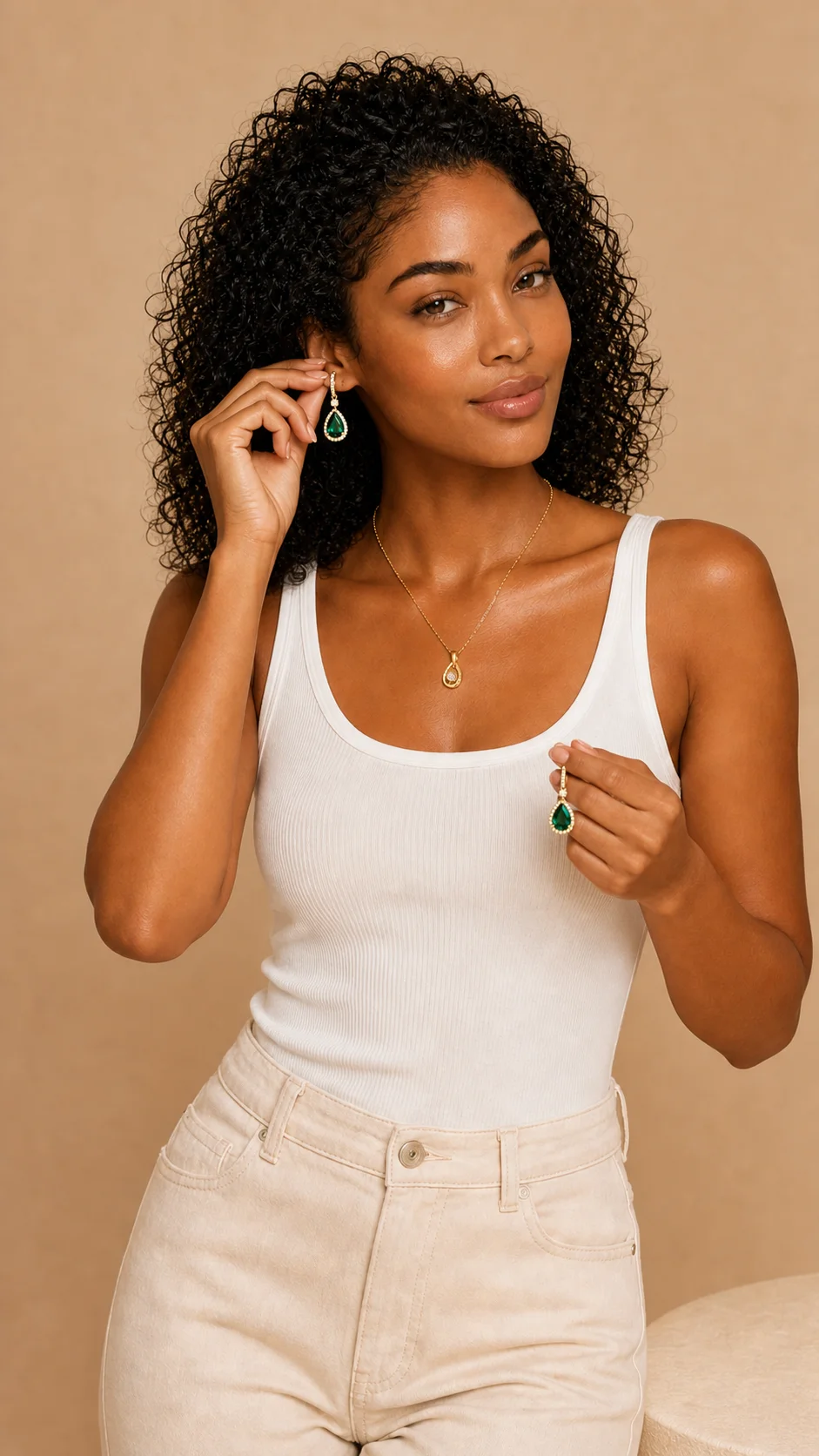
Real output generated with this app
Under the Hood
Want more control?
This app is powered by a fully editable AI-Flow workflow. Change the model, prompts, layout, resolution — or connect it to other steps.
Start Frame
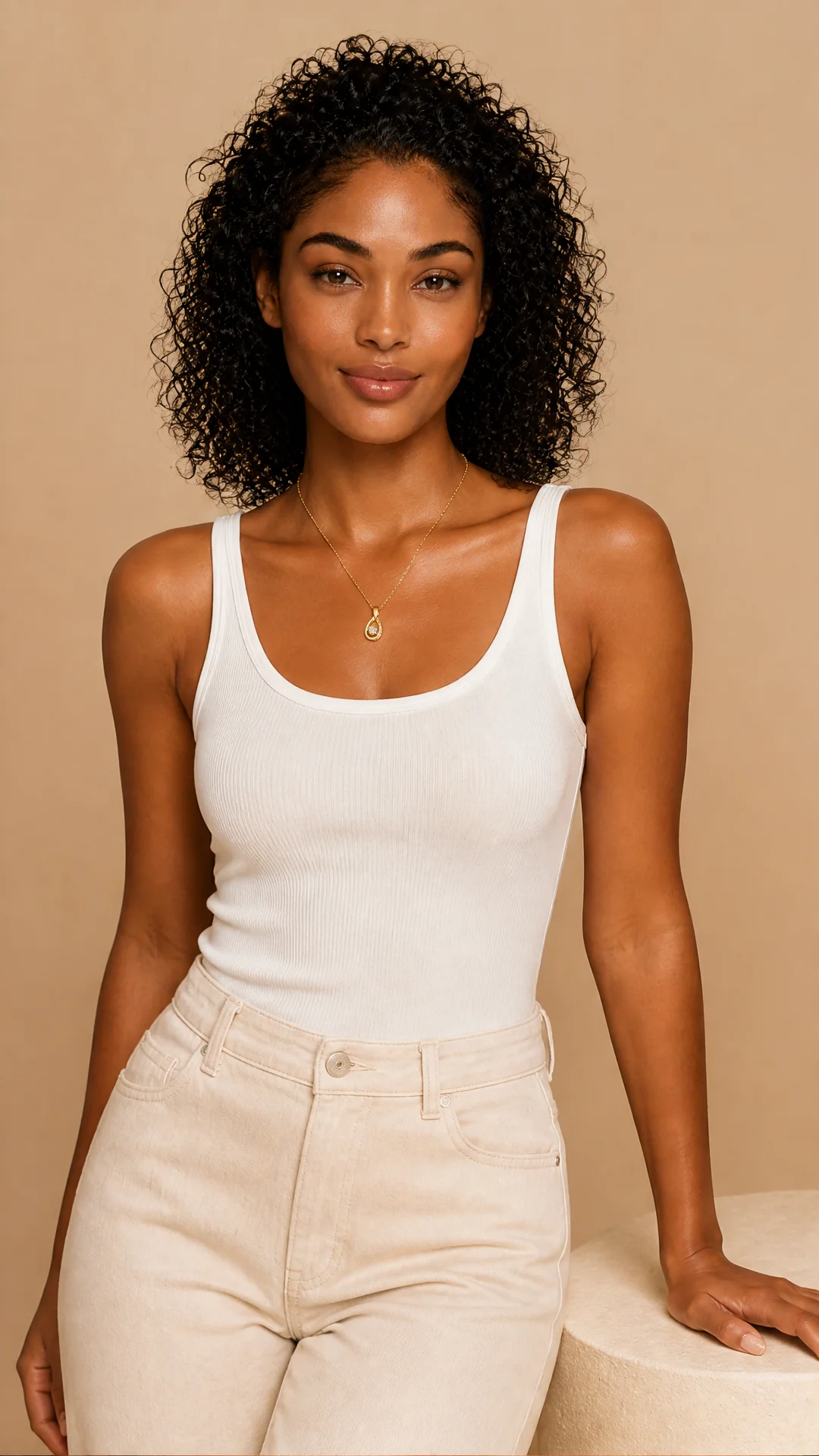
Optional References
System Prompt
You receive a description of what should happen in the next frame of a scene and optionally a list of reference images of new elements that appear. Expand it into a concise image generation prompt. Cover: - What the subject is doing or how they have moved -...
Image Prompting Guidelines
Key prompt-building principles: Build prompts like clear creative briefs, not keyword lists. Start with a strong action verb that tells the model what to do, then specify the subject, action, context, composition, style, lighting, camera perspective, lens/f...
What Happens Next
She starts putting on her earrings. She has moved slightly to the right.
List – Merge List
Text
Image Prompting Guidelines : Key prompt-building principles: Build prompts like clear creative briefs, not keyword lists. Start with a strong action verb that tells the model what to do, then specify the subject, action, context, composition, style, lightin...
GPT
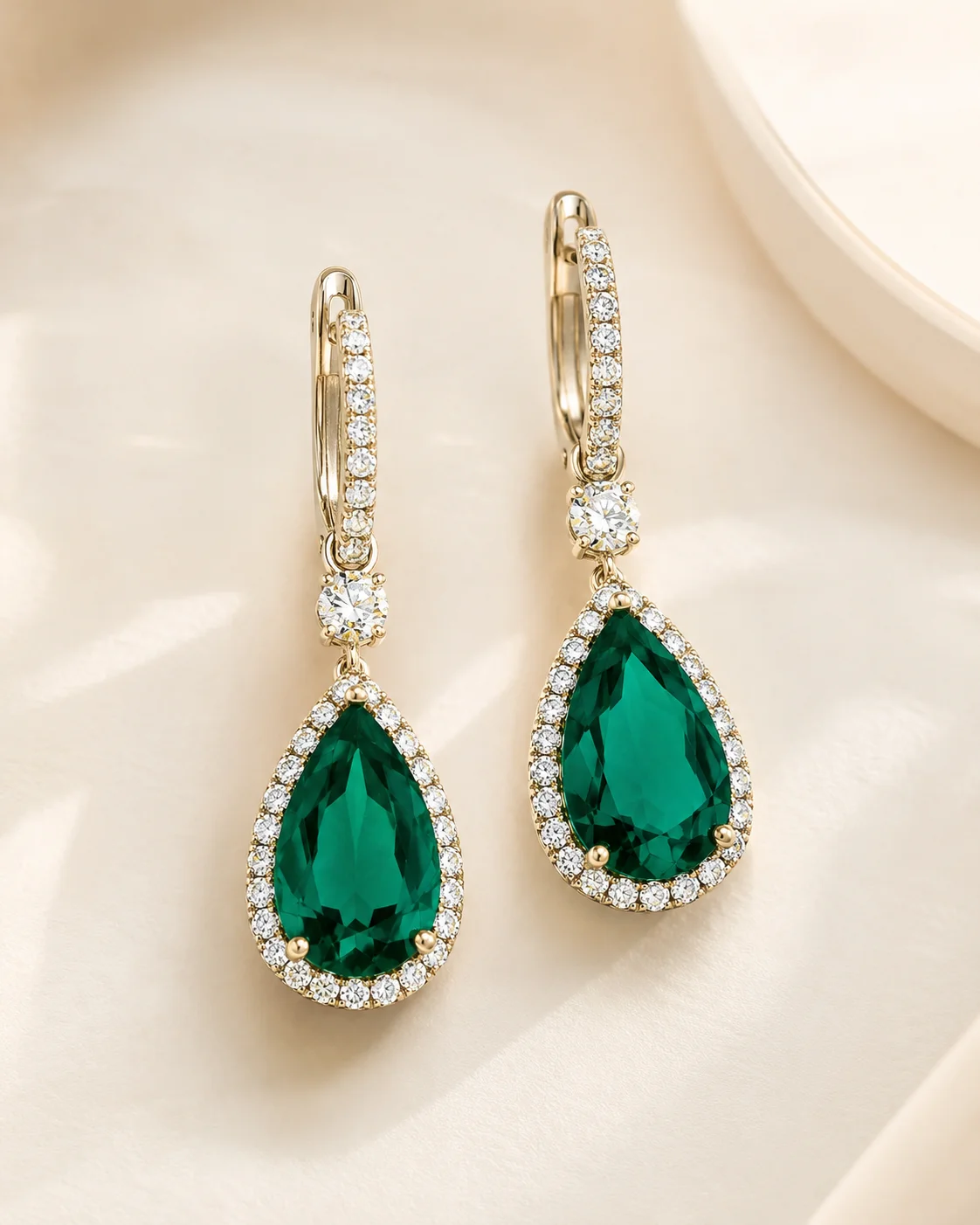
Create the next frame as a warm studio portrait: the same woman in the white ribbed tank top, cream high-waisted jeans, gold pendant necklace, curly black hair, and soft beige backdrop has shifted slightly to the right of the frame. She is beginning to put ...
GPT Image – Edit
How to Use This Template
Step 1: Enter your text in 'What Happens Next' Node
Fill the 'What Happens Next' node with the required text.
She starts putting on her earrings. She has moved slightly to the right.
Step 2: Enter your text in 'Image Prompting Guidelines' Node
Fill the 'Image Prompting Guidelines' node with the required text.
Key prompt-building principles: Build prompts like clear creative briefs, not keyword lists. Start with a strong action verb that tells the model what to do, then specify the subject, action, context, composition, style, lighting, camera perspective, lens/focus, color treatment, materials, and any exact text that must appear. Use positive framing by describing what should be present rather than what should be avoided. When using reference images, explain the relationship between each reference and the desired output. For edits, clearly state what should change and what must remain unchanged. For text rendering, put exact words in quotes and specify typography, font style, language, and layout. Iterate conversationally, refining one or two elements at a time until the result matches the intent.
Step 3: Enter your text in 'System Prompt' Node
Fill the 'System Prompt' node with the required text.
You receive a description of what should happen in the next frame of a scene and optionally a list of reference images of new elements that appear.
Expand it into a concise image generation prompt. Cover:
  - What the subject is doing or how they have moved
  - Any change in expression, pose, or position
 - Each new element from the reference images — describe it briefly and how it appears or interacts in the scene
  - What stays the same (lighting, setting, style)


Output the prompt only.
Step 4: Upload your file
In the 'Start Frame' node, upload the file you want to process.
Step 5: Upload your files
In the 'Optional References' node, upload the files you want to use in the workflow.
Step 6: Run the Flow
Click the 'Run' button to execute the flow and get the final output.
Customize the underlying workflow
Open the full workflow in the AI-Flow editor to swap models, rewrite prompts, or connect it to other steps.
Who is this for?
Perfect for professionals and creators looking to streamline their workflow
Storyboard artists and pre-visualization teams
Create shot-to-shot continuity for pitches, animatics, and scene planning without rebuilding every frame from scratch.
Comics and sequential art creators
Advance panels with consistent characters, angles, and lighting while changing pose, expression, and action incrementally.
Fashion, product, and eCommerce teams
Produce consistent next-frame variants—new pose, added accessory, or product interaction—while preserving studio style and lighting.
Marketing and social content creators
Spin up multi-frame stories, A/B variations, and tutorial steps that look like one cohesive shoot.
UX writers, product designers, and educators
Illustrate stepwise flows, onboarding screens, or hardware setups with stable visual context while introducing new elements.
Indie filmmakers and motion designers
Explore blocking, continuity, and look development for scenes and transitions before committing to full production.
Ready to create?
Start using this app
No workflow setup required — open the app and start creating in minutes
You Might Also Like
Explore other powerful templates to enhance your AI workflow
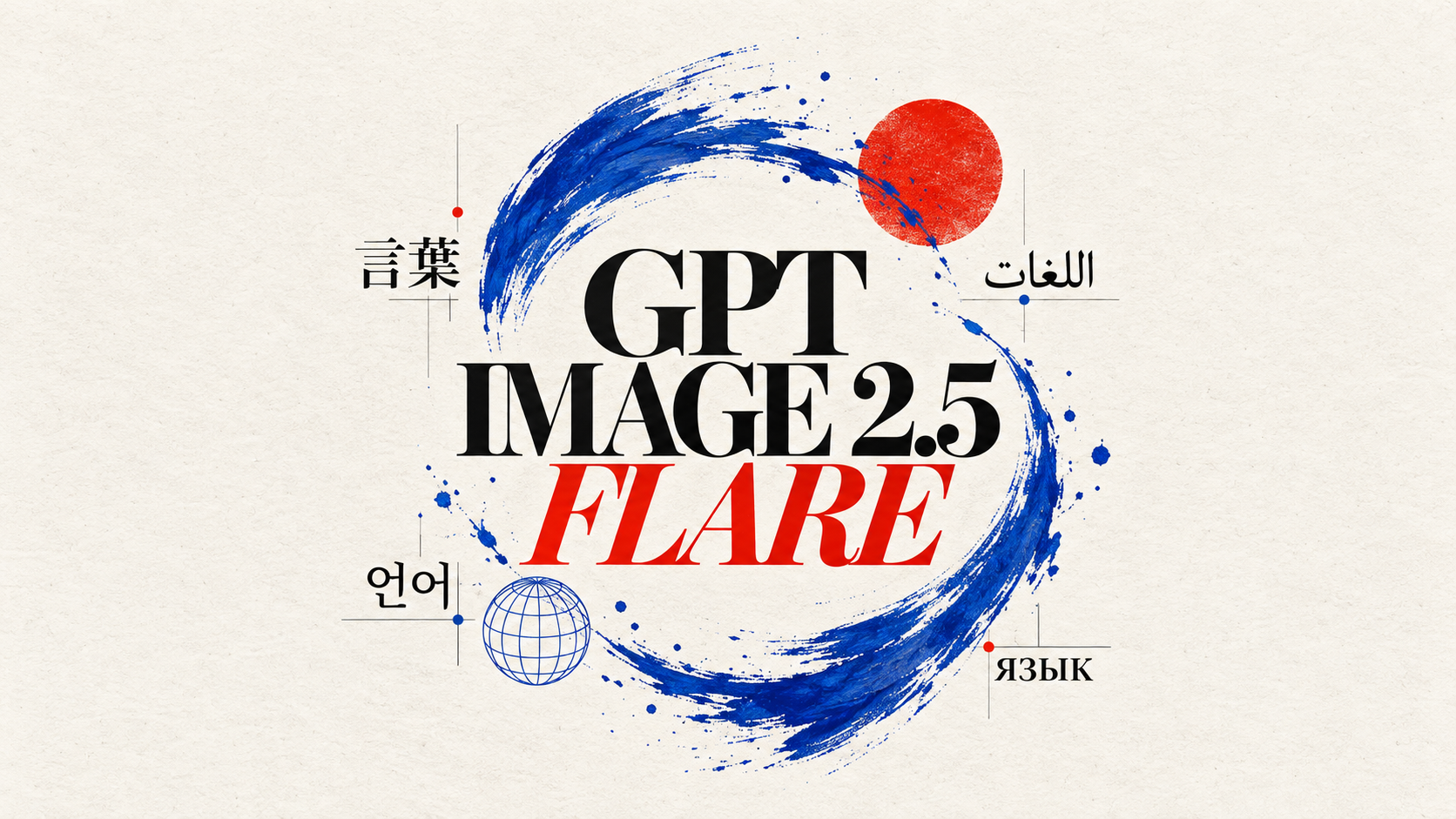
GPT Image 2.5 Flare
Generate high-fidelity images with GPT Image 2.5 Flare, optimized for real typography, multilingual scripts, structured layouts, and print-ready formats up to 4K—ideal for editorial posters, comics, marketing assets, UI comps, and social graphics.
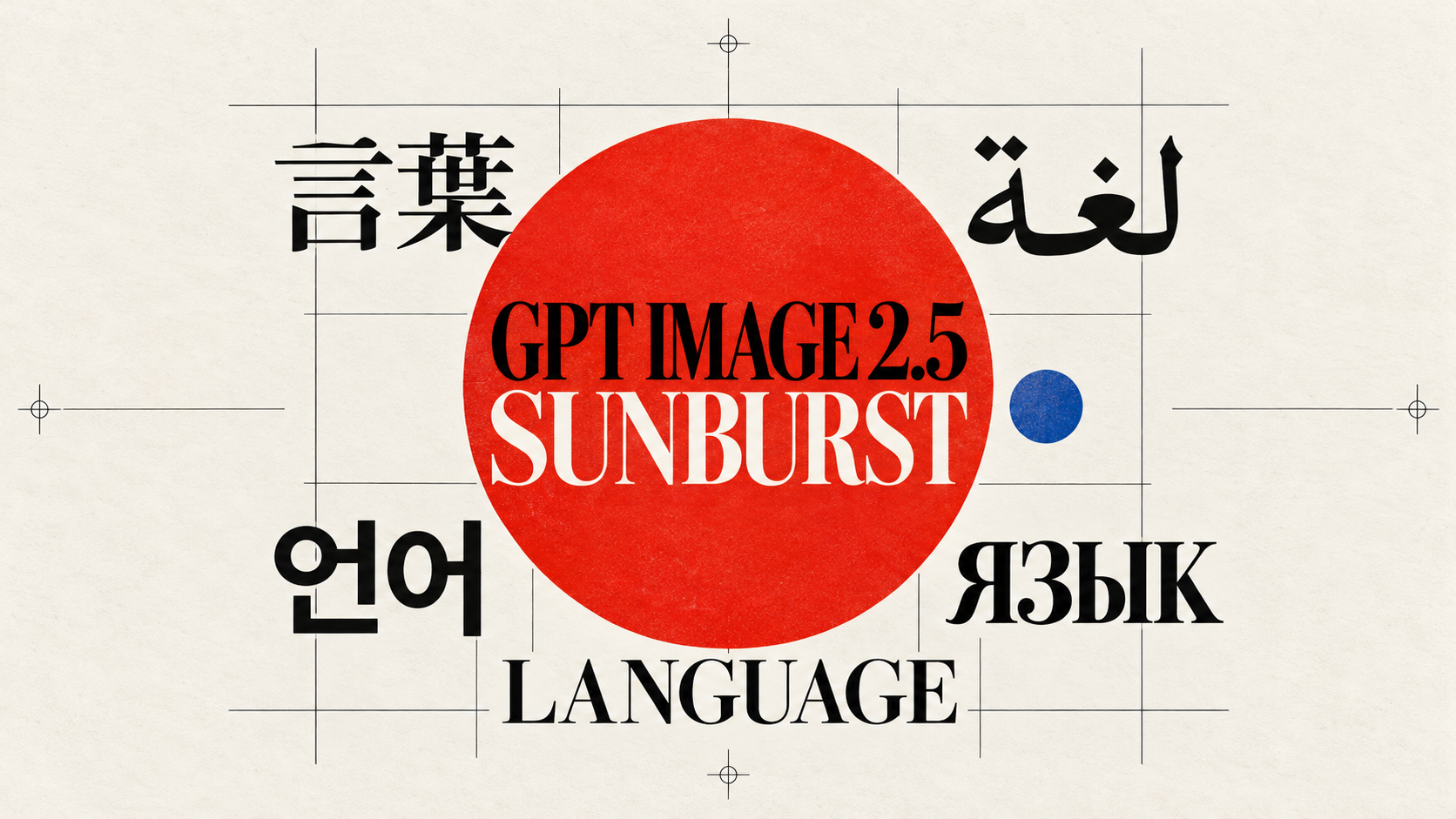
GPT Image 2.5 Sunburst
Generate high-fidelity images with GPT Image 2.5 Sunburst, optimized for real typography, multilingual scripts, structured layouts, and print-ready formats up to 4K—ideal for editorial posters, comics, marketing assets, UI comps, and social graphics.
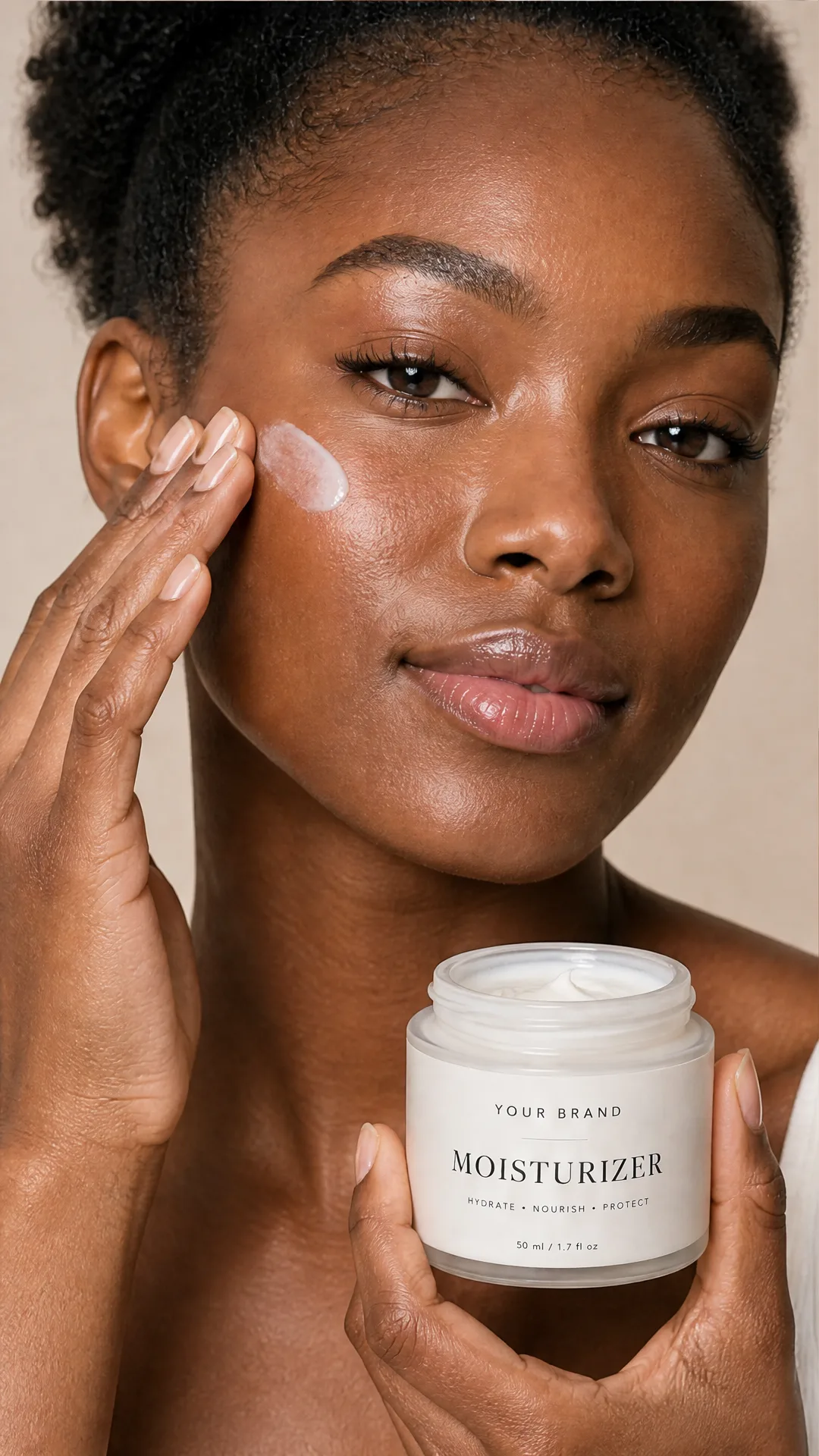
AI Skincare Product Photo Generator
Turn one cream, serum, or cosmetic jar image into a full skincare photoshoot: a 2x2 grid plus four cropped shots (wide, medium, close-up, creative), on-model or product-only, for beauty ecommerce, marketplaces, and ads.
AI Sunscreen Product Photo Generator
Turn one sunscreen tube or bottle image into a full suncare photoshoot: a 2x2 grid plus four cropped shots (wide, medium, close-up, creative), on-model or product-only, for beauty ecommerce, marketplaces, and ads.
AI T-Shirt Mockup Generator
Turn one t-shirt design image into on-model print-on-demand mockups: a 2x2 photoshoot grid plus four cropped shots (wide, medium, close-up on the print, creative), for Etsy, Shopify, and POD storefronts.
AI Sneaker Product Photo Generator
Generate sneaker product photos from a single shoe image: a 2x2 photoshoot grid plus four cropped shots (wide, medium, close-up, creative), in on-foot or product-only mode, for ecommerce listings, marketplaces, and ads.
Frequently Asked Questions
What does Next Frame Generator do?
It takes a starting image and a short description of what happens next, then edits the original to produce a new frame that preserves the scene’s lighting, style, and composition while applying your requested change.
How does it maintain scene continuity?
An LLM structures your note into a focused prompt that locks what must remain the same (lighting, setting, style, camera) and changes only the requested elements (action, pose, position, expression, or added objects). The image-to-image model then applies those edits to the original frame.
Can I add reference images for new elements?
Yes. Provide optional reference images (e.g., props, accessories, UI screens). The system briefly describes each reference and how it appears or interacts in the scene to keep results faithful.
Do I need a mask?
No. The template is designed for prompt-guided edits without a mask. If you need strict control, you can supply a mask so only selected regions are changed while others remain untouched.
Does it work with multiple frames in sequence?
Yes. Generate a frame, then feed that output back as the next start frame. Iterating this loop builds storyboards, product step-throughs, or social carousels with stable continuity.
What models does it use?
It uses an LLM to craft a concise, edit-safe prompt and an image-to-image model (in edit mode) to render the next frame, prioritizing consistency over from-scratch generation.
What inputs are required?
You need a start frame and a brief description of what happens next. Reference images are optional but recommended for new or specific elements (like accessories, props, or UI).
What’s the output format?
A single edited image URL suitable for previews, boards, and downstream pipelines. Resolutions can be set automatically to match the source or chosen from presets depending on the model.
Tips for best results?
Describe only the delta from the last frame, keep verbs strong (e.g., “raises hand to ear”), specify pose or position shifts, lock what must remain unchanged, and attach references for any new object or wardrobe detail.
Can it generate a frame from text only?
This template focuses on edits for continuity and requires a starting image. For text-only creation, use a text-to-image generation template first, then continue the sequence here.
What is AI-FLOW and how can it help me?
AI-FLOW is an all-in-one AI platform that allows you to build, integrate, and automate AI-powered workflows using an intuitive drag-and-drop interface. Whether you're a beginner or an expert, you can leverage multiple AI models to create innovative solutions without any coding required.
Is there a free trial available?
Yes, AI-FLOW offers a free trial to get you started. After that, you can purchase credits as needed—no subscription or long-term commitment required.
Can I integrate my API keys from providers like OpenAI and Replicate with AI-FLOW Cloud Version ?
Yes, you can easily integrate your existing API keys with AI-FLOW. If specified, nodes related to the API key provided will use your API key, significantly reducing your platform credit usage.